Workflows
Set up workflows with a trigger, criteria and an email action to automate business processes.
Goal
A workflow automatically reacts to an event in planni, for example a new order, and then runs an action, such as sending an email to the right person.
Prerequisites
- Access to Automation → Workflows.
- For the "Email" action, an email template you already created, or you can create one directly from the editor when needed.
Steps
Creating a workflow
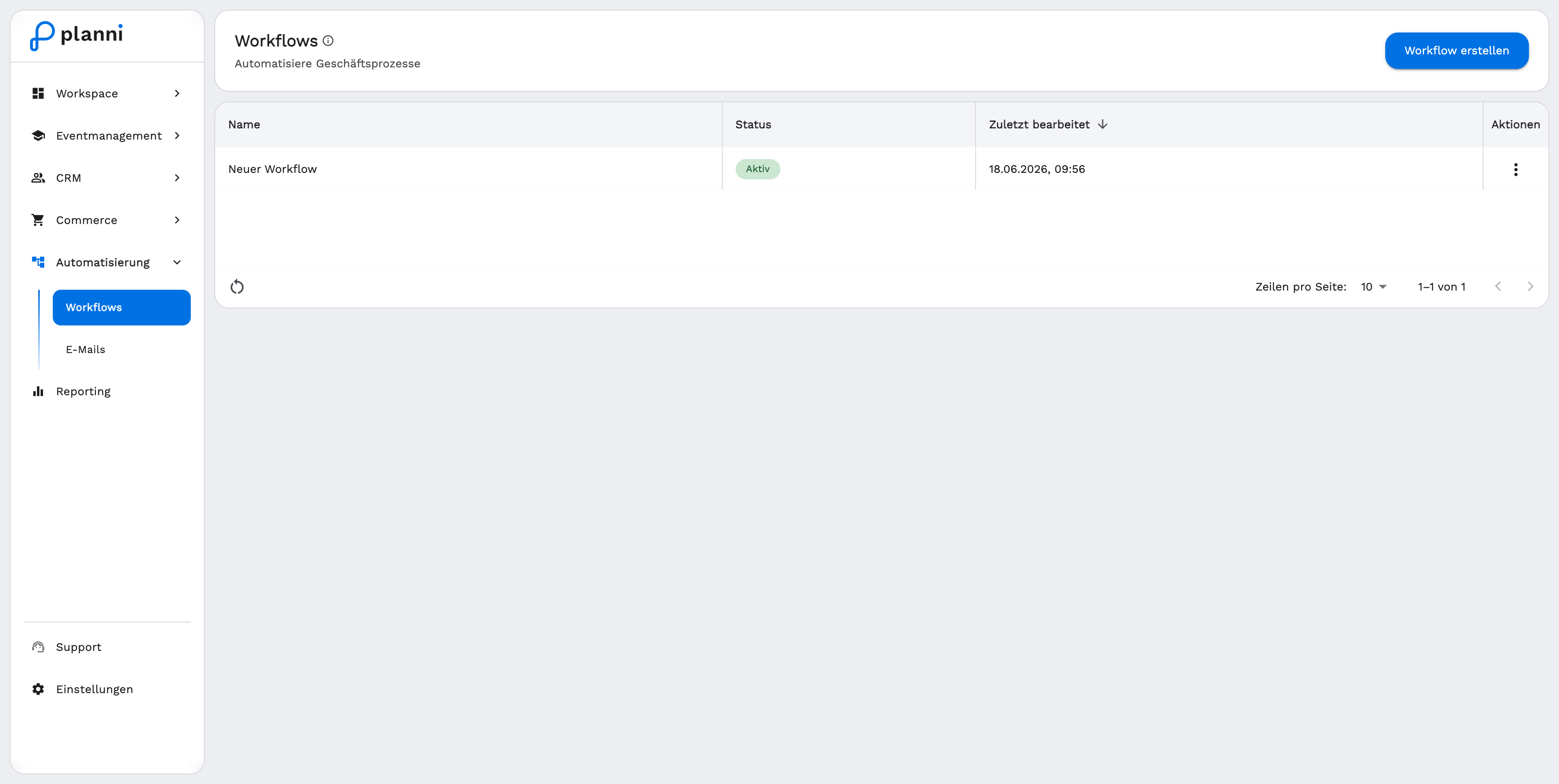
Open Automation → Workflows and click Create Workflow. planni opens the editor with an empty Trigger card. Use the pencil next to the name at the top to rename the workflow.
Configuring the trigger
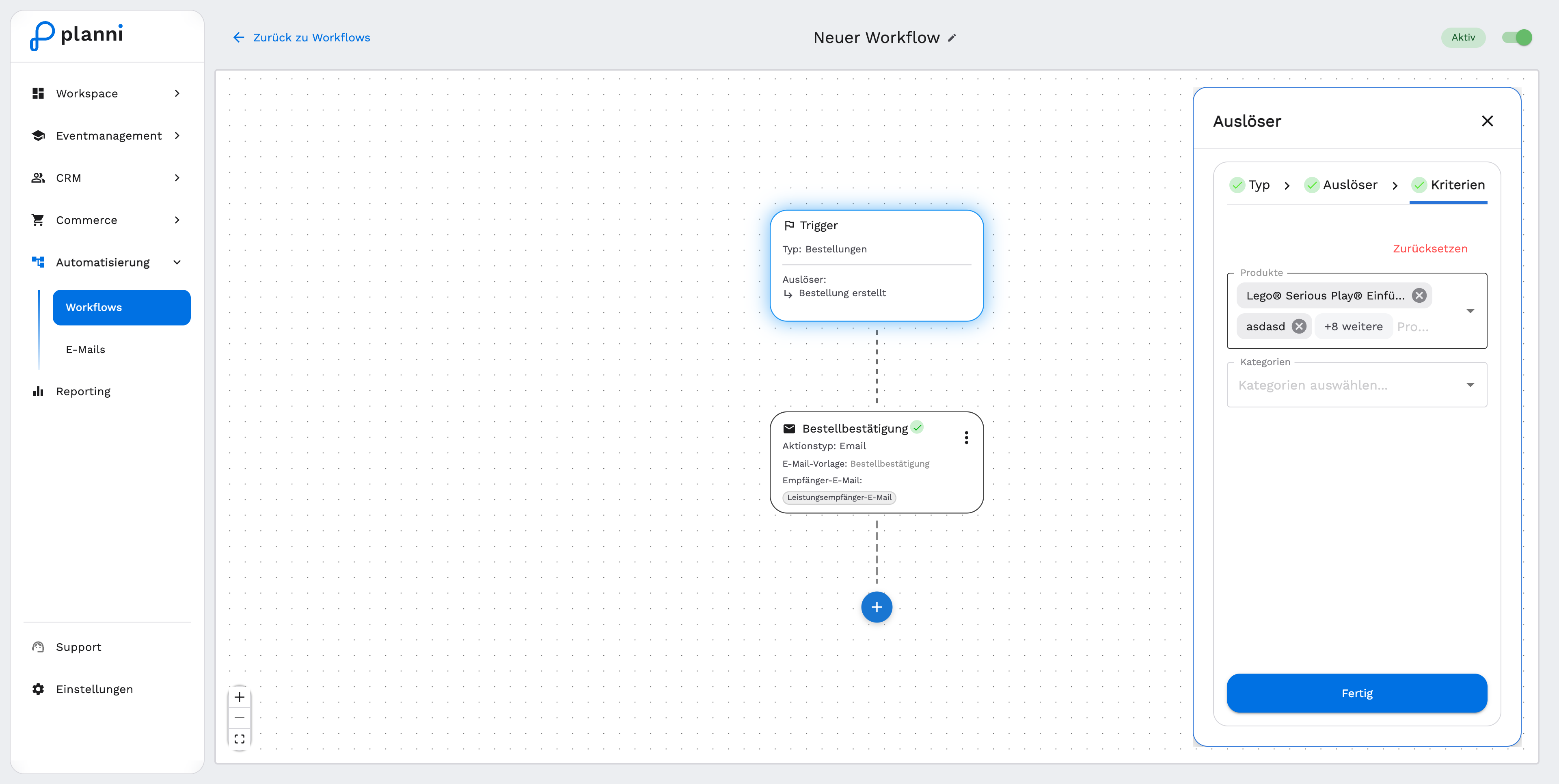
Click the trigger card to open the Trigger panel. It guides you through three steps:
Type: Choose whether the workflow should react to an order or an event, Order Based or Event Based.
Trigger: Choose the specific event. For "Order Based" you can pick Order Created, Order Updated, Order Paid, Order Canceled and Order Refunded. For "Event Based" you can pick Attendee Registered, Attendee Rebooked, Attendee Cancelled, Trainer Assigned and Trainer Removed.
Criteria: Optionally restrict the trigger to specific products or categories. This lets, for example, only one particular product get its own order confirmation. Use Reset to remove the restriction again.
Close the panel with Done.
Adding an action
Click the "+" below the trigger card to attach an action. Email is the available action type. On the action card you set:
- Email Template: the template to send.
- Recipient Email: who the email goes to, for example the beneficiary's email. Choosing a variable that differs per person, such as the beneficiary's email for an event with several attendees, makes planni send a separate email to each affected person.
Activating the workflow
Toggle the Active switch at the top right of the editor. Only then does the workflow actually react to new events.
Result
Once the chosen event occurs and, if set, the criteria match, planni automatically sends the linked email template to the recipient you configured, without anyone having to step in manually.
Pitfalls
A workflow without the "Active" switch turned on has no effect, even if the trigger and action are fully configured.
Every product should get its own order confirmation
Create a separate workflow for each product with the "Order Created" trigger, and restrict it in the Criteria step to exactly that product.
The email goes to the wrong person
Check the Recipient Email on the action card. When there are several possible recipients, for example the orderer and the beneficiary, the variable you chose decides who actually receives the email.