Understanding an order
How the detail view is built and what it shows.
Before you start
Where to find an order
Open Commerce → Bestellungen (Orders) and click a row, or search by name, e-mail, company or order number. More on the list under Orders.
Header: status at a glance
Order status, payment status and printing
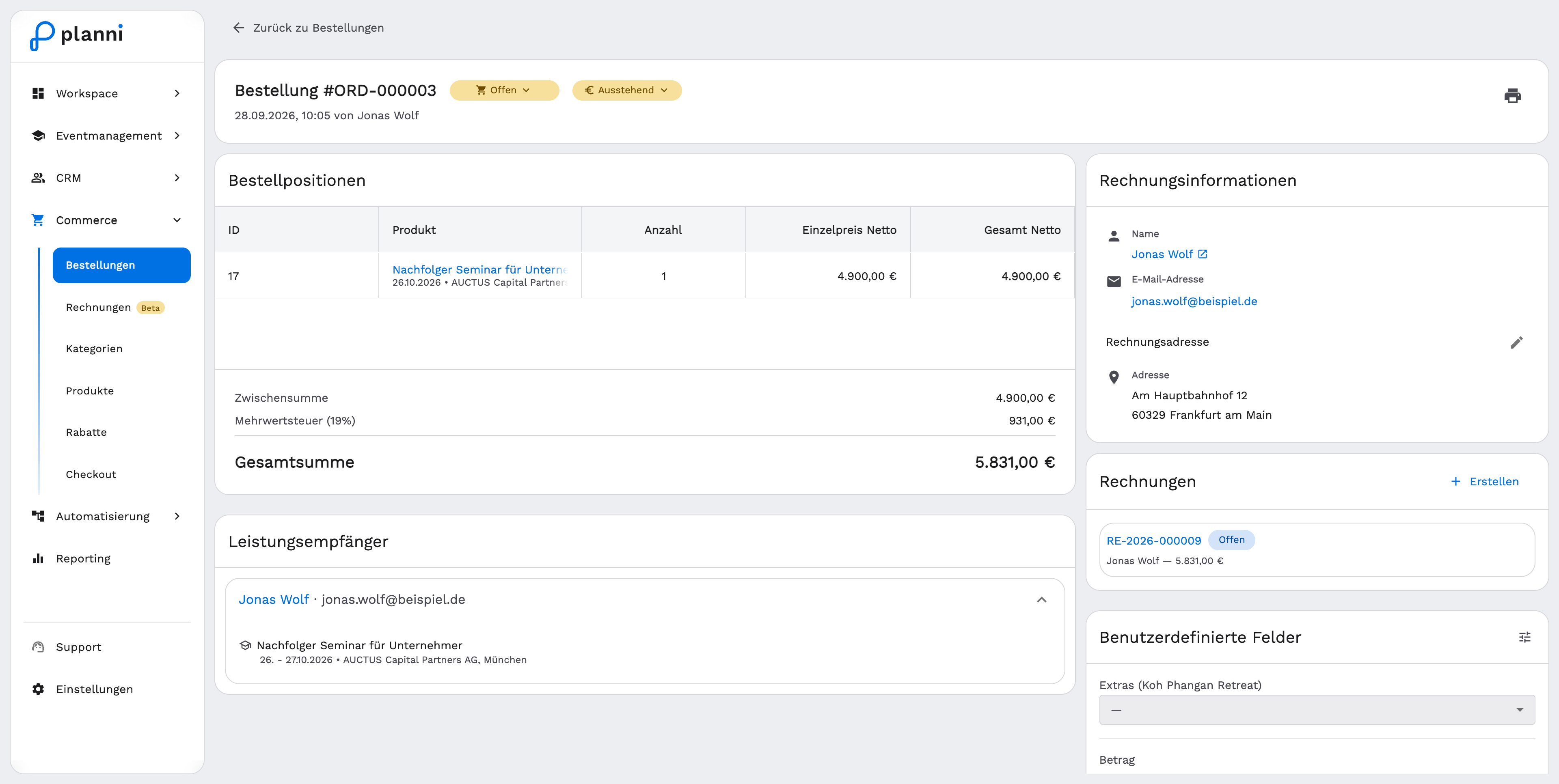
At the top of the detail view is the order number, next to two independent statuses as a dropdown menu (chip):
| Status | Values |
|---|---|
| Order status | Offen (Open), Bestätigt (Confirmed), Storniert (Canceled) |
| Payment status | Ausstehend (Pending), Bezahlt (Paid), Erstattet (Refunded) |
The printer icon at the top right opens the browser's print view of the current detail view, for example to file or forward an order.
Both statuses are independent of each other. Canceling an order does not automatically change the payment status, and the other way round. More on this under Cancel an order.
Order lines
What the table shows
Each row is a purchased product: an ID, product name (with its date and location underneath for events), quantity, net unit price and net total for the line. At the bottom of the table are the subtotal (net), VAT and the total, the amount the customer actually pays.
Recipient
Who is listed there
Below that, planni lists the recipients, grouped by person: which product this person booked, with a link to the contact and the further information asked for at checkout.
Billing information
Where this data comes from
On the right you see the orderer's name and e-mail address, as well as the billing address with company, street, postal code/city and country. The pencil icon next to it lets you correct the billing address directly.
This information is a snapshot from the time of the order, not a live link to the contact. If the address in the contact changes later, this order stays unchanged. That is intentional: an order, once created, must not change retroactively.
If you still want to update the address stored here, do it directly through the edit pencil. That only happens when you trigger it, never automatically.
Invoices
Invoices for this order
Below that, you see the invoices already created for this order, with number (e.g. RE-2026-000008) and status (Offen (Open), Überfällig (Overdue), Entwurf (Draft), ...). Use + Erstellen (Create) to create a new invoice right away, with recipient, line items and prices taken from the order. planni then opens the invoice editor, where you can still adjust the details. More on this under Invoices.
Other areas in the detail view
Additional fields
If additional fields have been set up for orders, they appear in their own section and can be edited directly there.
Pitfalls
The contact's address changed, but the order still shows the old one
That is not a bug, see above. Correct the address on the order itself through the edit pencil if needed.
No billing information visible
Then there is no contact data recorded for this order, and planni shows a corresponding note in place of the fields.