Configure the checkout
Embed the cart widget, the event table and cart links on your website.
Before you start
What the Checkout area is, and isn't
The "Checkout" menu item is NOT the buying process your customers go through. It is the configuration of your sales channels: the widgets you embed on your website. How a single order is built is covered under Understanding an order.
The area has three tabs: Warenkorb (Cart), Termintabelle (Event table) and Warenkorblinks (Cart links).
What you need first
At least one active product. How to create one is covered under Products and categories.
The recommended order
Embed the cart widget on your website once first, then one event table per product or seminar page. An event table also works without the cart widget on the page, but it then automatically opens its own checkout instead of adding to the cart, see below.
Cart
What the widget is
The cart widget is a floating icon you embed once on your website. Customers collect products from several event tables or cart links in it and complete the purchase together.
Set up the widget
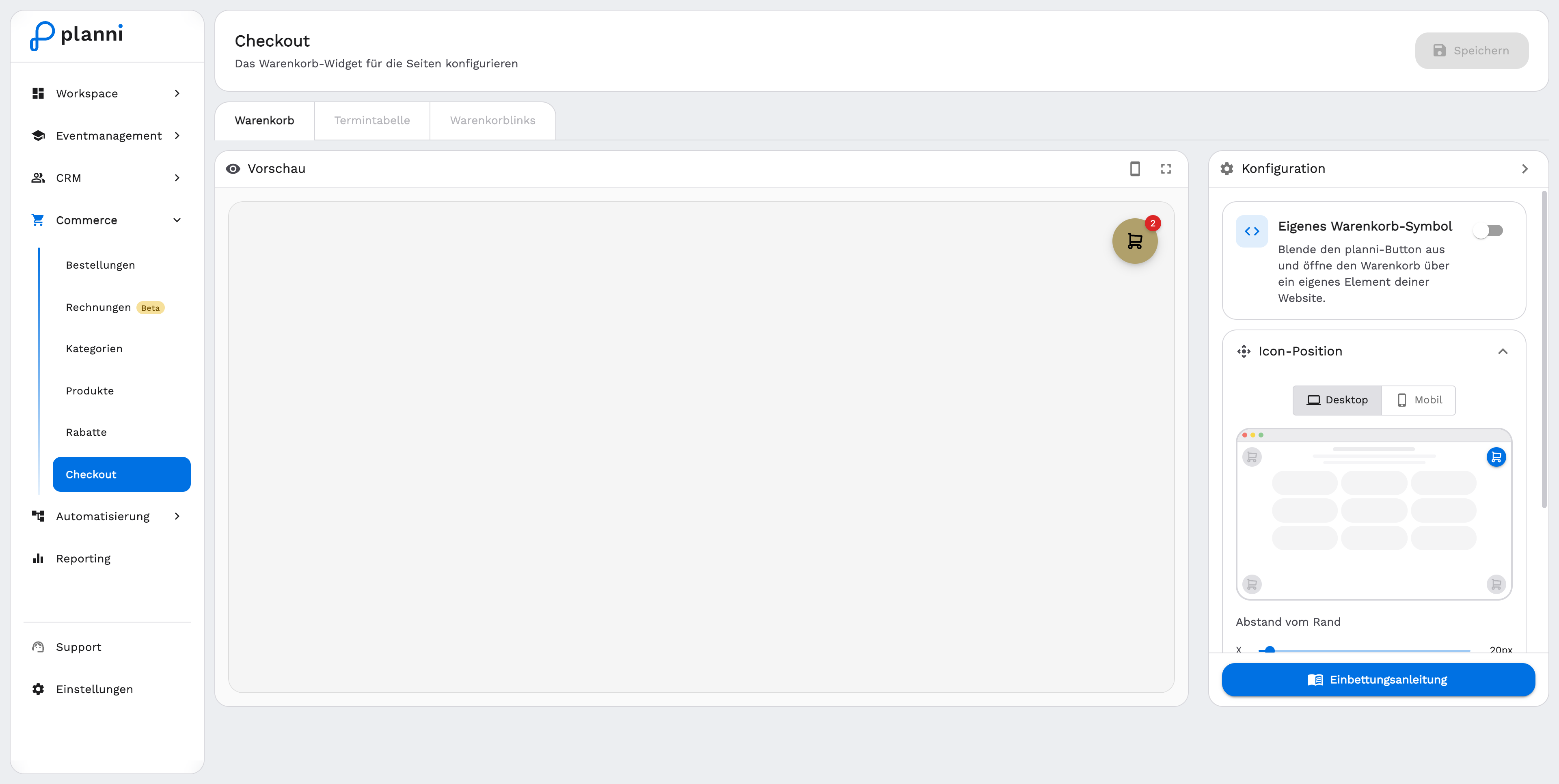
Open the Warenkorb tab. On the left you see the live preview, on the right the configuration.
Eigenes Warenkorb-Symbol (Custom cart icon). By default planni shows a floating icon. Turn this on to hide it and open the cart through your own element on your website instead.
Icon-Position (Icon position). Set the position separately for desktop and mobile, with the offset from the edge (X/Y) and the Beim Scrollen mitbewegen (Follow on scroll) option.
Darstellung and Danke-Seite (Appearance and thank-you page). Adjust the icon and colors, and optionally set a custom title, message or redirect URL for after the purchase under Danke-Seite.
Save at the top right.
Open the embed guide. It walks through: copy the code, paste it before the closing </body> tag, check the widget, check the design. Use An Entwickler senden (Send to developer) to e-mail the guide straight to your developer.
Event table
What the widget shows
An event table is a widget that shows your published dates as a table and lets visitors book directly. You create as many as you like, usually one per product or seminar page.
Create an event table
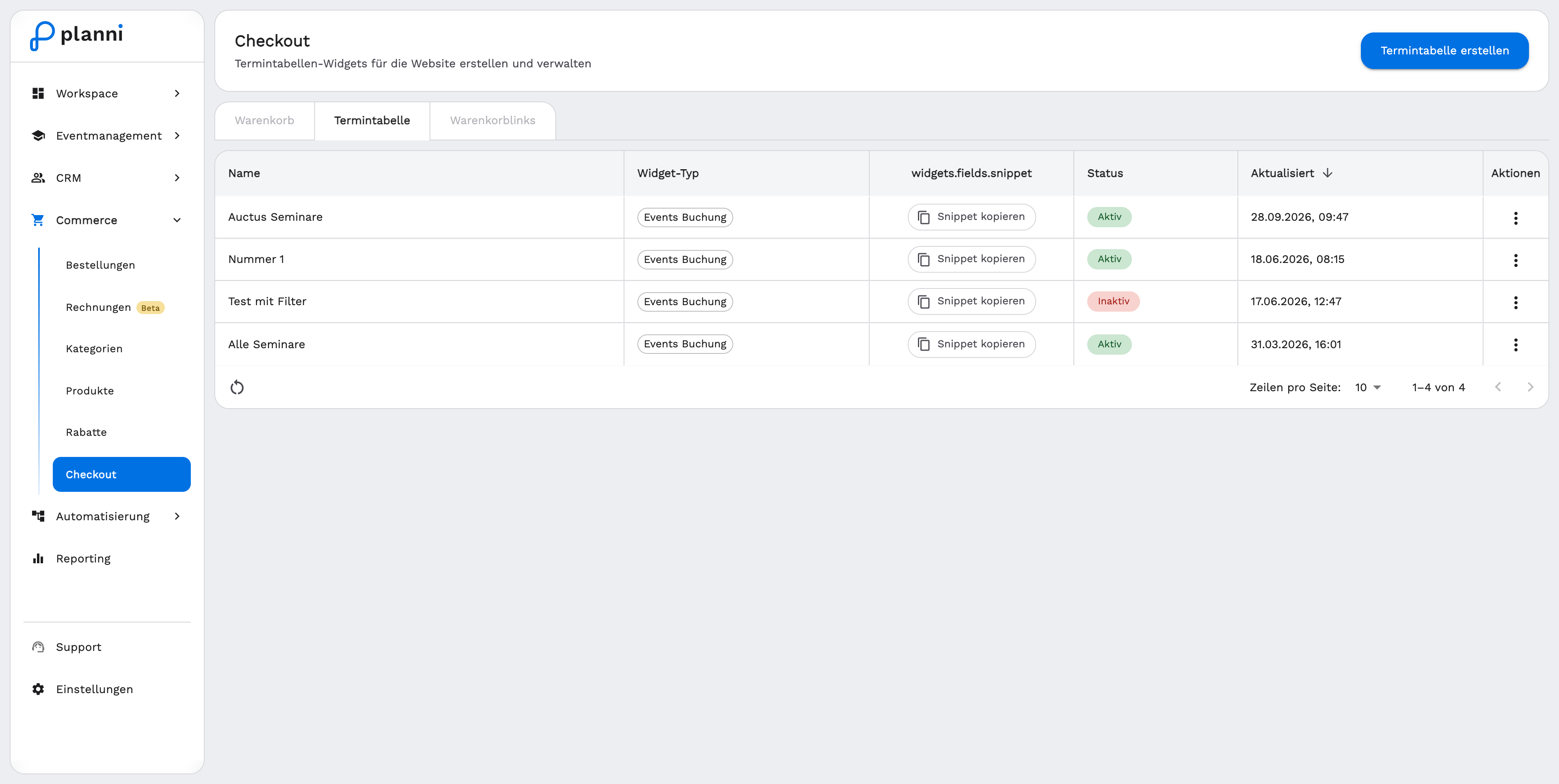
Open the Termintabelle tab and click Termintabelle erstellen (Create event table). Give it a name at the top right.
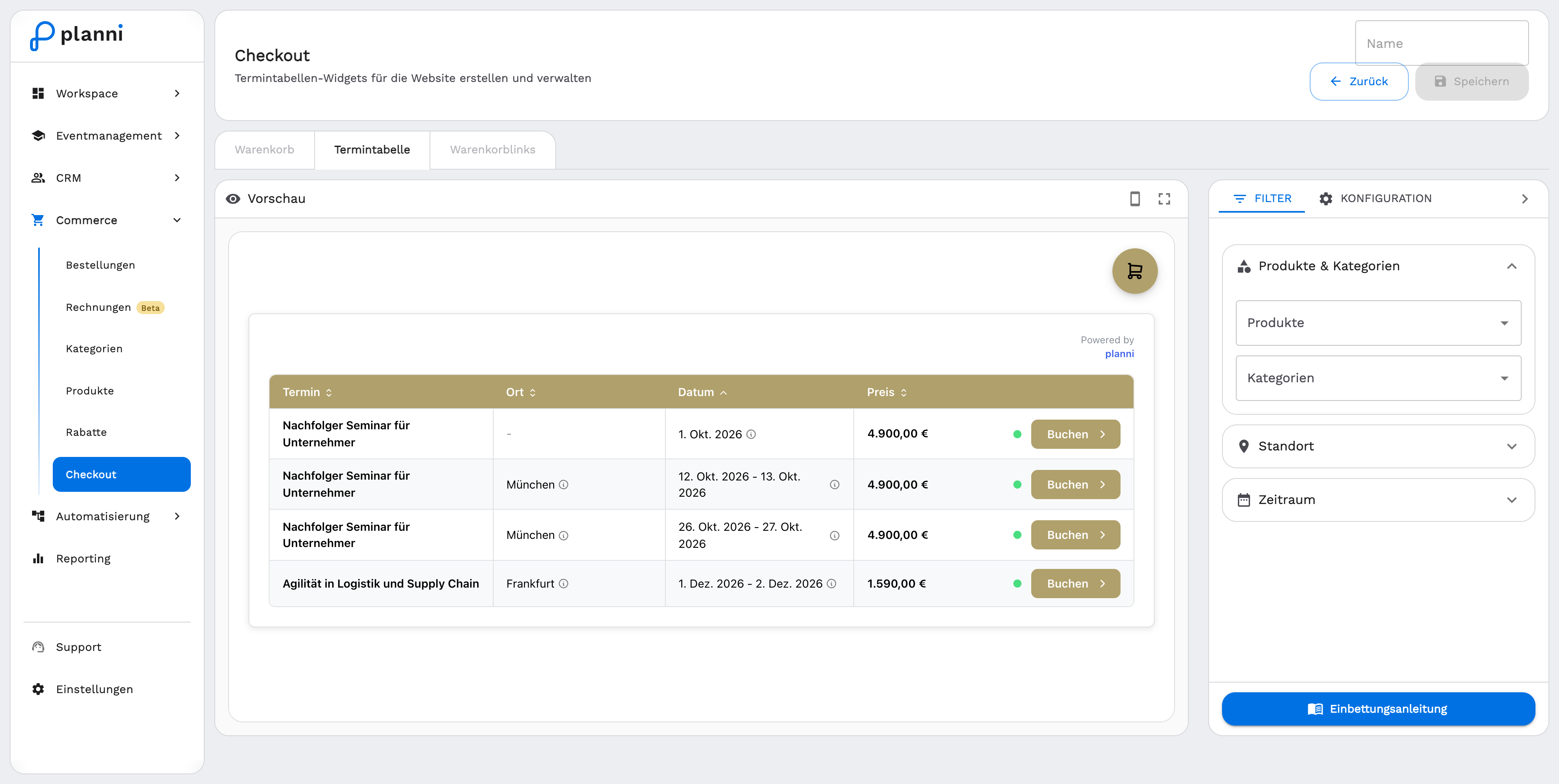
Narrow the selection under the FILTER tab. By products and categories, by location and by date range, so only matching dates appear.
Adjust the appearance under the KONFIGURATION tab: primary color, language, whether the checkout opens fullscreen, the table columns and rows (events per page, text for the book and sold-out buttons), the availability indicator, and the thank-you page with redirect URL and delay.
The Warenkorb verwenden (Use cart) toggle decides what happens on a Book click: if it's on, the date is added to the cart widget so customers can keep shopping. If no cart widget is embedded on the page, planni automatically opens its own internal checkout instead of the cart.
Save and open the embed guide. It walks through: cart widget embedded (if you want one), copy the code, check the table, test the cart. There's also an An Entwickler senden (Send to developer) option here.
Cart links
What cart links are
Cart links are preconfigured URLs that add a product to the cart automatically, or take the visitor straight to checkout. They let you share a specific offer without the customer having to search for it.
Ready-made links per product
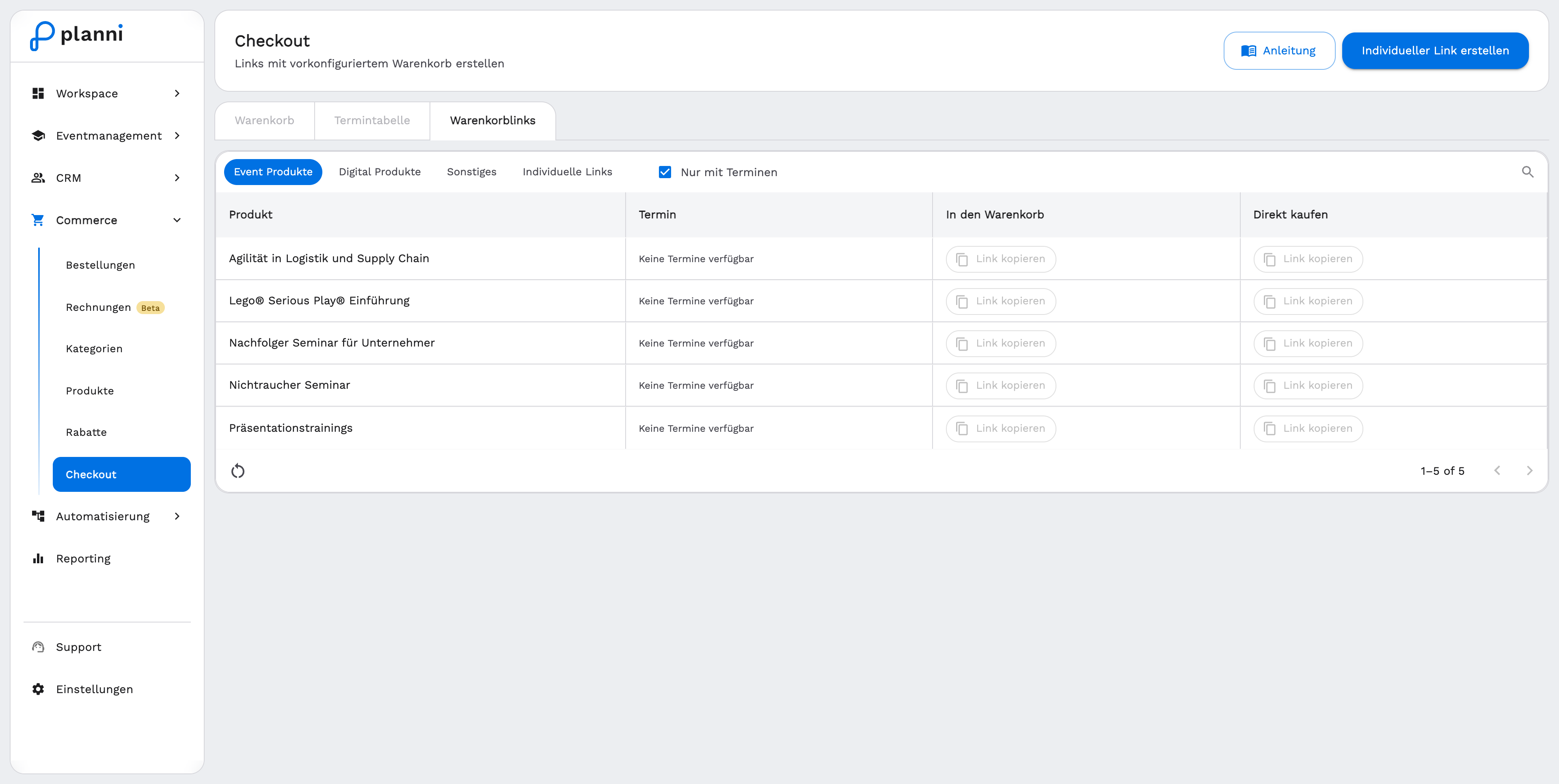
The Warenkorblinks tab shows your products, sorted into sub-tabs Event Produkte, Digital Produkte and Sonstiges. For each product (for event products, for each date) you copy a link for In den Warenkorb (Add to cart) or Direkt kaufen (Buy now). The Nur mit Terminen (Only with dates) checkbox hides event products with no bookable date.
Create an individual link
In the Individuelle Links (Individual links) sub-tab you combine several products into a single link.
Click Individueller Link erstellen (Create individual link) and give it a name.
Choose the products, including a date for event products.
Set the behavior: add to cart, or go straight to checkout.
Save the link and copy it using the button in the table.
The Anleitung (Instructions) button at the top right opens an embedding help for cart links.
Pitfalls
The event table shows no dates
Check the filters: are they too narrow? Does at least one included product have a published, future event? Only published dates appear in the widget.
Clicking Book opens the checkout instead of the cart
Either Warenkorb verwenden (Use cart) is off for this event table, or the cart widget isn't embedded on this page. Add the cart snippet to the page, see above.