Orders
Find orders and change status and payment directly in the list.
Before you start
How an order is created
An order is created as soon as a customer buys something through your checkout. Every order lands in the list under Commerce → Orders.
The order list
What you see there
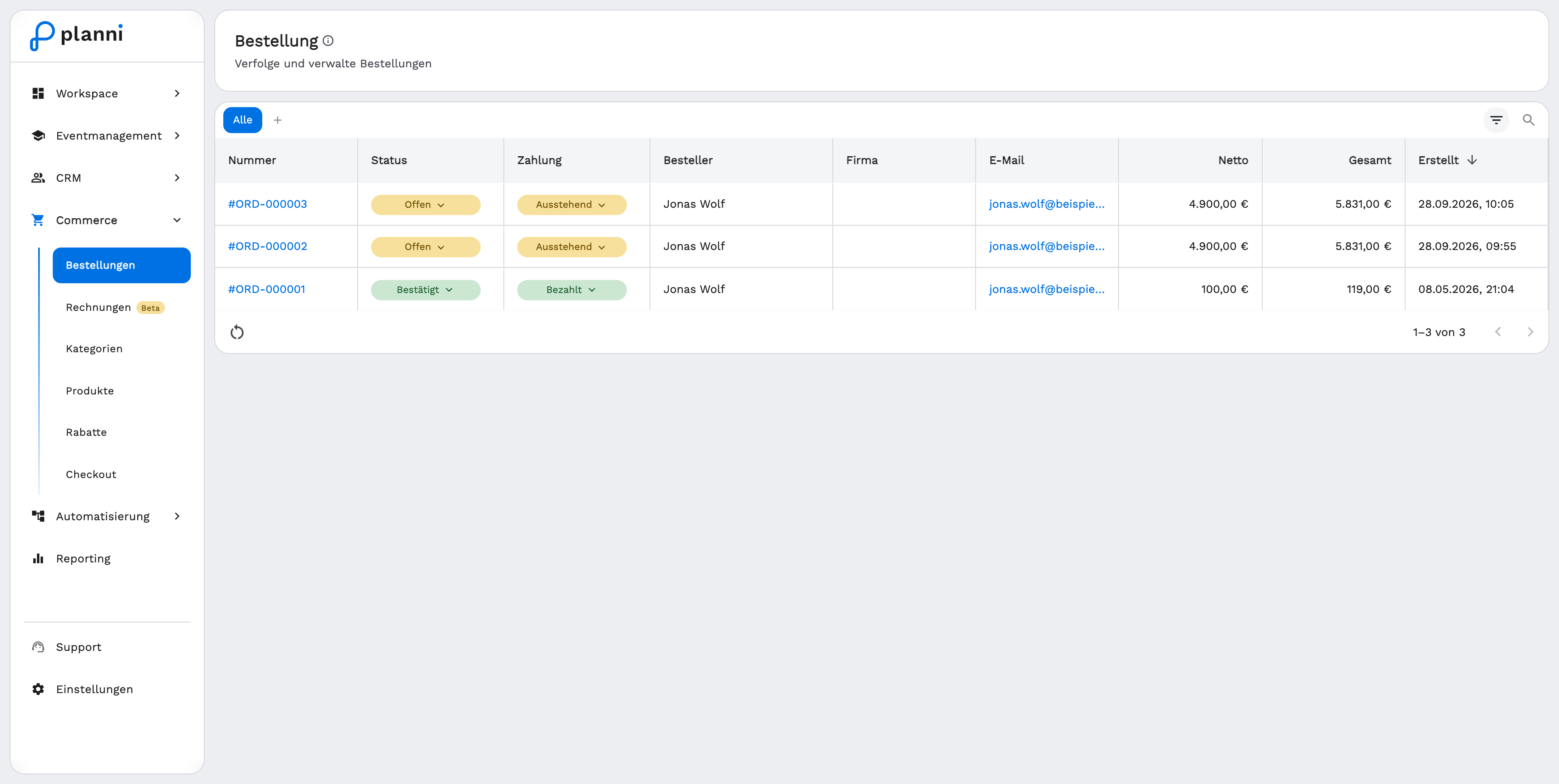
Views are shown as tabs at the top, and you can save your own view via the +. Next to it are the filter icon and a search over name, e-mail, company or order number.
The table shows: number (e.g. #ORD-000001, linked to the detail view), status, payment, orderer, company, e-mail, net amount, total and created date.
Changing status and payment directly
Click the status or payment chip of a row in the list, a small menu opens without having to open the order.
| Status | Values |
|---|---|
| Order status | Open, Confirmed, Canceled |
| Payment status | Pending, Paid, Refunded |
Both statuses are independent of each other. Canceling an order does not automatically change the payment status, and the other way around. More on this under Cancel an order.
Opening an order
Going to the detail view
Click a row to see the full order: line items, recipient, billing information and the linked invoices. More on this under Understanding an order.
If something doesn't work
An order is missing from the list
Check the active view tab and the applied filters, a filter set too narrow hides orders. Also use the search over name, e-mail, company or order number.