Products and categories
Maintain the offer that appears in the checkout, and organize it with categories.
Before you start
What a product is in planni
A product is the template for what you sell. It defines the name, the price and which details customers have to provide when they buy it. planni has three product types:
| Type | For |
|---|---|
| Event product | A bookable event with modules, capacity and scheduling. |
| Digital product | Courses, e-books or downloads. |
| Other product | Anything else, such as parking or catering. |
An event product is only the template. The actual dates are created only once you build an event from it.
What you need first
Nothing required, you can start right away. If you want to sort your offer into groups, create categories before or after.
The product list
What you see there
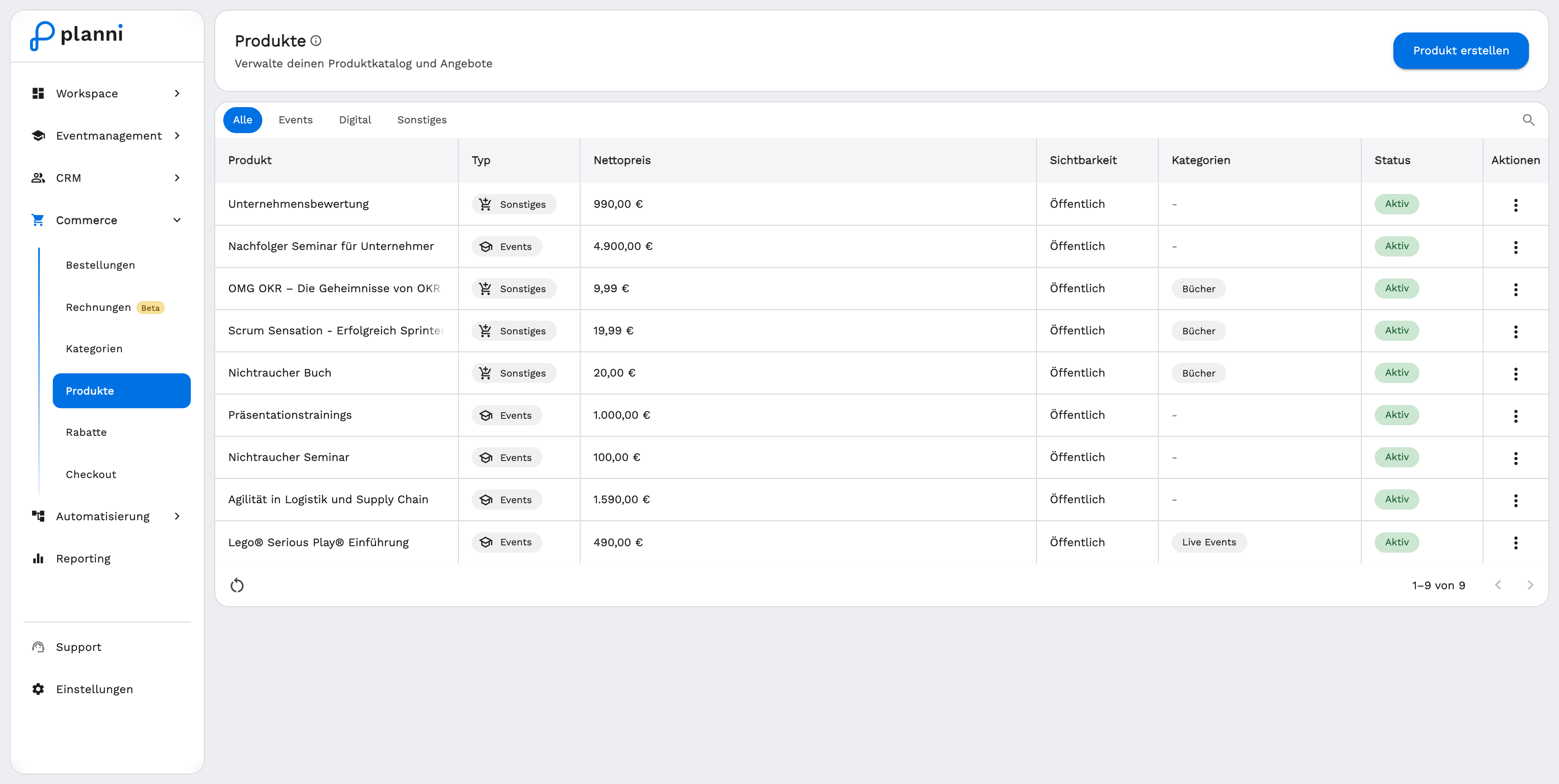
Under Commerce → Products you see every product, with tabs All, Events, Digital and Other. The table shows product, type, net price, visibility, assigned categories and status. Use the search to find a product quickly.
Creating a product
Choosing the product type
Click Create Product at the top right and pick one of the three types. The steps differ from here on, depending on what you create.
Event product: step by step
An event product has five steps.
Type. Choose "Event product".
Info.
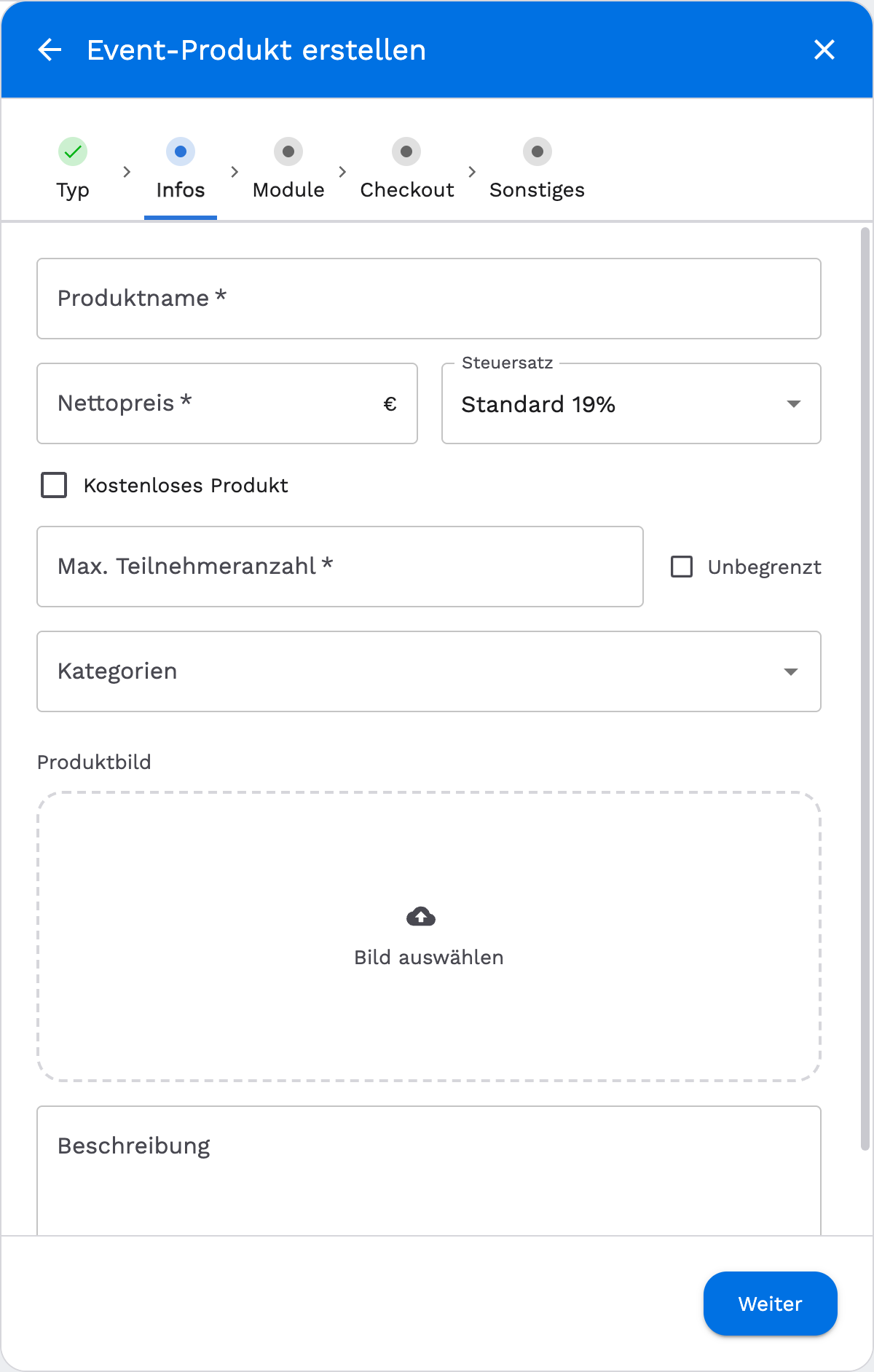
Product name, net price and tax rate (or the Free Product checkbox, which removes price and tax rate), maximum number of attendees or Unlimited, categories, product image and description.
Modules.
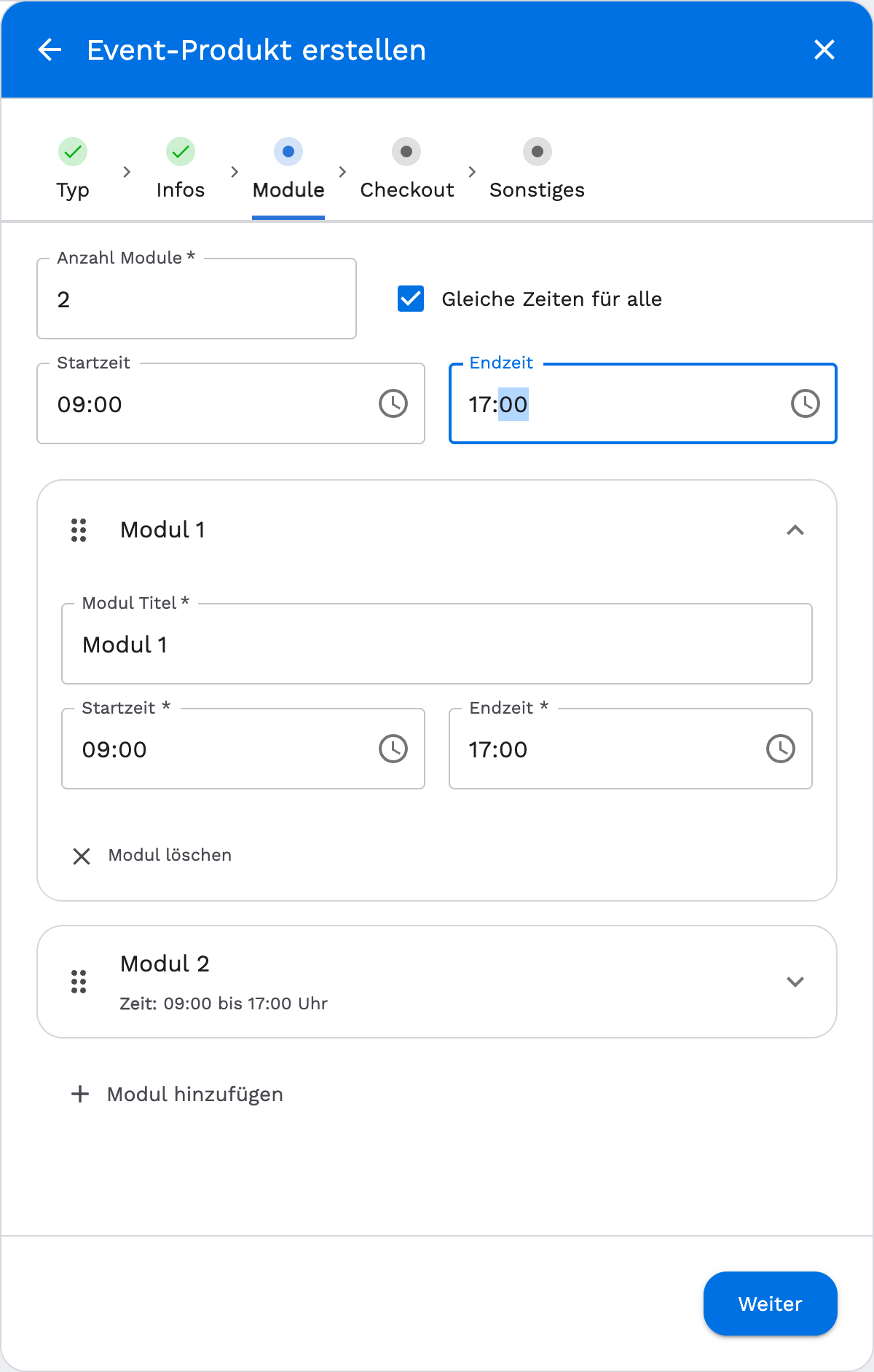
Set the number of modules, meaning how many dates an event built from this product will later have. Same times for all sets one shared start and end time, or you give each module its own title plus start and end time. Modules can be reordered by drag and deleted individually. The actual calendar days are set only when you create the event.
Checkout.
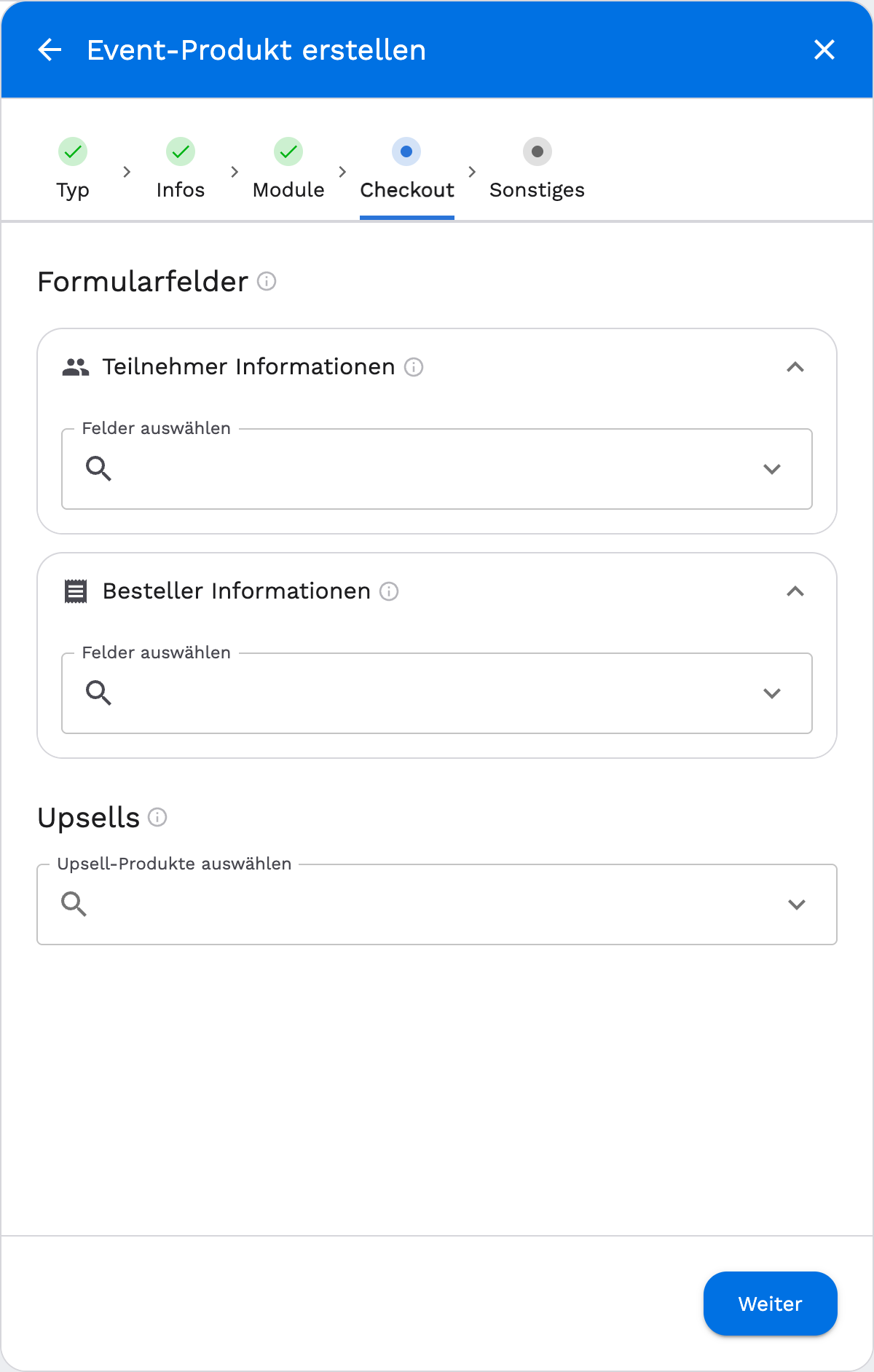
Choose which attendee information (per attendee) and which orderer information (once per order) customers fill in at checkout. The fields come from the contact meta fields. Below that you optionally choose upsells, other products offered alongside this one at checkout.
Other.
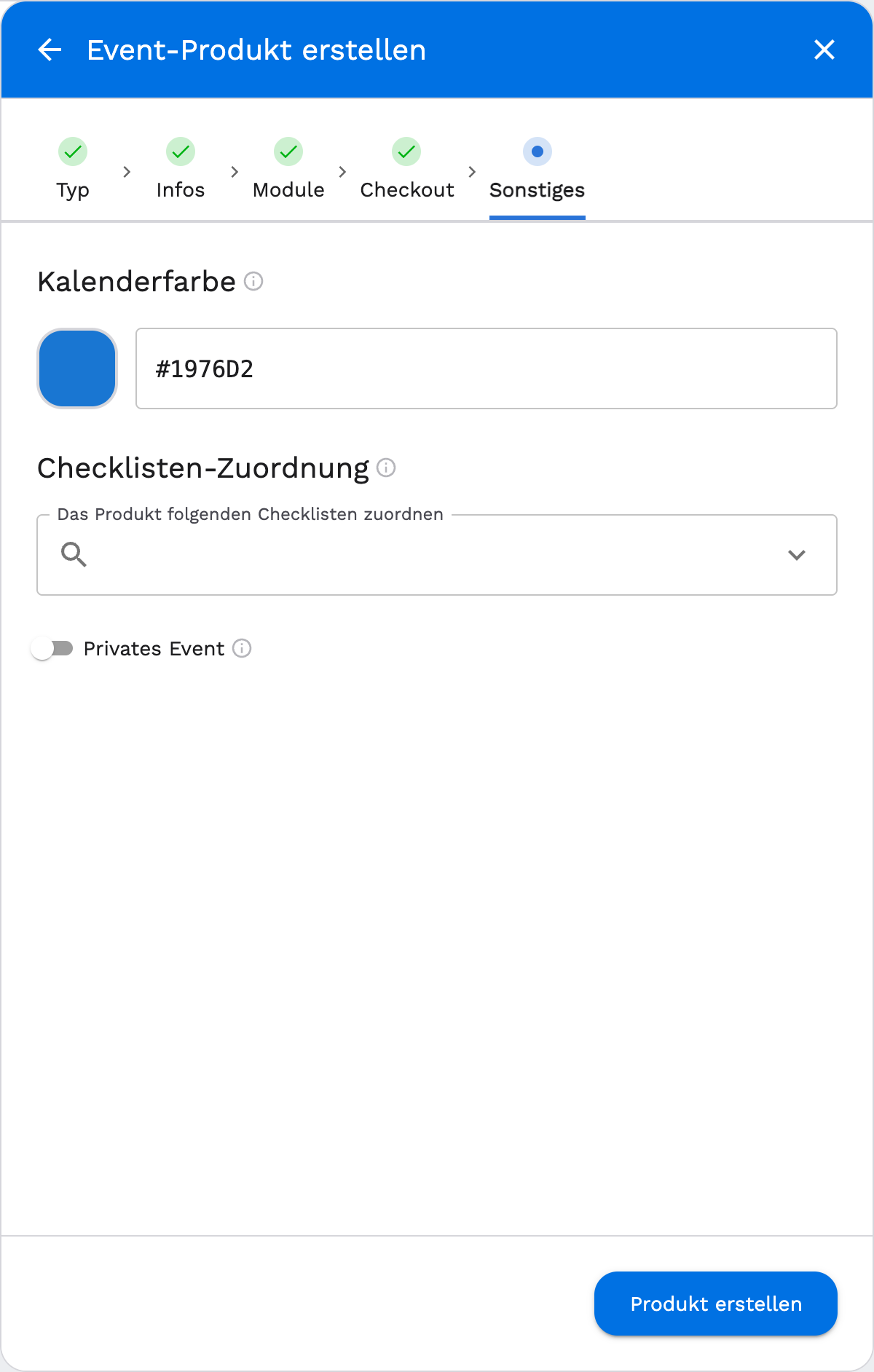
Calendar color (marks events of this product in the calendar), checklist assignment (the linked checklist then appears on every event date of this product) and the Private Event toggle. A private event product is not shown publicly and can only be booked through a direct link. Finish with Create Product.
A field only appears for selection in the Checkout step if it was already created as a meta field under Settings → Objects → Contacts. Without any defined fields, the step only shows a notice.
Digital product and Other product
Both types are shorter: they only have the Info and Checkout steps, without modules and without the Other step.
- Info: Product name, description, price and tax rate (or Free Product), categories, product image. A digital product also has a link to the platform, the address the customer is sent to after purchase. A miscellaneous product instead has Stock and the Track inventory toggle, plus Sellable as add-on only, so the product cannot be bought on its own, only alongside another product, for example catering or extra material.
- Checkout: the same form fields and upsells as the event product.
Categories
What categories are for
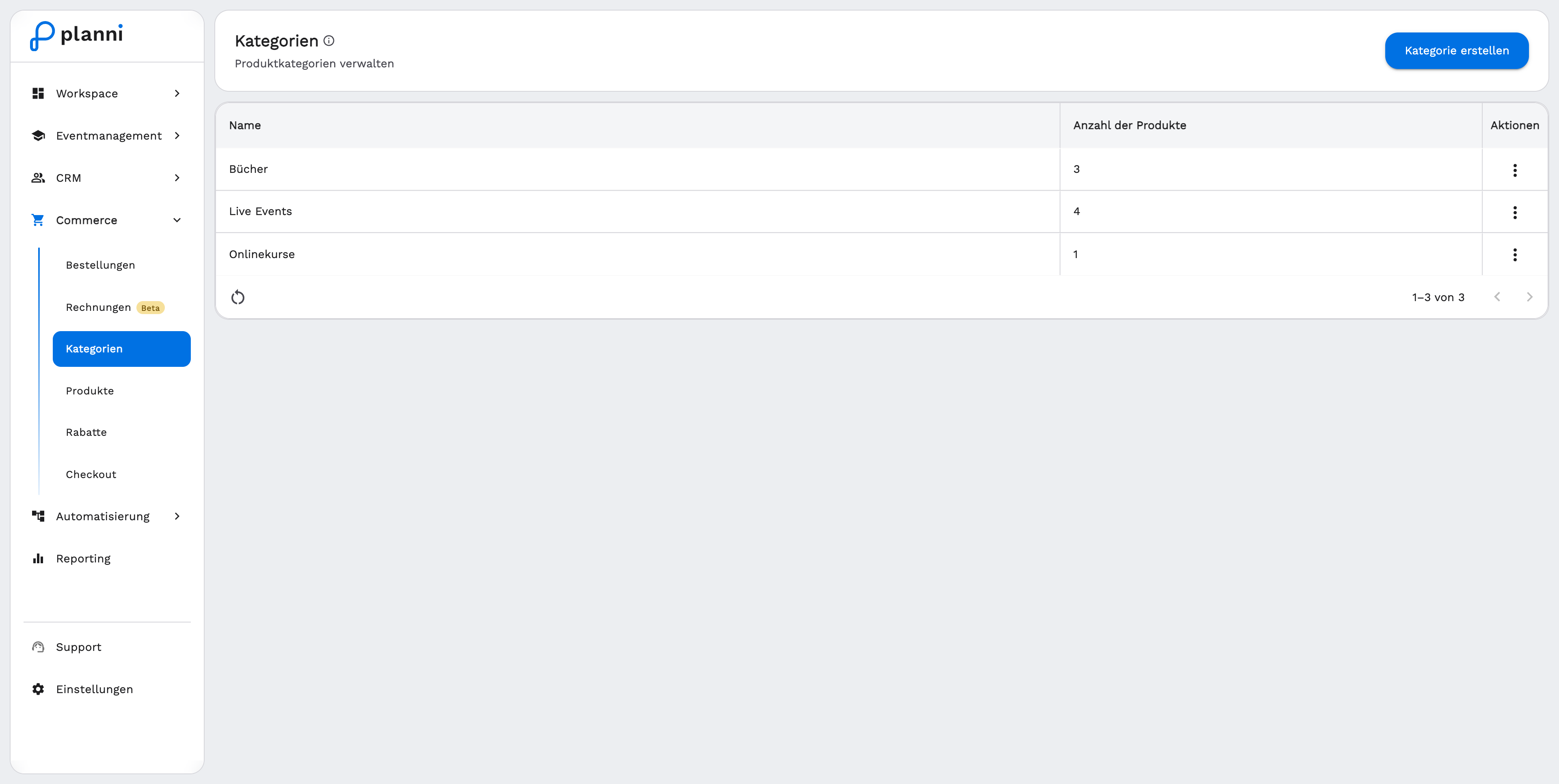
Categories are an internal grouping. Customers never see them at checkout, but they help you filter, for example in event tables, workflows and discount codes. A product can belong to several categories.
Creating a category
Categories are maintained under Commerce → Categories, separate from the product list, via the Create Category button. A category consists of a name, an optional description and its assigned products. You can make that assignment either here or on the product itself, both lead to the same result. The list shows the name and the number of assigned products.
After creating a product
Active or Deactivated
Every product has a status: Active or Deactivated. Only active products can be used in the checkout and the widgets on your website. In the product list, the Show only available toggle shows you which products currently have no bookable dates and are therefore hidden.
Sensible next steps
- Build an event from an event product.
- Make the product visible on your website via Configure checkout.
If something doesn't work
No field can be selected in the "Checkout" step
There are no meta fields yet for this. Create some first under Settings → Objects → Contacts, then they become available for selection here.
An event product doesn't appear in the widget
Check two things: is the product set to Active? And does it have at least one published event in the future? If the event product is also marked Private Event, it never appears publicly, only through its direct link.