Invoices (Beta)
Create invoices from an order or from scratch, finalize, correct and cancel them.
Before you start
What invoices are in planni
Under Commerce → Rechnungen (Invoices, marked Beta) you issue invoices for your orders, or create one from scratch. Layout, company data, bank details and payment terms apply once for your whole company and are maintained under Company settings; that tab is reserved for Super Admins.
What you need first
Nothing is required for an individual invoice. For an invoice based on an order you need an existing order, see Understanding an order.
Reading the invoice list
What you see there
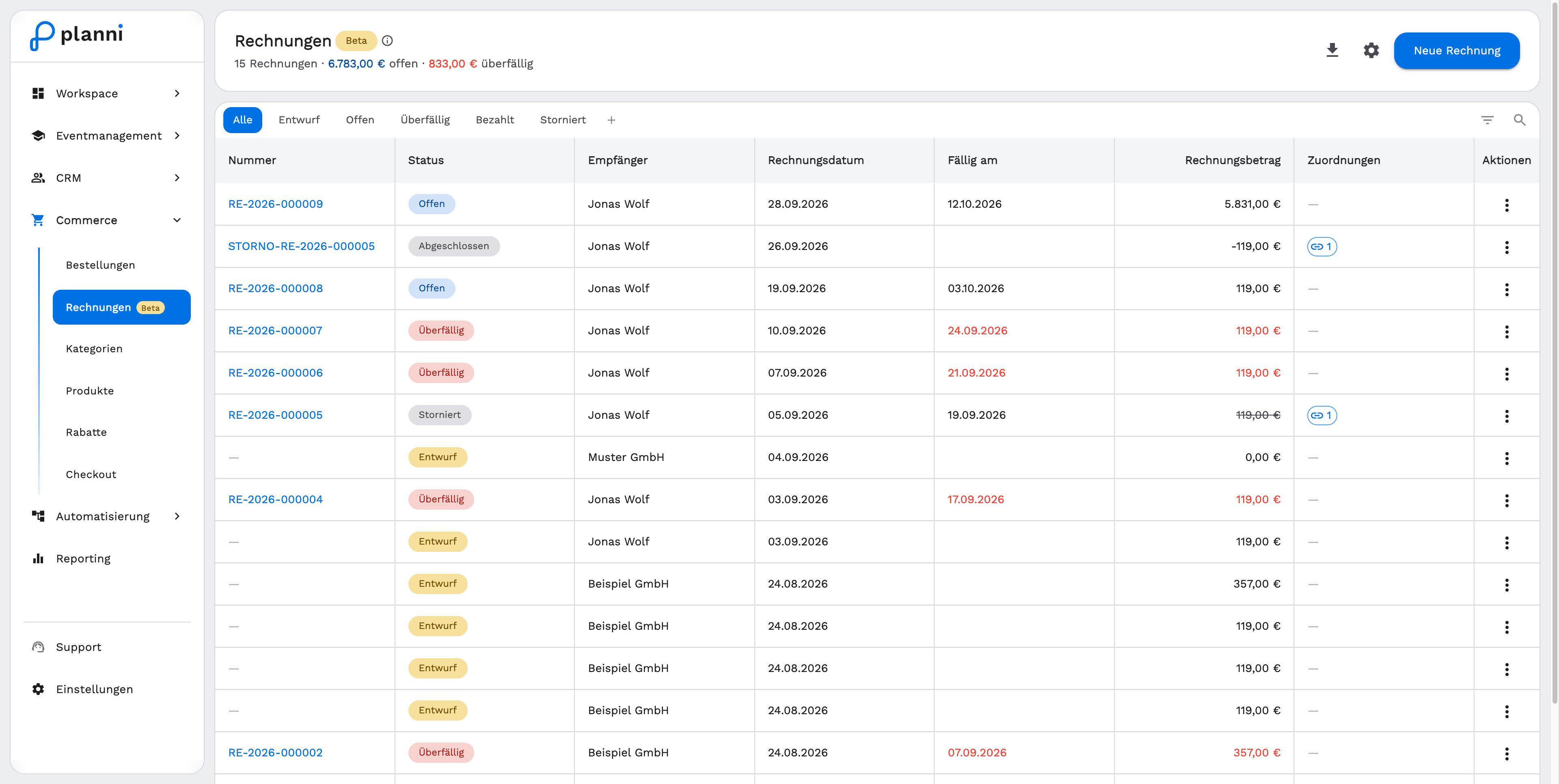
The header shows the total number of invoices, plus the sum of open and overdue amounts. Tabs filter by Alle (All), Entwurf (Draft), Offen (Open), Überfällig (Overdue), Bezahlt (Paid) and Storniert (Cancelled); create your own views through +. The table shows number, status, recipient, invoice date, due date, invoice amount, associations and actions. A draft has no number yet.
PDF export and settings
The download icon at the top exports several invoices as a PDF for a date range (From/To, maximum 366 days). The gear icon leads to the invoice settings under company settings.
Create an invoice
Step by step
Click Neue Rechnung (New invoice) and choose the type: Individuelle Rechnung (Individual invoice, freely assemble recipient, items and terms) or Auf Basis von Bestellung (Based on an order, recipient, items and prices are taken from an order).
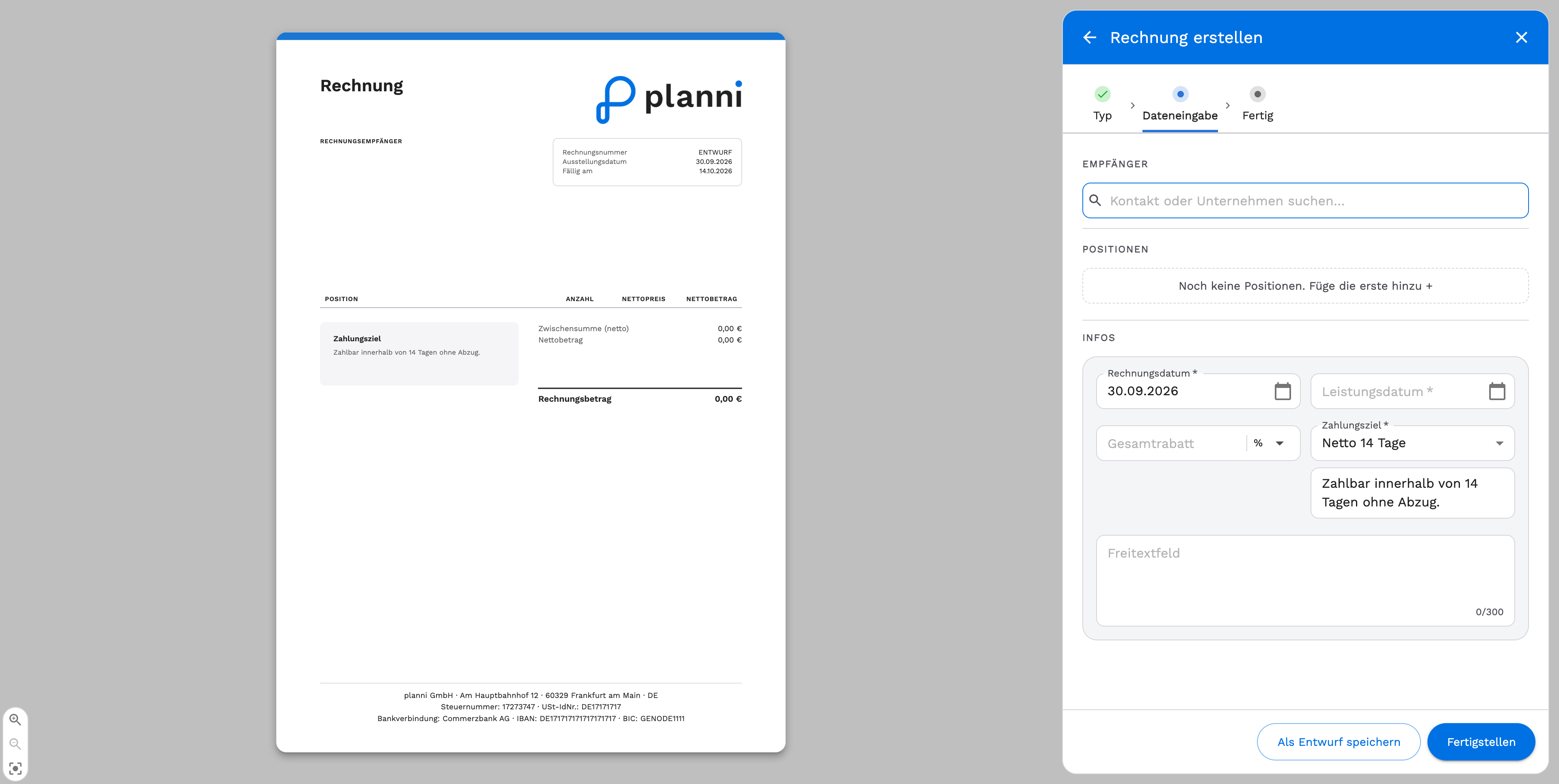
Fill in the data entry step. Search for the recipient (contact or company) or create a new one right there. Add line items. Under Infos you set the invoice date, the service date, optionally an overall discount in percent or euros, a payment term (e.g. Netto 14 Tage, the matching text is added to the invoice automatically) and optionally a free text field. On the left you see the live PDF preview as you go.
Save as a draft, or finalize. A draft can still be edited or deleted freely. Fertigstellen (Finalize) assigns the invoice number (format RE-YYYY-NNNNNN) and closes the invoice.
You can also create an invoice directly from the order itself (Invoices section, + Erstellen), from a contact, or from a company.
Result
What happens on finalizing
A finalized invoice gets its number and becomes immutable for legal reasons, which cannot be undone. Right after that, Herunterladen (Download) and Versenden (Send) let you download the invoice as a PDF or send it by e-mail; you can also just close the window and come back to it later.
Changing a finalized invoice
A finalized invoice can no longer be edited directly, the document itself stays unchanged for legal reasons. Two actions are available instead:
| Action | What happens |
|---|---|
| Bearbeiten (Edit) | Starts the correction: the invoice is canceled and automatically gets a credit note, its own data stays unchanged as a record. From the same data, planni creates a new draft invoice, which you edit and finalize as usual; it gets its own, new invoice number. Only available for finalized or sent invoices that have not already been replaced by a newer version, and never for credit notes themselves. |
| Stornieren (Cancel) | The invoice is canceled and planni automatically creates a credit note, without creating a new draft invoice. If the invoice was linked to an order, you can choose whether to cancel that order too. |
Pitfalls
A draft can't be canceled
That's by design: drafts are deleted instead of canceled, because they don't have an invoice number yet.
A finalized invoice needs to change
Changing the content directly isn't possible anymore, use the Bearbeiten (Edit) button in the detail view instead. It cancels the invoice, automatically creates a credit note, and opens a new, editable draft invoice with the same data. The original invoice stays unchanged as a record. Use Stornieren (Cancel) instead if the invoice should simply be withdrawn.
I don't see the Rechnungen tab under company settings
That tab is reserved for Super Admins. With another role, you won't see it.