Company settings
Maintain company data, set your order number pattern and, for Super Admins, configure invoice settings.
Goal
The company settings bundle everything that applies to the whole organization: your company data, the pattern for your order numbers and, if you are a Super Admin, everything related to invoices.
Prerequisites
- Access to Settings → Company.
- The Invoices tab requires the Super Admin role. With any other role you only see the General and Orders tabs.
Steps
The "General" tab
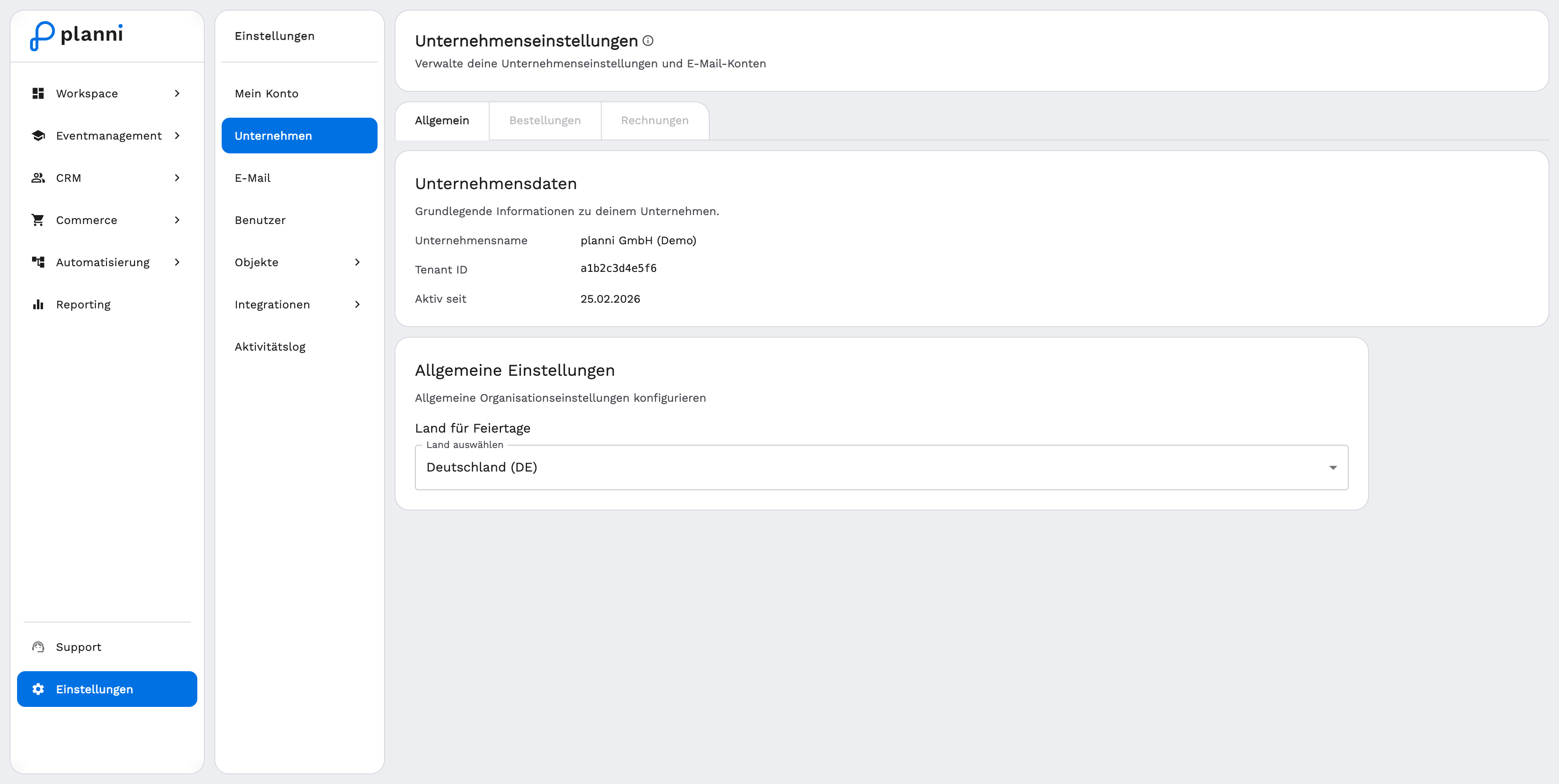
Open Settings → Company. The first tab is General and shows two sections:
- Company Information: company name, tenant ID and the date since which your workspace has been active. These fields are display only.
- General Settings: the Country for Holidays. You can choose from an extensive list of countries, not just Germany, Austria and Switzerland. This tells planni which country's public holidays to take into account in the calendar. For some countries, a Region for Holidays then also appears, if that country has regional holidays, for example per federal state.
The "Orders" tab
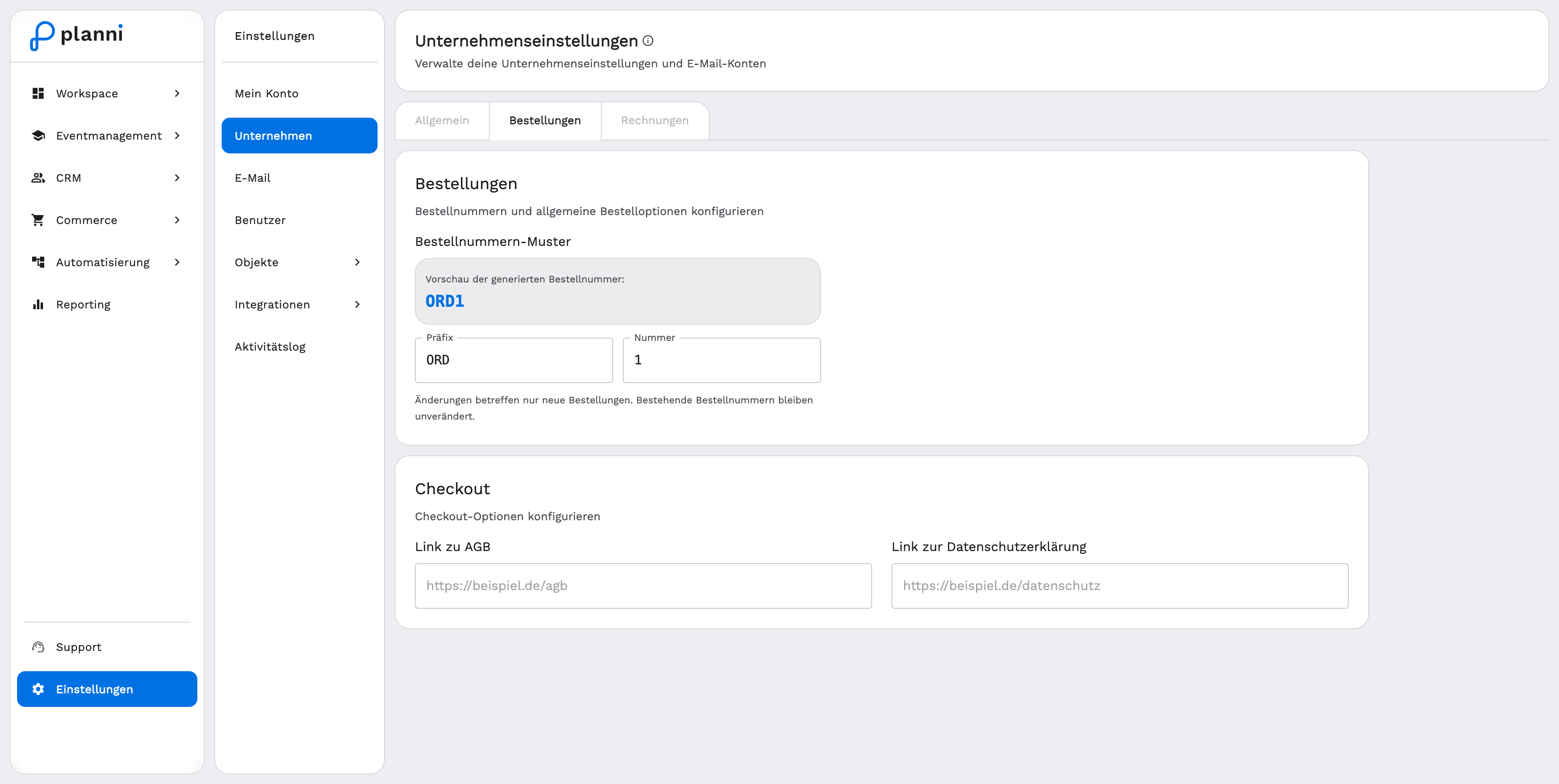
Open the "Orders" tab.
Enter a prefix under Order Number Pattern, for example ORD. It is added in front of every new order number. The preview next to it immediately shows what the next number will look like.
Set the starting number. The number of digits determines the minimum length of the running number, for example 000001 produces six-digit numbers.
Under Checkout, add the Terms and Conditions link and the Privacy Policy link. Both appear in your website's checkout.
Changes to the order number pattern only affect new orders. Order numbers already assigned stay unchanged.
The "Invoices" tab (Super Admin only)
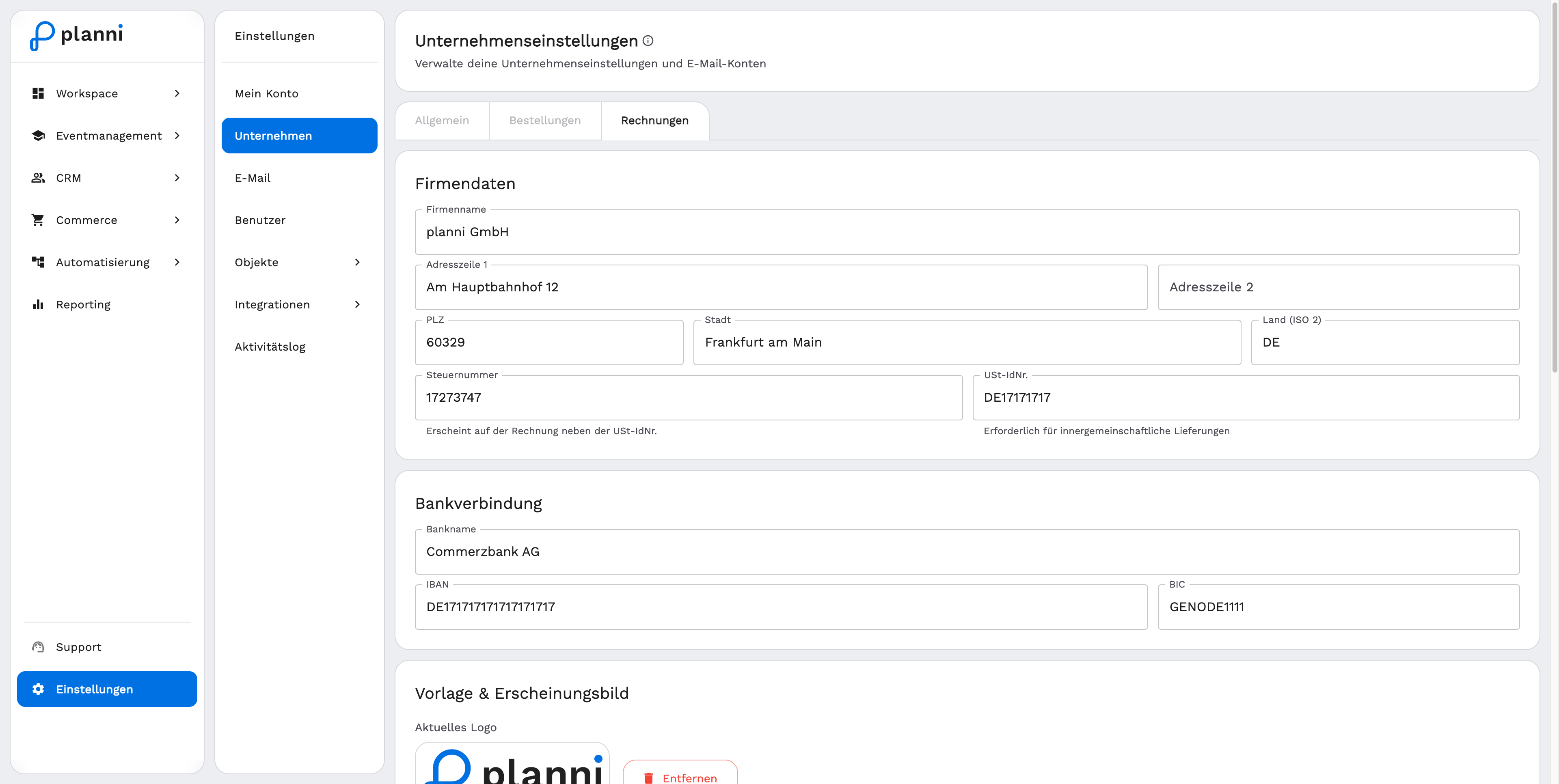
This tab is reserved for Super Admins and holds everything needed for your invoices as a PDF:
- Company Information: company name, address line 1 and 2, postal code, city, country, tax number and VAT ID.
- Bank Details: bank name, IBAN and BIC.
- Template & Appearance: your logo (up to 2 MB, PNG or JPEG), the logo size and an accent color for the invoice.
- Payment Terms: create your own payment terms, for example "Due Immediately", "Net 7" or "Net 14". When you create an invoice, a copy of the chosen payment term is applied, so later changes to the template do not affect invoices already created.
- Invoice Number: the number pattern with placeholders for year, month, day and running number, the current counter value, and whether the counter resets every year. A preview shows the next number.
Result
Your organization uses the same company data everywhere, new orders get numbers following your pattern, and, if you are a Super Admin, new invoices automatically pick up your logo, bank details and numbering scheme.
Pitfalls
Do not change the order number pattern or the invoice number pattern without coordinating with your team. The change takes effect immediately for all new orders or invoices.
The "Invoices" tab is missing
It only appears for the Super Admin role. With any other role you only see General and Orders.
The starting number will not save
The field only accepts digits. Letters or special characters are removed automatically.