Inviting users and assigning roles
Create team accounts and assign permissions.
Goal
You invite a new team member to planni, assign them one or more roles, and manage existing accounts.
Prerequisites
Who can invite users
Only members with the Admin or Super Admin role see the invite button. You can also never assign a role that ranks higher than your own.
What you need
The invitation only needs the person's e-mail address and name. planni sets up the rest, including the account itself, automatically.
Inviting a user
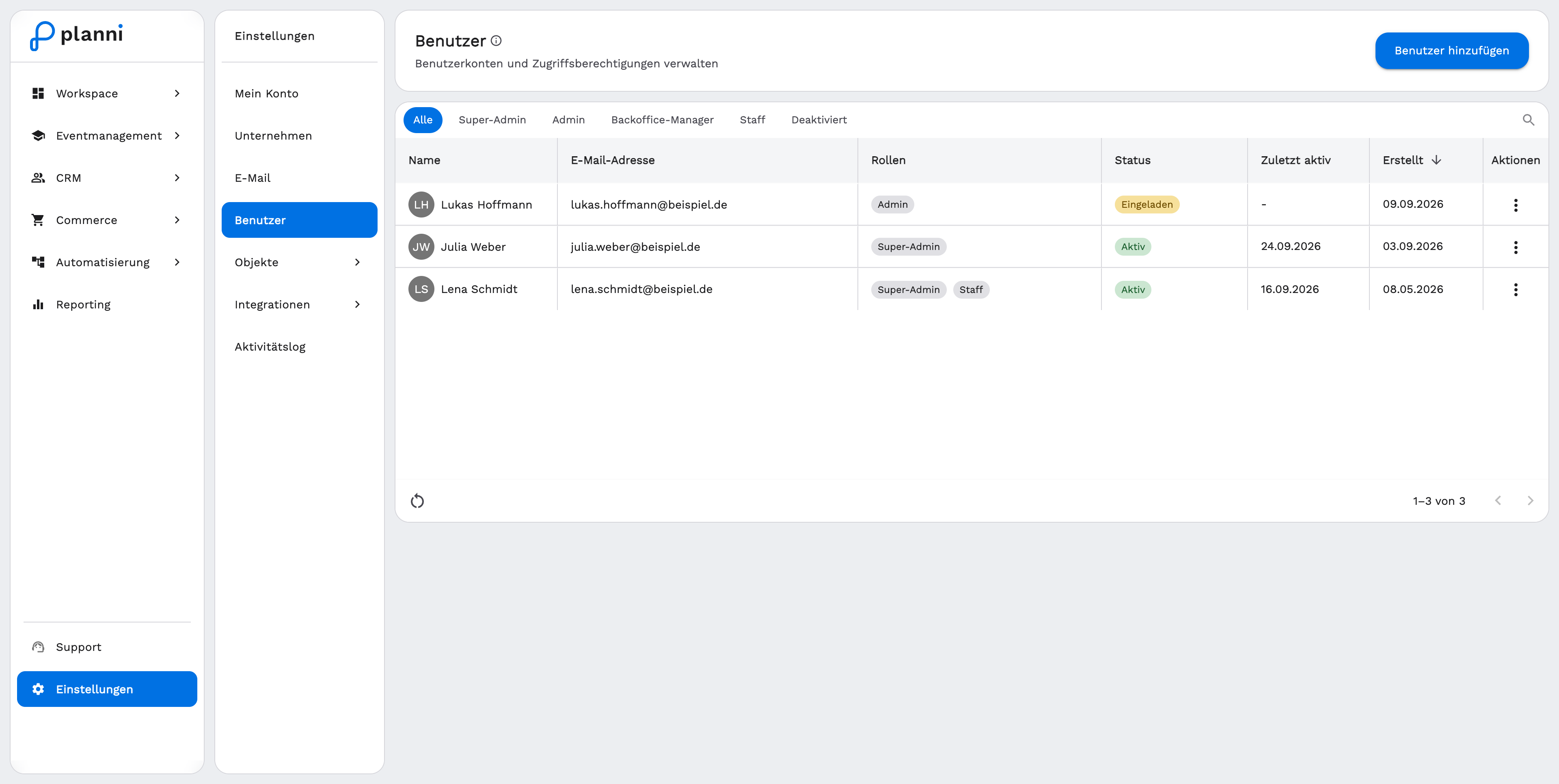
Open Settings → Users and click Add User.
Enter the e-mail address and name.
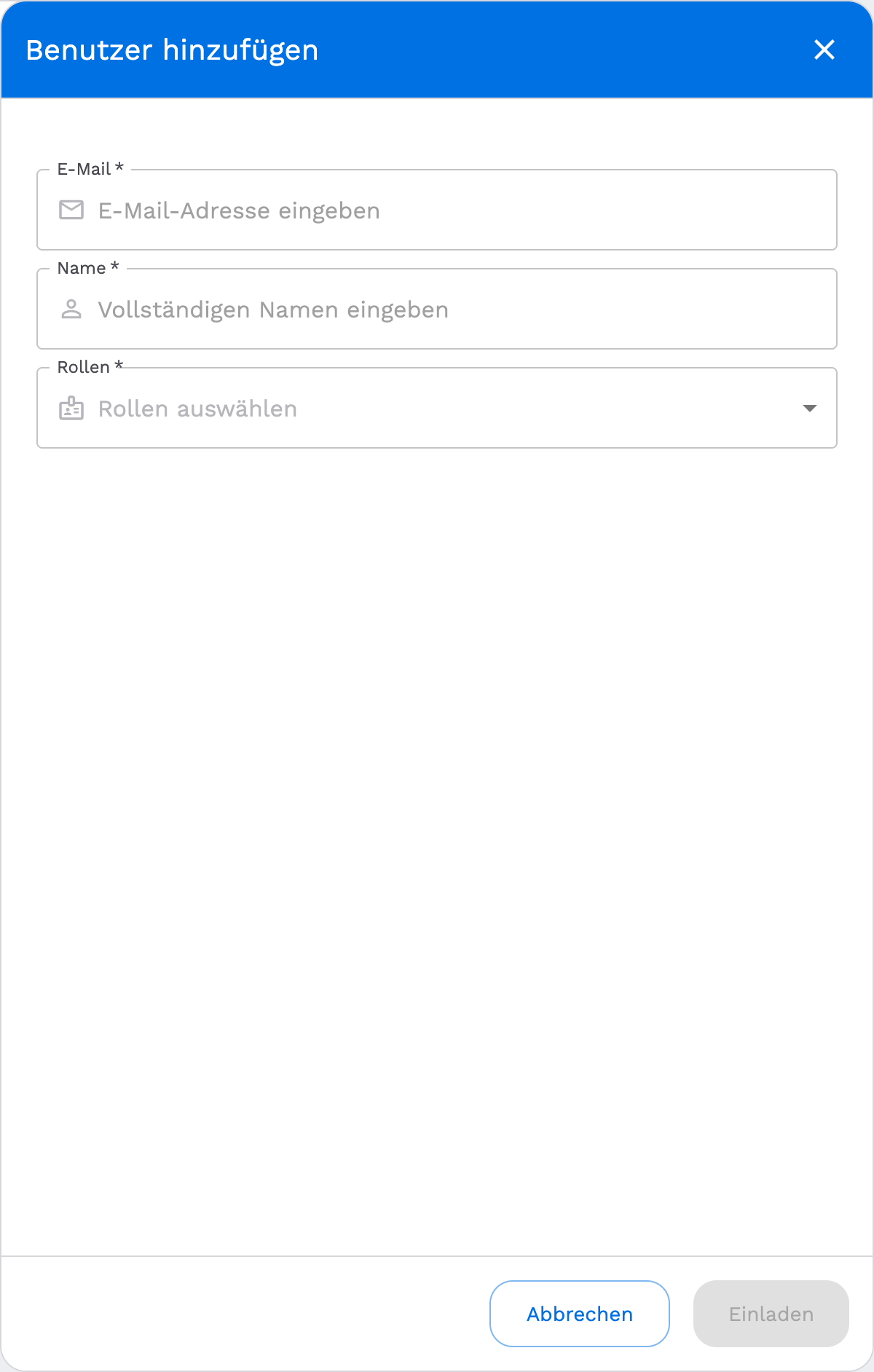
Select at least one role. You can select more than one.
Click Invite. planni creates the account and automatically sends an invitation e-mail to the address you entered.
What happens next
The new user appears immediately in the list with the status Invited. As soon as the person signs in for the first time, the status switches to Active automatically.
An invitation does not expire. The status stays "Invited" until the person logs in for the first time. If the invitation e-mail does not arrive, check the spam folder.
Roles at a glance
Roles you can assign
| Role | What it can do |
|---|---|
| Admin | Full user management: invite, edit, assign roles, deactivate, as long as the target has no higher role than you. |
| Backoffice Manager | Sees the user list but cannot create, edit or deactivate users themselves. |
| Staff | Also has read-only access to user management. |
Super Admin
Super Admin is the highest role in the system. It is assigned during planni's setup and cannot be selected through the invite form.
Changing a role, deactivating or deleting
Changing an existing user's role
Open the menu (⋮) next to the user in the list and choose Edit. From there you adjust their roles. This action is only available for active users.
Deactivating a user
Use the same menu to deactivate an account. A deactivated user can no longer sign in but stays visible in the list. You cannot deactivate yourself.
Deleting a user permanently
An active user cannot be deleted directly. Deactivate the account first, only then does the delete option appear in the same menu.
Once the account is deactivated, choose Delete from the menu. This permanently removes the user from the organization and cannot be undone.
Result
The new user can sign in with the invited e-mail address and sees exactly the areas of planni their roles allow.
Pitfalls
The "Add User" button is missing
This action is reserved for members with the Admin or Super Admin role. Check your own role in the list.
You cannot select the role you want
You cannot assign a role that ranks higher than your own. Super Admin can never be selected through this form.