Custom fields
Create your own fields for contacts and orders and use them in checkout.
Goal
You create a custom field that planni shows in addition to the standard fields for contacts or orders, for example an internal cost center or a certificate.
Prerequisites
None, you can create a new field at any time.
Creating a field
Open Settings → Objects → Contacts (or → Orders, if the field should only sit on an order).
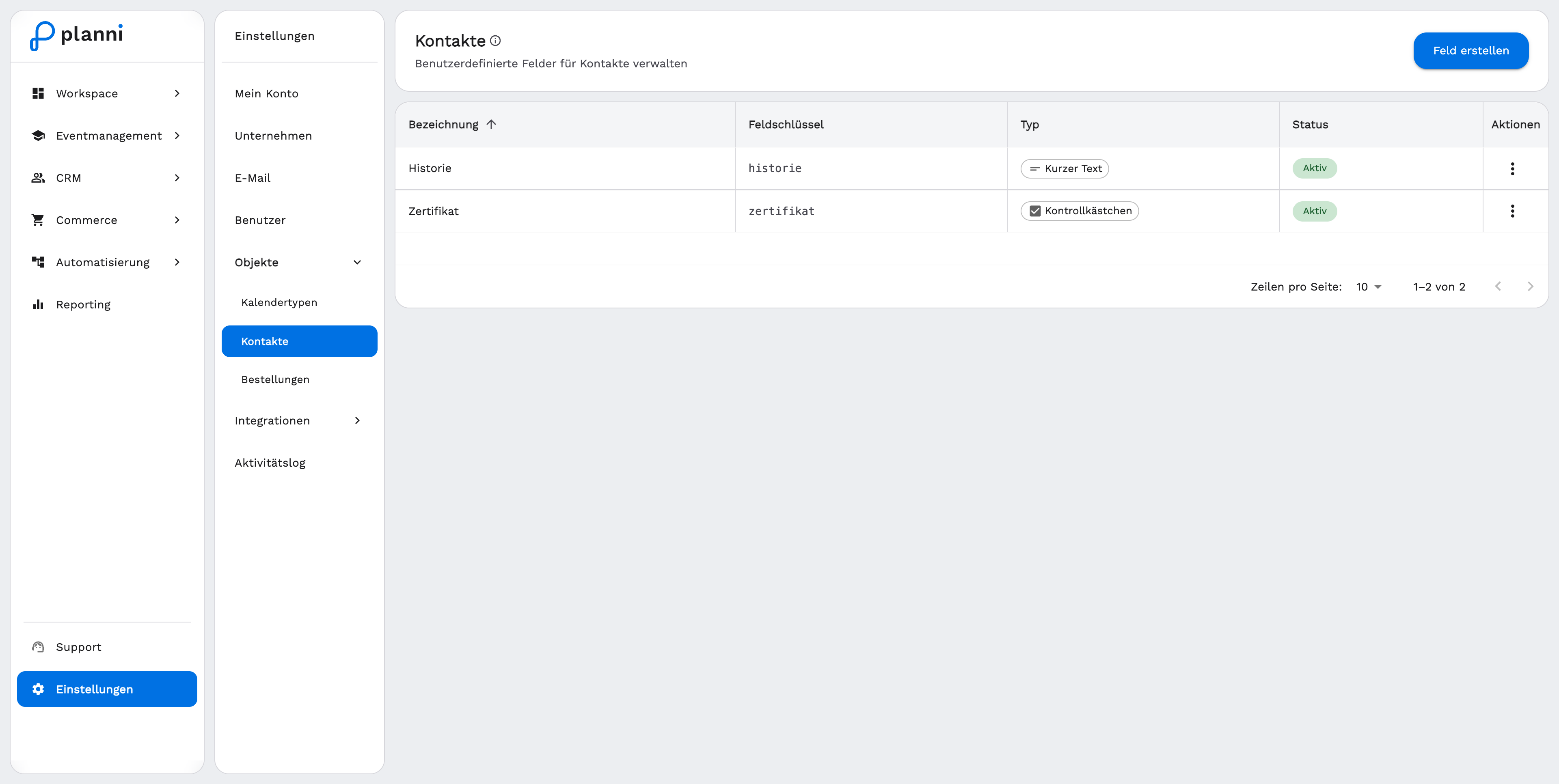
Click Create Field and enter a field label, for example "Certificate".
Choose the field type. Options are Short Text, Long Text, Date, Checkbox, Multiple Checkboxes, Radio Buttons, Single Select, Multi Select and File Upload. For select fields, you also enter the possible options.
Check the field in the preview and save it.
Result
The new field appears in the list with its derived field key, along with its type and status. Where it shows up afterward depends on the object.
Contact fields and checkout
planni shows contact fields in the contact data section on the contact detail page. They are also available as a form field in a product's checkout. Open the Checkout step in the product wizard and select the field under Attendee Information or Orderer Information. There you also decide, per product, whether the field is required at checkout.
Order fields are internal only
Unlike contact fields, fields from Objects → Orders do not appear in your website's checkout. They are purely for internal use and can only be viewed and filled in on the order detail page, for example for a cost center or a customer's internal order number.
Pitfalls
A field you mark as required in checkout blocks the order while it stays empty. For fields whose value only arrives later, for example a document, consider whether "required" really makes sense.
The field type cannot be changed after the field is created. If in doubt, create a new field with the right type instead of converting an existing one.