Setting up e-mail
Connect mailboxes, configure the central mailbox and set your own signature.
Goal
You connect one or more mailboxes to planni, decide how incoming conversations are assigned, and set up your personal e-mail signature.
Prerequisites
For IMAP/SMTP you need the credentials from your e-mail provider. For Microsoft 365, signing in through the browser is enough.
Connecting a mailbox
Open Settings → E-mail. The page has the tabs Mailboxes, Central Mailbox, Categories and Own Signature.
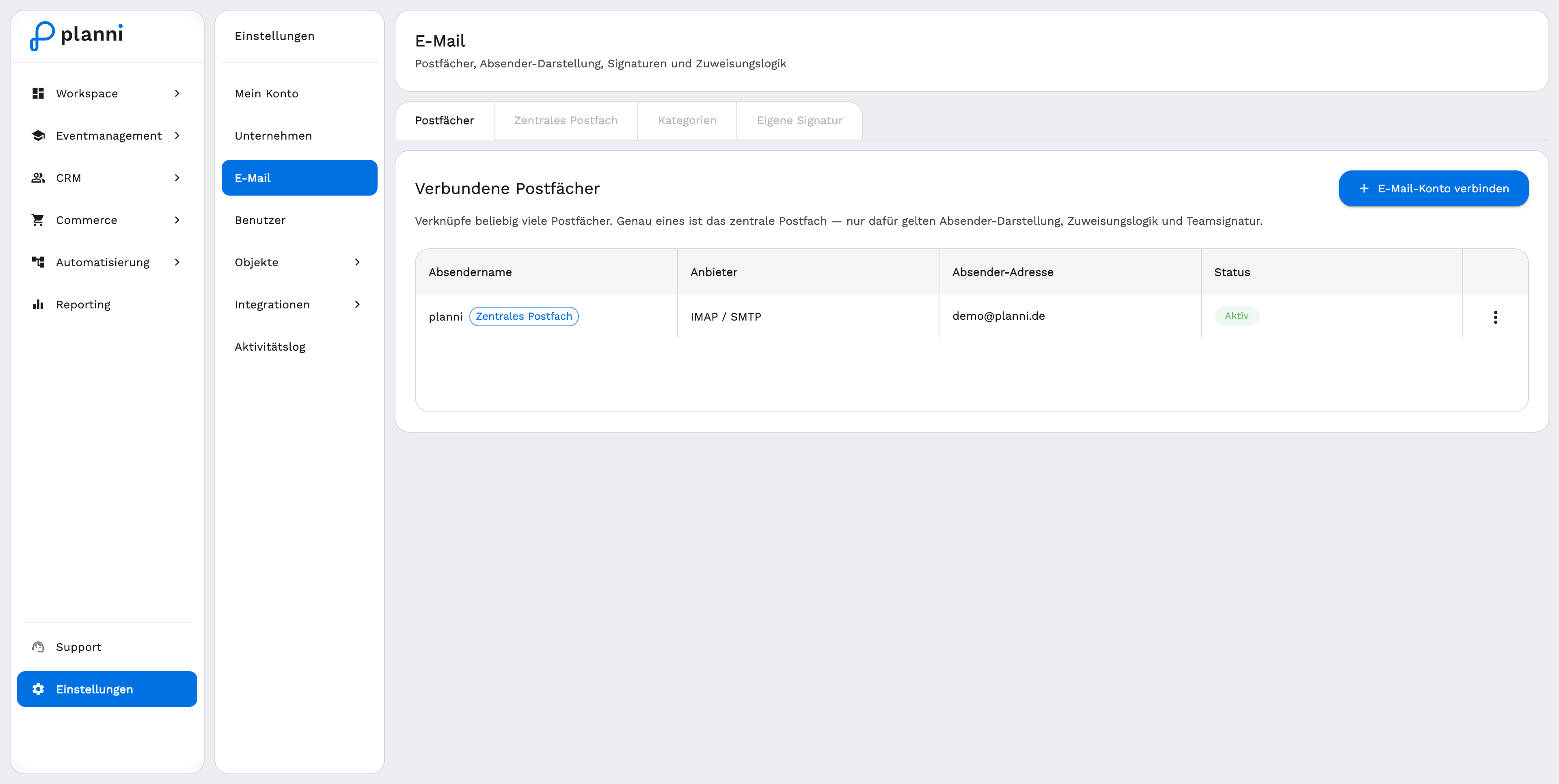
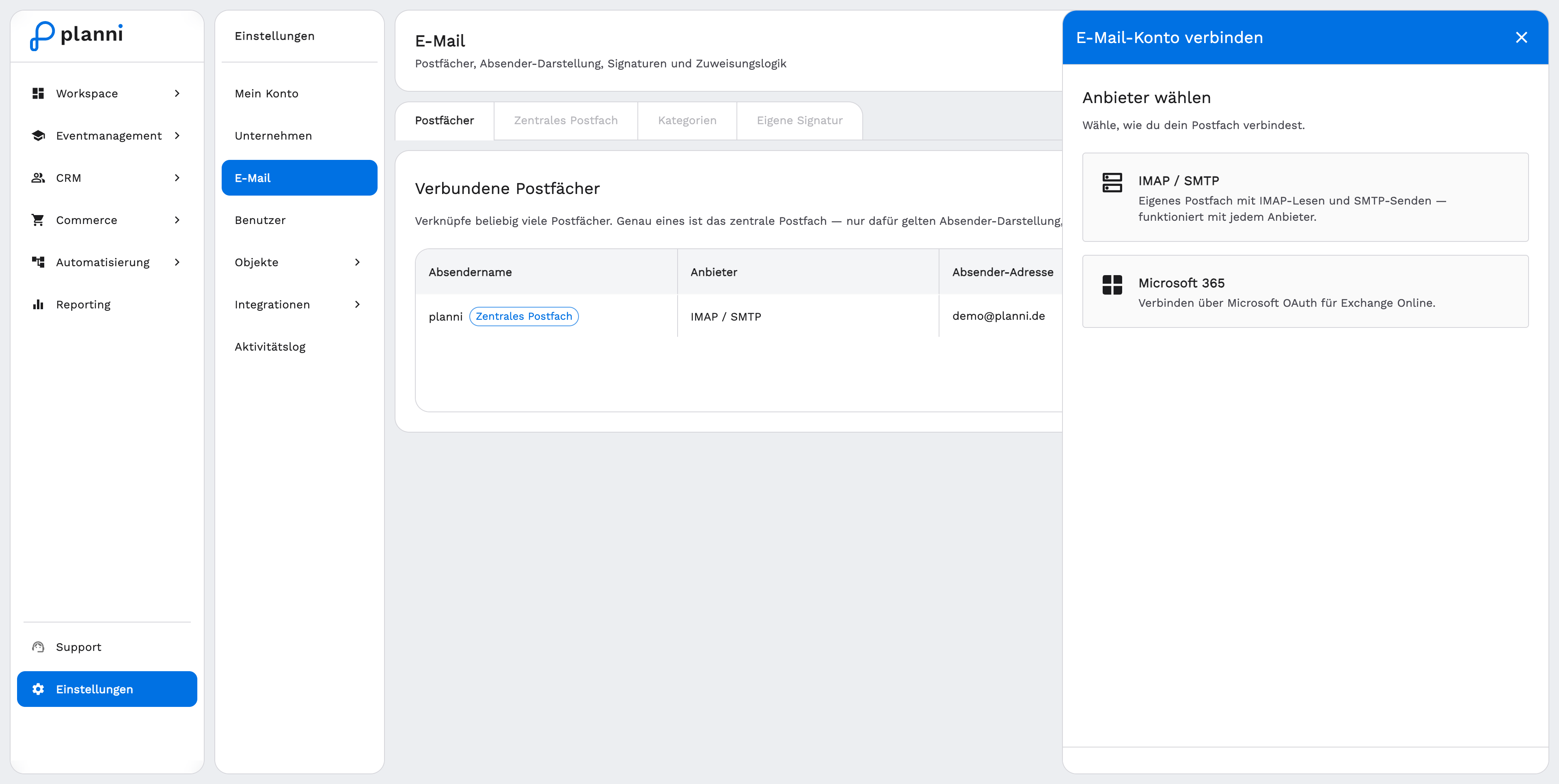
In the "Mailboxes" tab, click "+ Connect E-mail Account" and choose a provider: IMAP / SMTP (works with any provider) or Microsoft 365 (sign in via Microsoft OAuth).
For IMAP/SMTP, first enter the account details: sender e-mail, sender name and, optionally, a different reply-to address. On the next step, enter host, port, username, password and encryption (SSL/TLS or STARTTLS) for the incoming (IMAP) and outgoing (SMTP) server. planni tries to suggest many of these values automatically from your sender address.
For Microsoft 365, click "Connect with Microsoft 365" and sign in with your Microsoft account in the window that opens. planni picks up the sender address and name automatically.
If needed, decide whether this mailbox should become the central mailbox. Your first mailbox automatically becomes the central mailbox.
Configuring the central mailbox
Each organization has exactly one central mailbox. The following settings apply only to it.
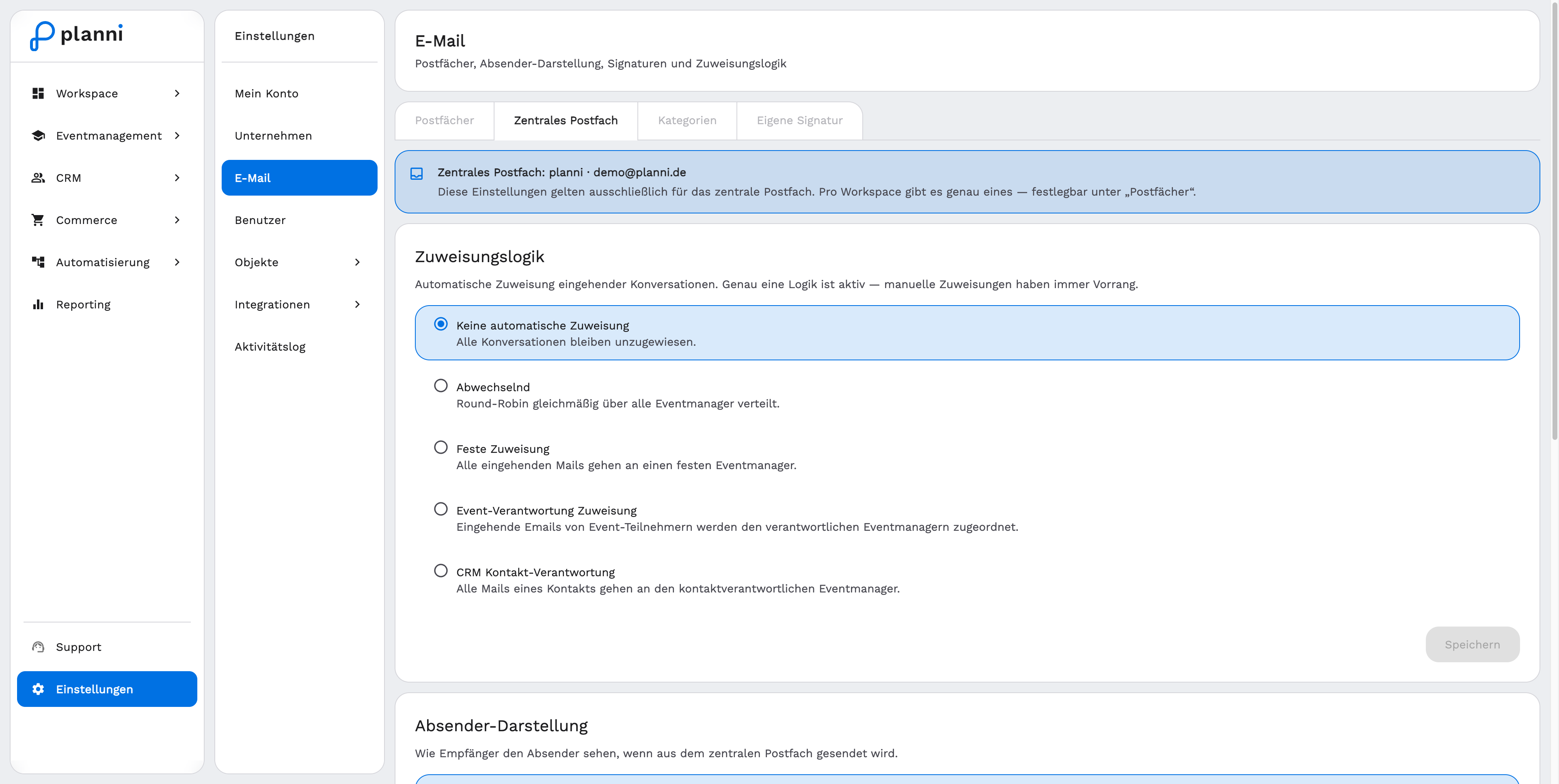
Assignment logic
In the Central Mailbox tab you decide how incoming conversations get assigned automatically:
- No automatic assignment: All conversations stay unassigned.
- Round robin: Distributed evenly across all event managers.
- Fixed assignment: All incoming mail goes to one fixed event manager.
- Event ownership assignment: Incoming e-mails from event attendees go to the responsible event managers.
- CRM contact ownership: All mail from a contact goes to the event manager responsible for that contact.
Manual assignments always take priority over the automatic logic.
Sender display
Also in the central mailbox, you set how recipients see the sender when mail is sent from the central mailbox: As central mailbox (just the mailbox name), User First Name or User Full Name, each complemented by a freely chosen suffix, for example your company name. Below that you set up the team signature, which is the default for the central mailbox.
Categories and your own signature
Categories
In the Categories tab you create your own, colored categories per mailbox. They show up in the right-click menu of an e-mail in the inbox and in the message list filter.
Own signature
In the Own Signature tab you set your personal e-mail signature. It is automatically attached to every e-mail you send.
Result
Your mailbox synchronizes incoming and outgoing messages with planni. New conversations get distributed according to your assignment logic, and outgoing mail automatically carries your signature.
Pitfalls
With IMAP/SMTP, sign-in and connection can fail if your provider requires multi-factor authentication. In that case, create a dedicated app password with your provider instead of using your regular password.
Google accounts cannot currently be connected through their own provider tile, connect a Google mailbox via IMAP/SMTP instead.