Inbox
Folders, assignments, links to contacts and events, and how to write a new message.
Goal
In the inbox you read and answer your team's email, assign messages to specific people, and see at a glance which contact, company or event a message belongs to.
Requirements
For the inbox to show any email, at least one email account has to be connected. Set that up under Settings → Email, with Microsoft 365 or any provider over IMAP/SMTP. How to do that is described under Email.
Layout of the inbox
Folders and the list
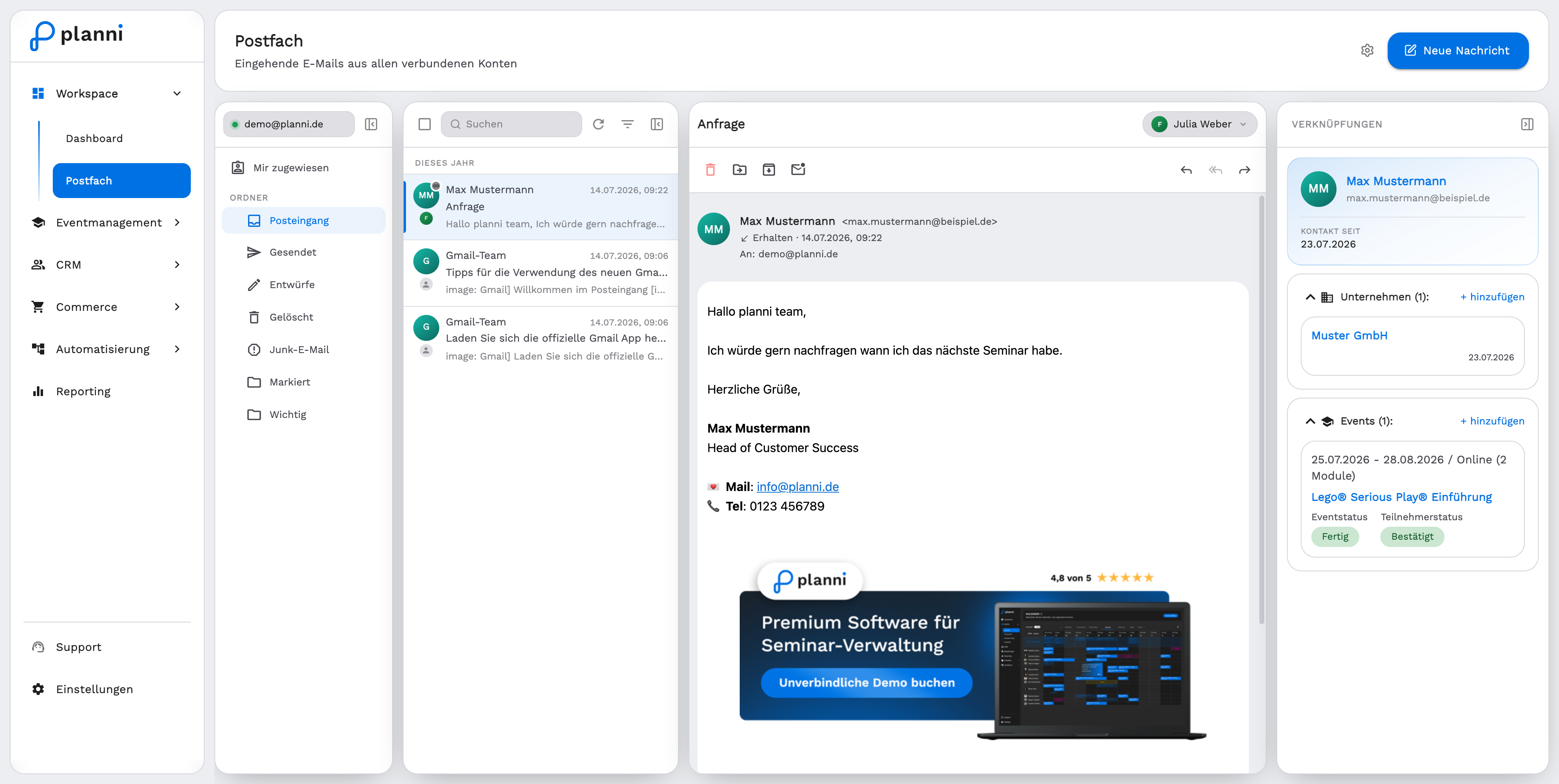
Folders sit on the left, with Assigned to me below them for messages assigned specifically to you. The middle holds the list of messages in the selected folder, and the reading pane on the right shows the content of the selected message.
Assigning a message
At the top right of the reading pane, use the person icon to assign a message to a member of your team, so it is clear who is handling it.
planni automatically links incoming email to a contact by the sender address. If someone writes on behalf of an attendee, for instance a colleague writing for the whole company, the email links to that sender rather than to the attendee themselves.
The linked-records panel
Next to the reading pane, the Linked records panel shows what planni already knows about the message's email address: contact, company and linked events. If a link is missing, add it through + Add right in the panel, without leaving the inbox.
Writing a new message
The message editor
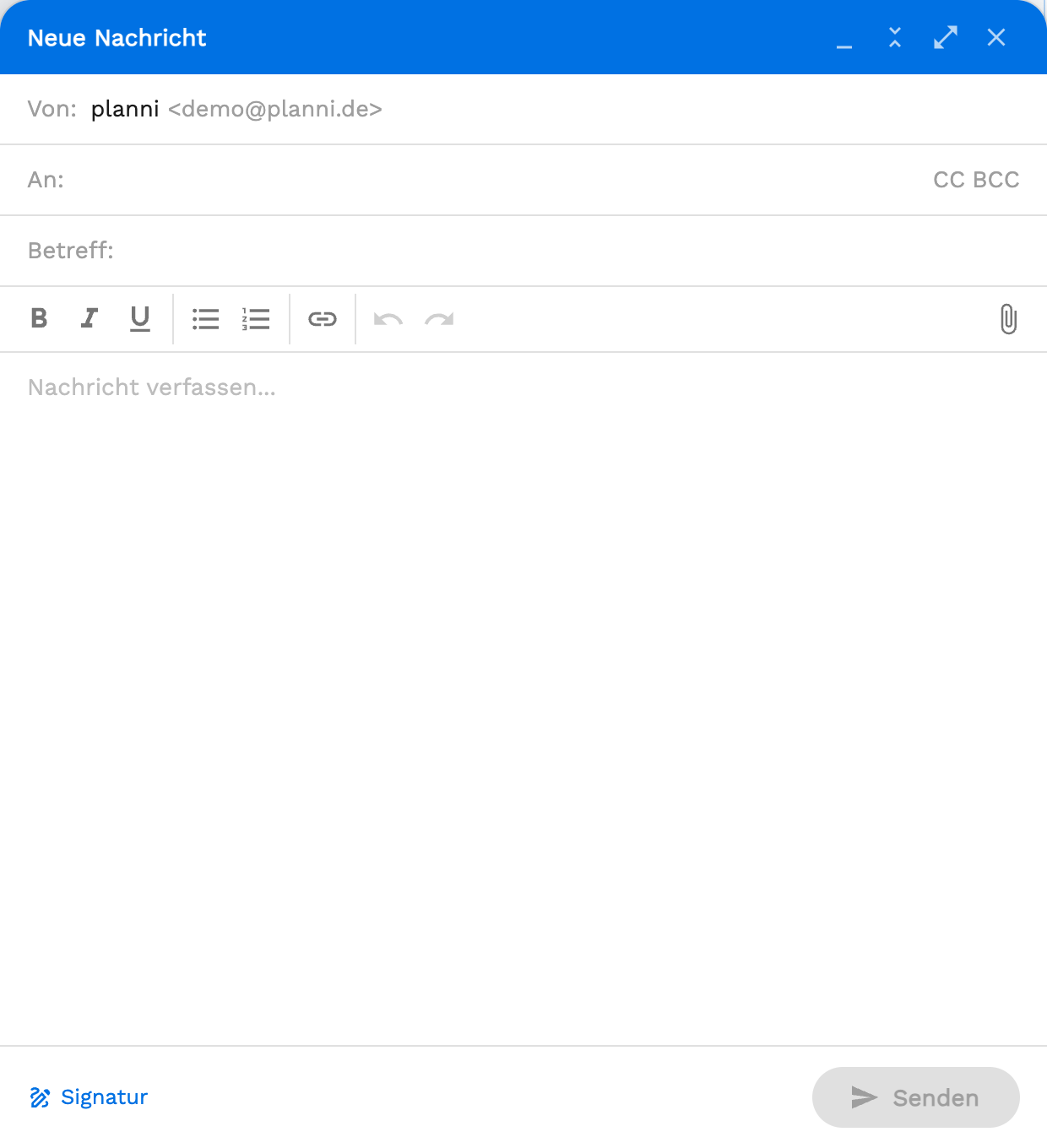
New message at the top of the inbox opens the editor: sender (one of your connected mailboxes), recipient, CC and BCC, subject and a formattable body with link and attachment support. Your email signature is appended automatically. The window can be minimized while you keep working, and Send delivers the message through the chosen mailbox.
The gear icon
The gear icon in the inbox takes you straight to the email settings, for example to connect another mailbox or set up categories.
Result
Every email is assigned to a responsible person and linked to the matching contact, company or event, so your team keeps track even with several mailboxes.
Pitfalls
Without a connected mailbox, the list stays empty. In that case, check Email first.