API Keys
Create API keys for external integrations and set their permissions.
Goal
An API key connects external systems to planni, for example to retrieve contacts or orders automatically.
Prerequisites
Access to Settings → Integrations → API Keys. A technical integration that will use the key.
Steps
Creating an API key
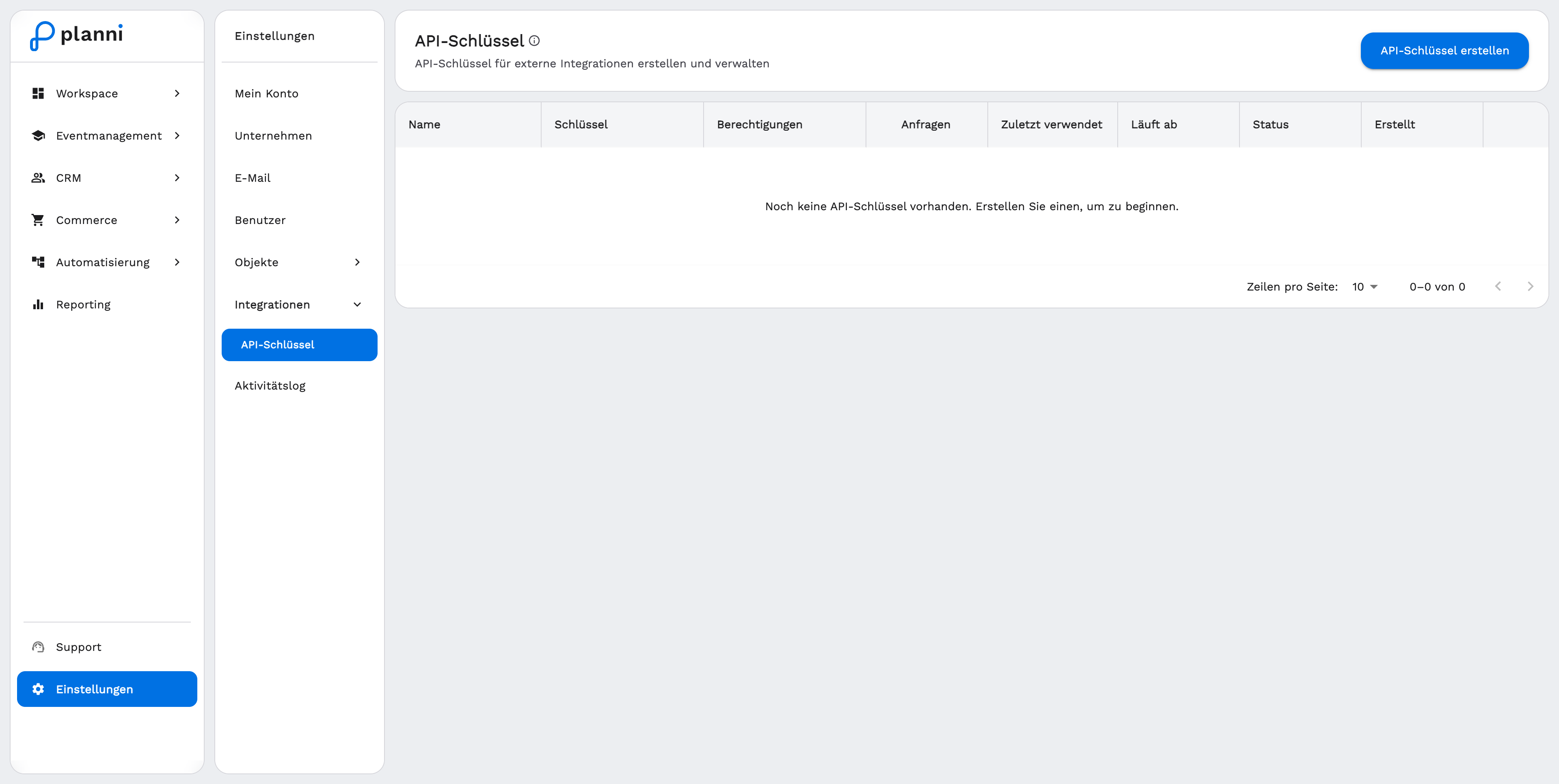
Open Settings → Integrations → API Keys and click Create API Key.
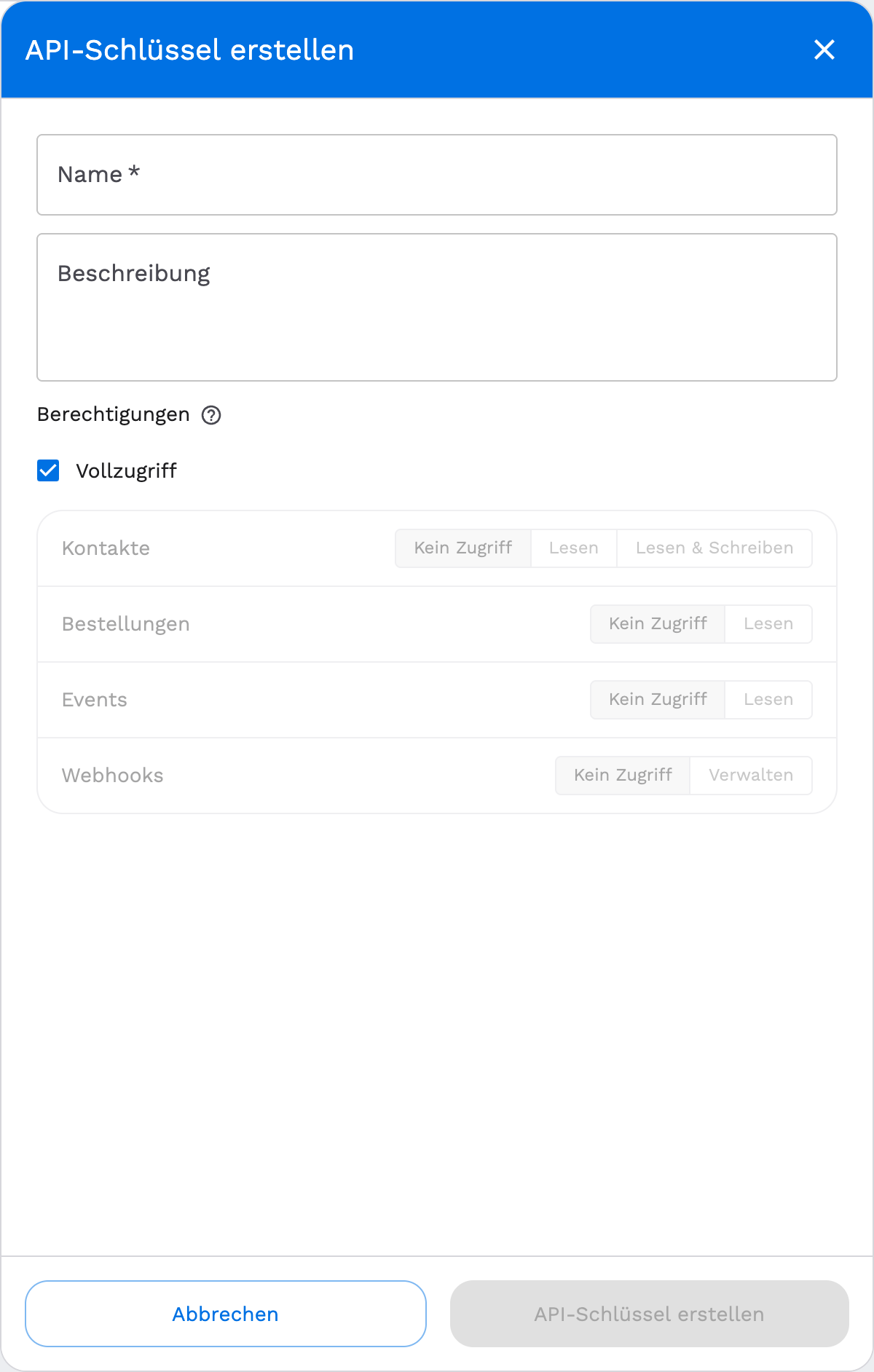
Give it a name and optionally a description, so you can recognize the key later.
Set the permissions. Choose either Full Access, or set the access level per area individually: Contacts (No Access, Read, Read & Write), Orders (No Access, Read), Events (No Access, Read) and Webhooks (No Access, Manage).
Click Create API Key.
The full key is only shown once, right after creation, with a copy button. Write it down somewhere safe immediately, it cannot be viewed again afterwards.
Using a key
The API reference documents every available endpoint and how to pass the key.
Result
Your external system can authenticate against planni with the key, and has exactly the permissions you set when creating it.
Pitfalls
The key was lost
The full key cannot be shown again. Create a new key and update your integration with it, then remove the old one.
The integration gets "Not authorized"
Check which permissions are assigned to the key in the list, under Permissions. A key with read-only access to orders, for example, cannot create orders.