Email templates
Design email templates with placeholders and set who receives them.
Goal
An email template defines what an automatically sent email looks like, for example an order confirmation or a registration confirmation. You then use it in a workflow.
Prerequisites
Access to Automation → Emails.
Steps
Creating a template
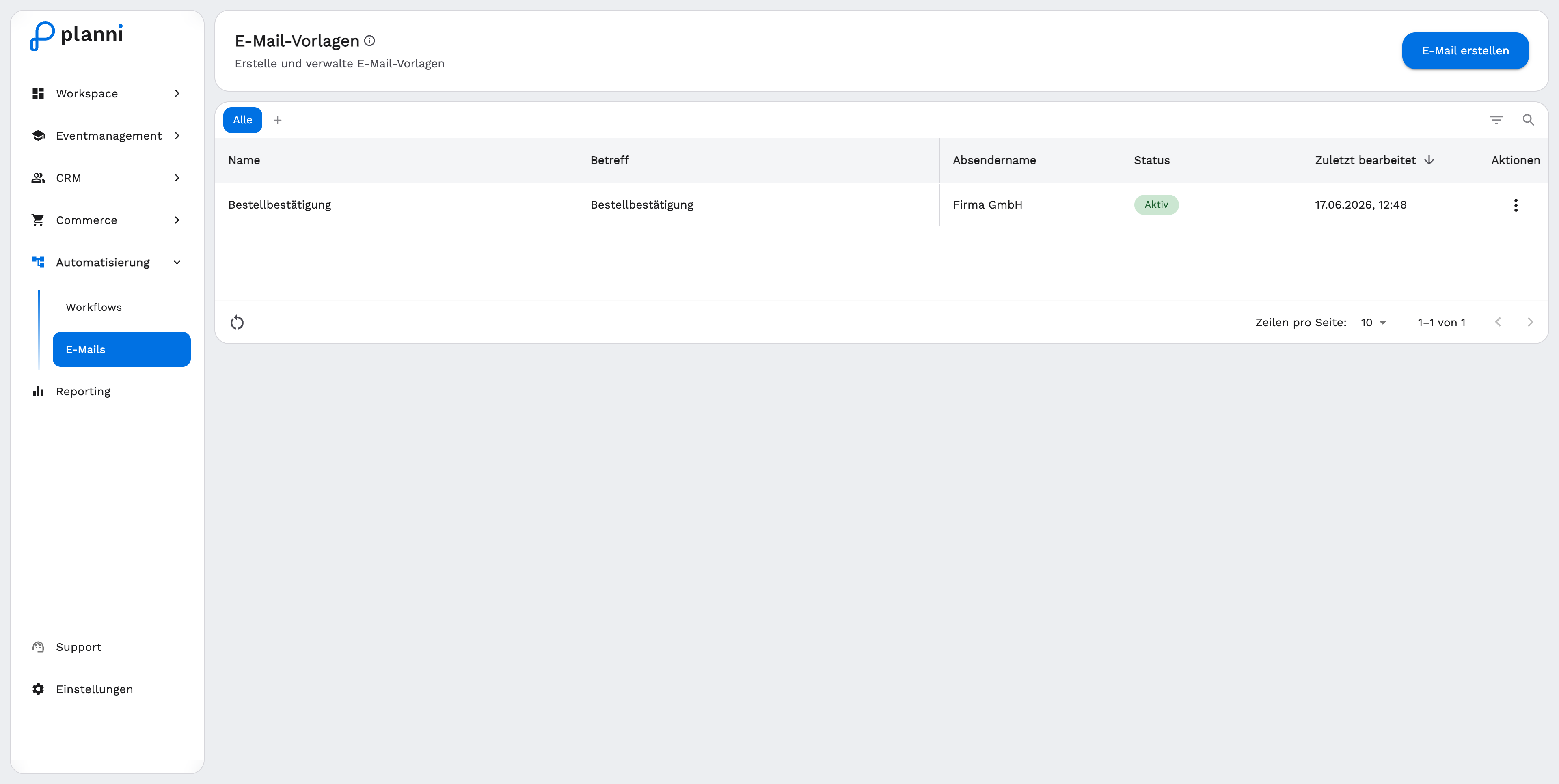
Open Automation → Emails and click Create Email. planni opens the editor with an empty template. Use the pencil next to the name to rename it.
Designing the content
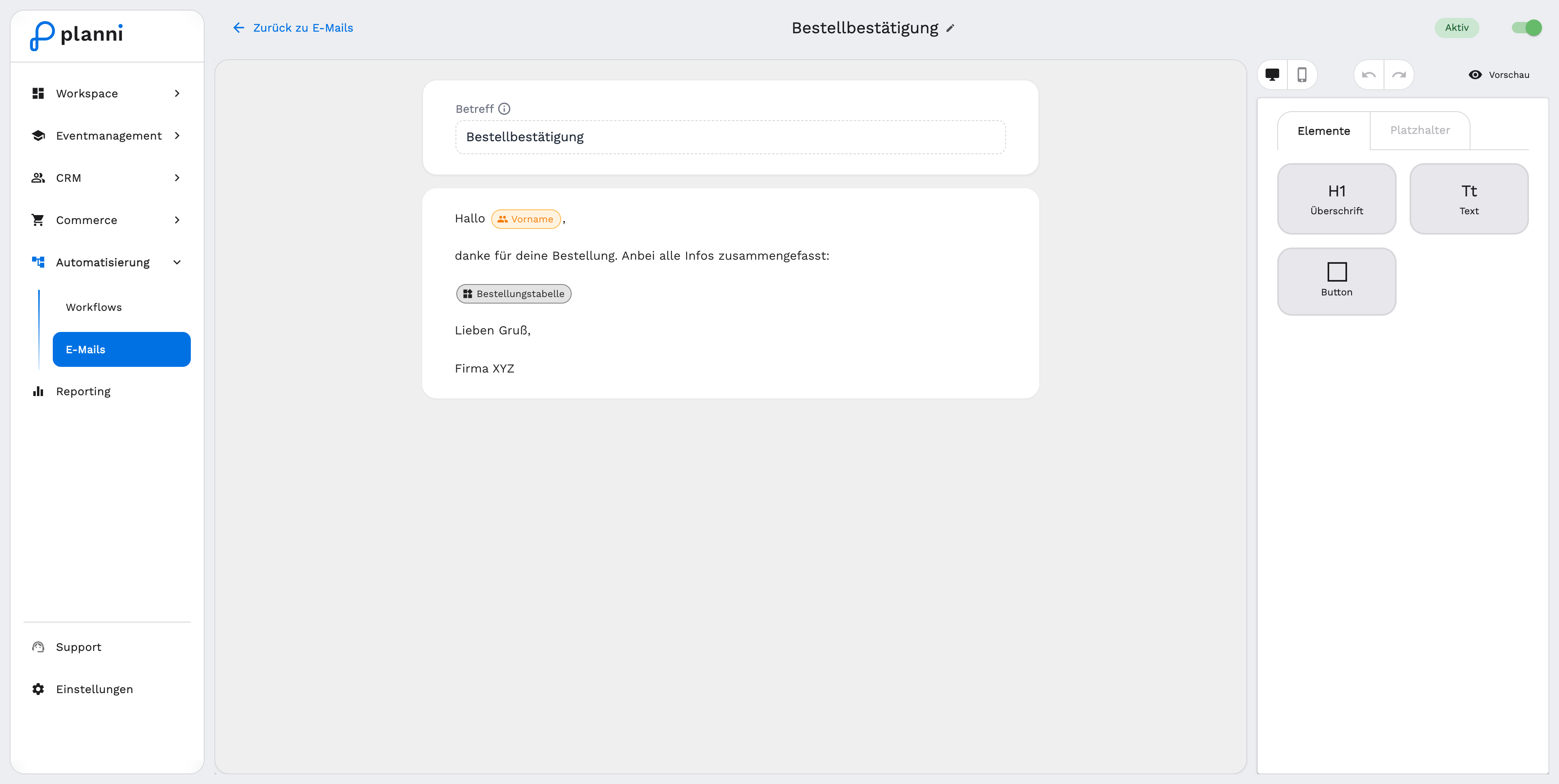
Enter the subject.
Add content through the "Elements" tab: a Heading, a Text block or a Button.
Add placeholders wherever content should differ per recipient, for example the first name or an order table. planni inserts them as a chip in the text.
On the right you see the preview, as either a Desktop or Mobile view, and you can correct changes with Undo and Redo.
Setting placeholders and recipients
Switch to the Placeholders tab:
Choose a trigger. It determines which variables are available, for example "Order Created" or "Attendee Registered". If you already used a placeholder in the content, planni selects the matching trigger automatically.
Under "Who receives this email?", set who the variables apply to, depending on the trigger for example Beneficiary / Attendee or Invoice Recipient / Orderer.
Pick from the available variable groups, such as Order, Orderer Information, Beneficiary, Product, or widgets like an event or order table.
Activating the template
Toggle the Active switch at the top right. Only active templates can be selected as an action in a workflow. Use Preview to check the result before activating the template.
Result
Your template becomes available in workflows as an email action. When it is sent, planni fills each placeholder automatically with the data from the specific trigger.
Pitfalls
A placeholder stays empty or shows raw text
Check that the chosen trigger matches the variable. A variable from an order does not work in a template set to an event trigger, and vice versa.
The template cannot be selected in the workflow
Switch the template to Active in the editor. Deactivated templates do not appear in the email action's selection.