Reporting
View revenue, product performance and attendee numbers as charts.
What this covers
What Reporting shows
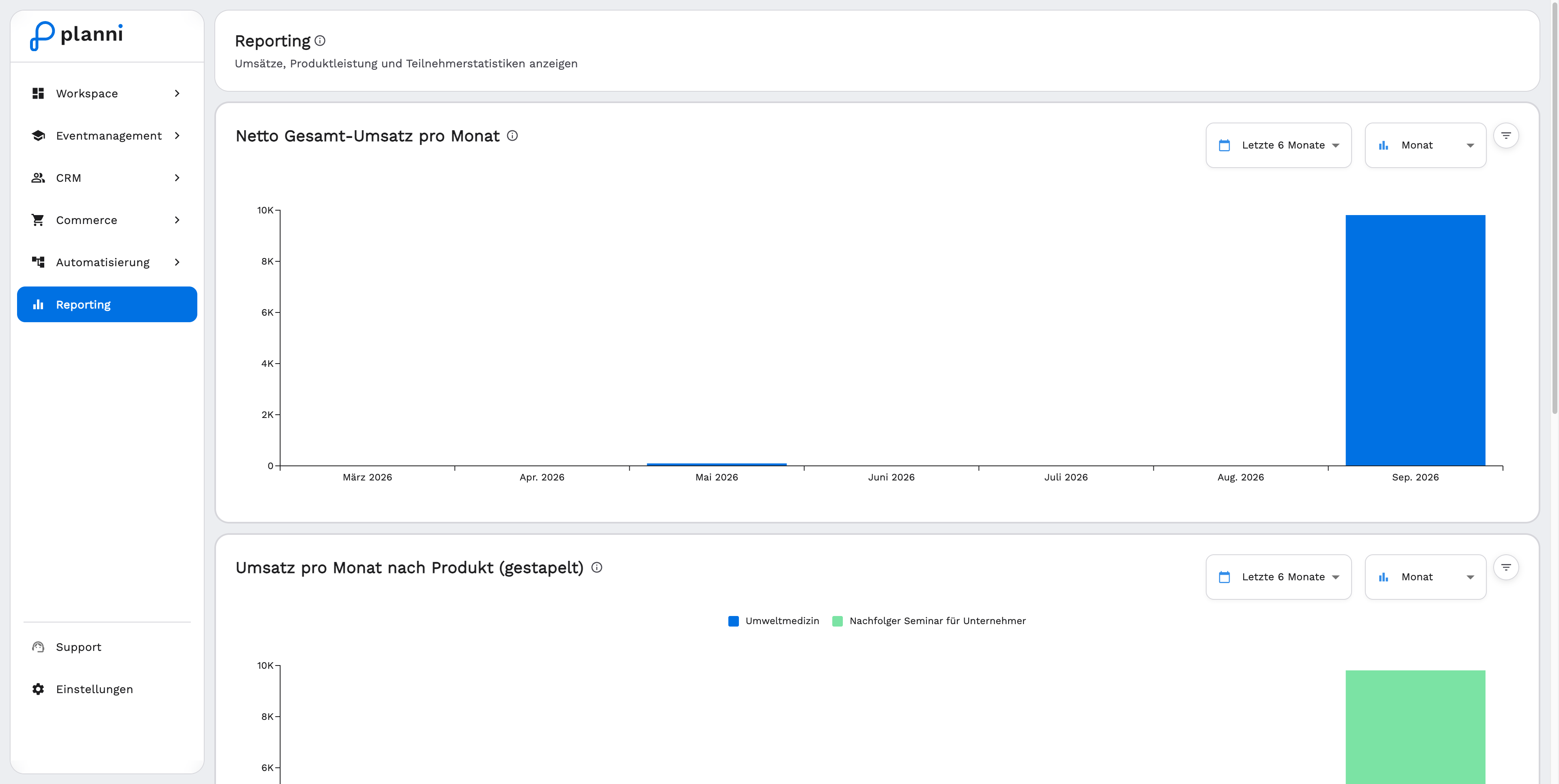
Reporting brings together three charts on revenue, product performance and attendee numbers. All three draw on the same order and event data you see under Commerce and Event Management, just evaluated over a period instead of as individual records.
Individual figures as a tile, such as this week's revenue, are also available on the Dashboard.
Requirements
None in particular. The charts fill in automatically once orders and event registrations exist, an empty period simply shows an empty or flat chart.
The three charts
Net Total Revenue per Month
This chart shows the net revenue (excluding VAT) sold through planni per period. A completed order is decisive, manually recorded payments without an order do not flow into the revenue shown here.
Revenue per Month by Product (Stacked)
The same principle as total revenue, but split by product: each bar is made up of the individual products' shares, so you can see which product contributes how much to a period's revenue.
Attendees per Month by Product (Stacked)
Shows the number of attendees per period, also stacked by product. What counts is confirmed attendees at events, not the orders themselves.
Adjusting the period, grouping and filters
Step by step
Choose the period directly on the chart, for example "Last 6 months" or "This year". Which presets are available depends on the grouping you have chosen.
Choose the grouping: Day, Week, Month or Year. Change the grouping and planni automatically suggests a matching period, for example "Last 30 days" for daily grouping.
Open the filter icon at the top right of the chart if needed. It appears when you hover over the chart, and opens a "Filters" panel with period, grouping, and Locations, Products and Categories for further narrowing.
Optionally narrow the results by location, product or category. Active filters appear as chips under the chart title and can be removed individually via the X, or all at once via the reset icon in the filter panel.
Result
The chart updates immediately, with nothing extra to confirm. Period and grouping only affect that one chart, not the other two.
Pitfalls
"Net" in both revenue charts refers to the amount excluding VAT, and only to orders placed through planni. An invoice you created manually without a matching order does not appear in these charts.
Switching the grouping from Month to, say, Day jumps the period to a shorter preset. That is intentional, a daily chart spanning several years would barely be readable, but you can work around it with a custom period in the filter panel.