Creating and maintaining a contact
Capture master data and keep it current.
Before you start
What a contact is in planni
A contact is a person: someone you deal with, an attendee at an event, or someone who has placed an order with you. planni does not assign the contact type by hand, it derives it and shows it as a chip in the "Contact details" area: as soon as someone is registered for an event they get the "Participant" label, as soon as they have placed an order they get the "Customer" label. A contact can carry both at once, or neither, in which case the display stays empty.
A contact can be linked to one or more companies, but does not have to be. How that link works is covered in Companies and links.
What you need first
Nothing but an email address. That is the only required field when creating a contact, everything else, including first and last name, can be filled in later.
Creating the contact
Step by step
Open "Contacts" under the CRM section and click Create Contact in the top right.
Enter the email address. planni checks while you type whether a contact with that address already exists.
Add first and last name, if known. Both fields are optional.
Optionally assign one or more companies. Type the company name into the search field and pick from the results.
If needed, open the "Custom Fields" section and fill in the extra fields set up for contacts. This section only appears once at least one such field has been created under Settings, and is collapsed by default.
Click Save.
When the email address is already taken
If planni finds an existing contact with the same address while you type, a warning appears with a link to that contact. Saving is blocked until you either enter a different email address or open the existing contact and continue there instead.
This keeps duplicates from happening in the first place: two contacts with the same email address cannot exist in planni.
After creating it
What you are looking at
planni opens the contact's detail page.
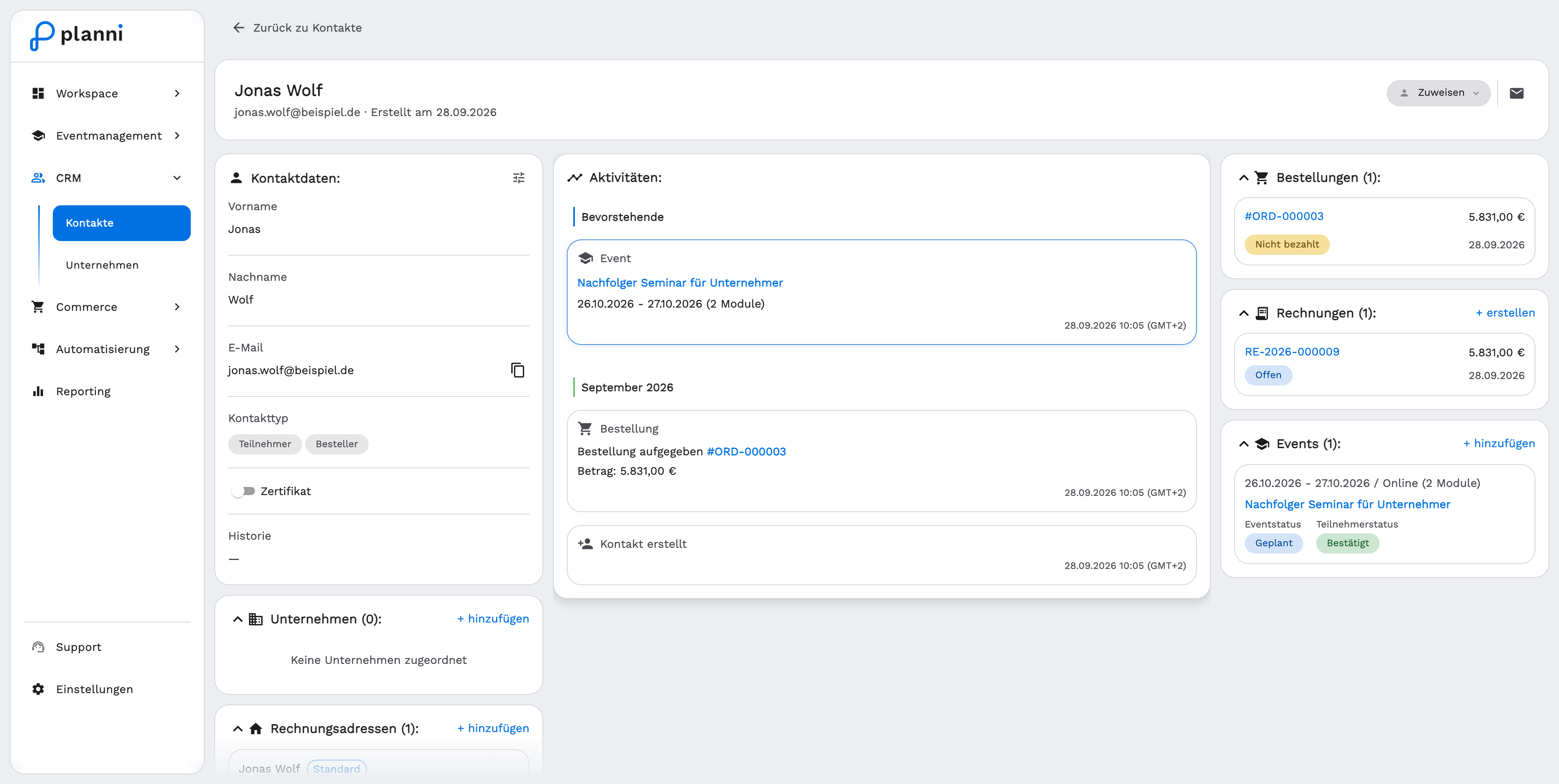
At the top are the name plus email address and creation date, and to the right Assign (a person responsible for this contact) and an envelope icon to write an email to the contact directly.
On the left are the "Contact details", "Companies" (+ add) and "Billing addresses" (+ add) areas, in the middle the activity with upcoming dates and a timeline (e.g. event registrations, "Contact created"), on the right the Orders, Invoices (+ create) and Events (+ add) areas with event and attendee status.
Editing master data
You change first name, last name and email address directly in the "Contact details" area: click the value, type the new one and confirm. Each field saves on its own, and a click on the copy icon next to the email address copies it to the clipboard.
The contact type (Participant/Customer) sits right below it and, as described above, is determined automatically.
Adjusting the fields shown
The icon at the top right of the "Contact details" area (tooltip "Configure displayed fields") opens the "Configure Fields" panel. There you drag fields into a different order, show or hide them with the eye icon, add further custom fields or create a new one, and reset the view to its starting state with Reset if needed. Confirm with Done.
Sensible next steps
- Assign a company if the contact belongs to an organization.
- Add a billing address if invoices regularly go to a different address.
- Register the contact for an event through Manage attendees.
When something does not work
I cannot save the contact
Usually the duplicate check is the reason: the email address you entered already belongs to another contact. Open the linked contact from the warning instead of creating a second one.
I cannot find the contact after creating it
The search on the contacts list covers first name, last name and email address. See Searching, sorting and paging for details.