Create Event
Turn a product into an event with modules in the wizard and publish it.
Before you start
What an event is in planni
An event is the frame. The actual dates sit inside it as modules. A one-day seminar has one module, a training that runs over four weeks has four. Attendees always book the event, never an individual module.
An event always comes from a product of type Event Product. The product carries how many modules there are, what they are called and what attendance costs. So you do not start from scratch: you pick what is being sold, then assign the dates for it.
What you need first
- A product of type Event Product. See Products and categories for how to create one.
- A location if the event takes place on site, or an online link instead. See Locations.
- The trainers as users in the system, if you want to assign them during creation.
If a location or a trainer is missing, you can still create the event as a draft and add both later.
Creating the event in the wizard
Step by step
Open "Events" under Event Management and click Create Event in the top right. The wizard walks you through four steps: Type, Details, Modules and Review.
In the "Type" step, choose the "Single Event" card. This creates an event with one or more modules, you schedule the dates for it in the next step.
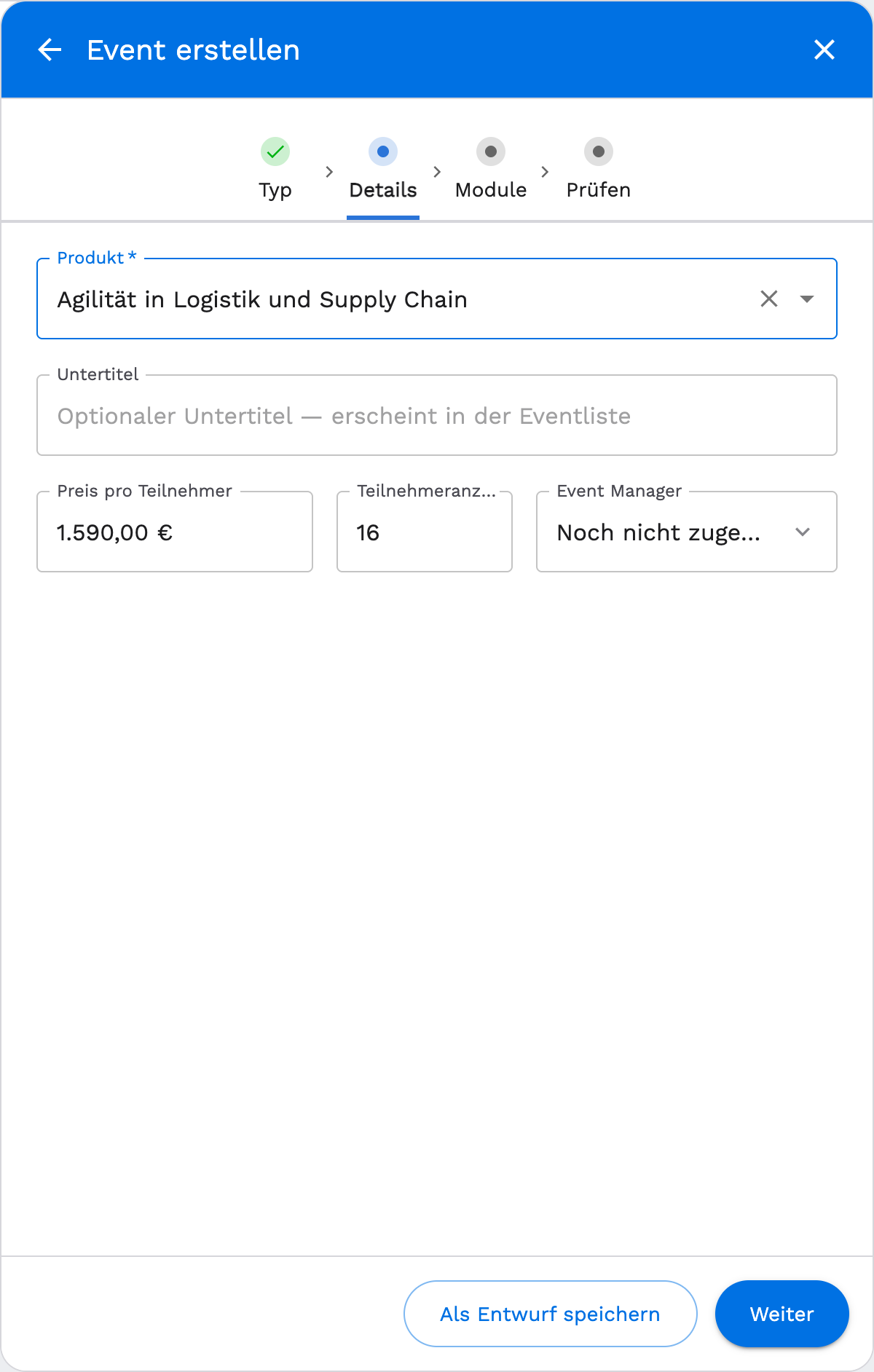
In the "Details" step, pick the product. As soon as you select it, planni fills in the price per attendee and the participant count from the product, both can be overridden for this one event. The subtitle is optional and later appears in the event list. Use the Event Manager field to assign a responsible person now, or leave it as "Not yet assigned".
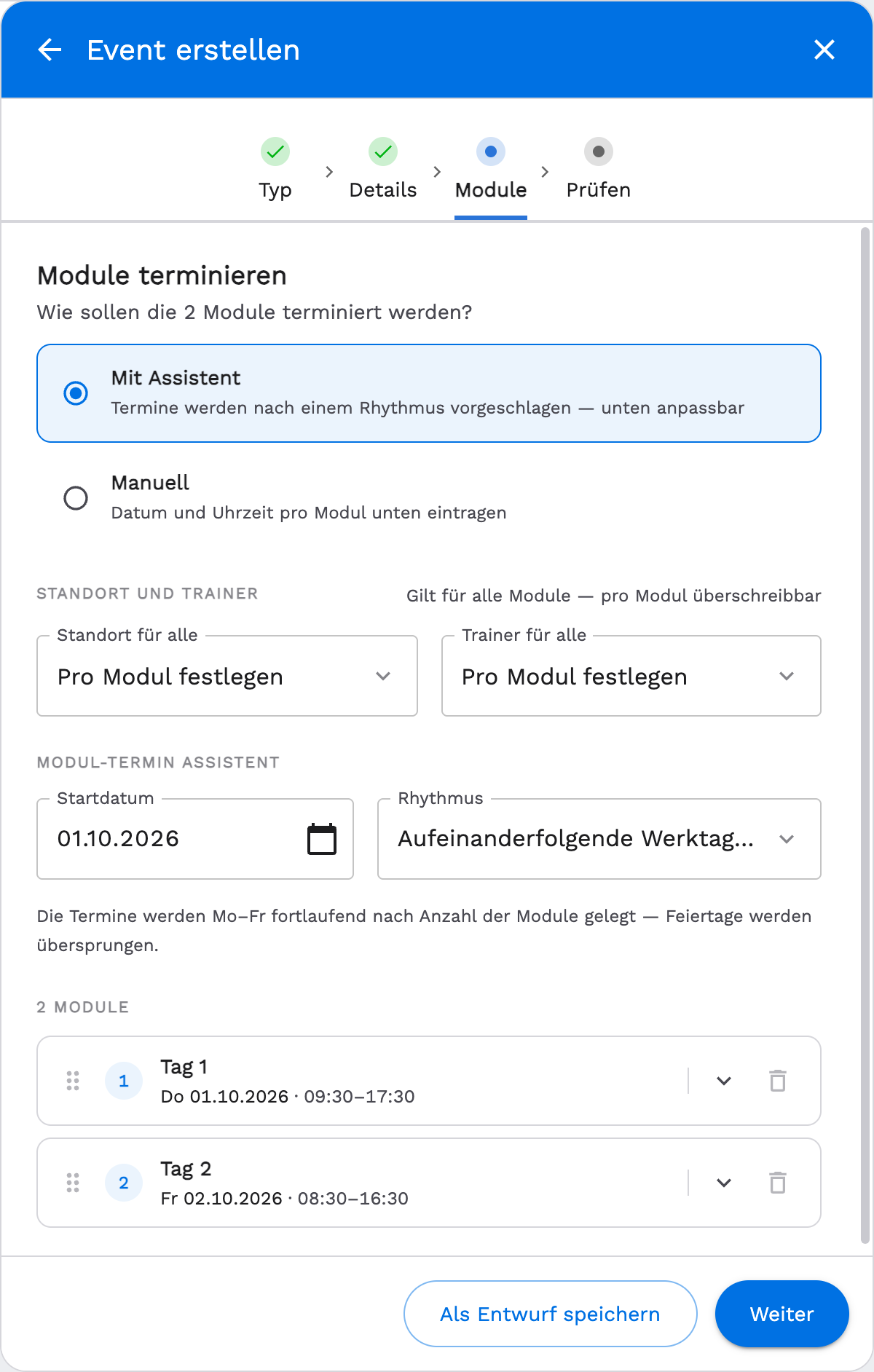
In the "Modules" step, schedule the dates. Choose between With Assistant and Manual. Use Location for all and Trainer for all to set both once for the whole series, each can still be overridden per module.
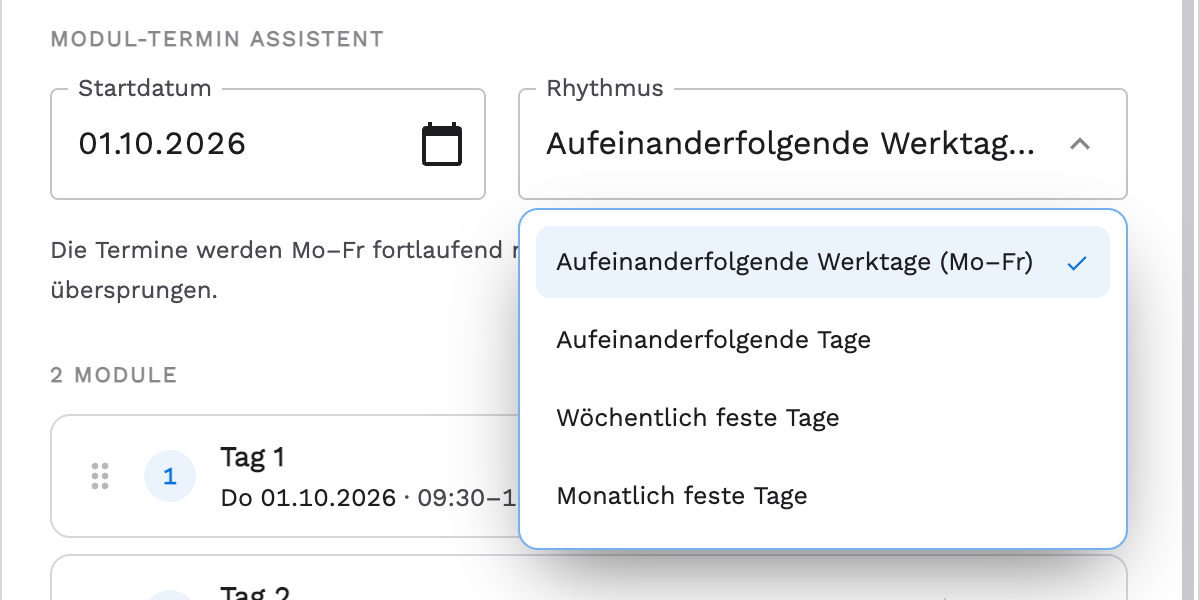
In "With Assistant" mode you set a start date and a rhythm: consecutive workdays (Mon-Fri), consecutive days, fixed weekdays weekly, or a fixed day monthly. For the workday, weekly and monthly rhythms, public holidays are skipped automatically; for consecutive days they are only marked.
In "Manual" mode you enter the date and time for each module yourself.
In the final step, review the summary with product, subtitle, modules, period, price per attendee, participant count, event manager and location.
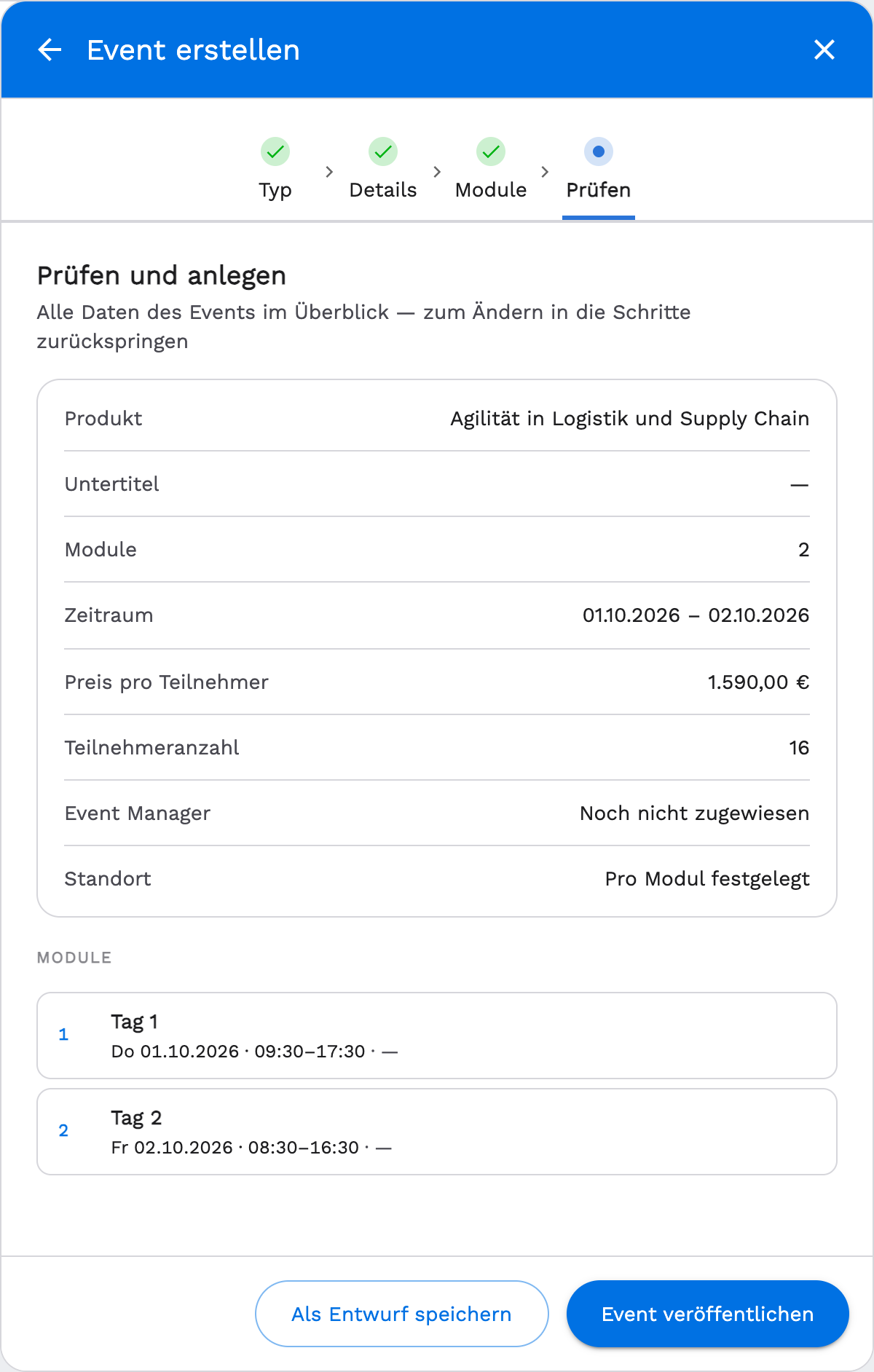
Finally choose between Save as Draft and Publish Event.
Modules can be added in any status except Cancelled. Attendees can be added in any status, as long as the event has at least one module that has not passed yet. More on this under Manage attendees.
Second way: through the Calendar
You do not have to start from "Events": click Create at the top of the Calendar menu item and choose Event. You end up in the same wizard.
Draft or published
The difference concerns one thing: whether the event appears in the booking widget on your website.
| Status | Visible to customers | When it makes sense |
|---|---|---|
| Draft | no | Dates are not final, the trainer is missing, or someone should proofread before it goes live. |
| Published | yes | Everything is set, the event should be bookable right away. |
A published event is only truly bookable once the checkout for it is embedded on your website. See Checkout.
After creating it
The event detail page
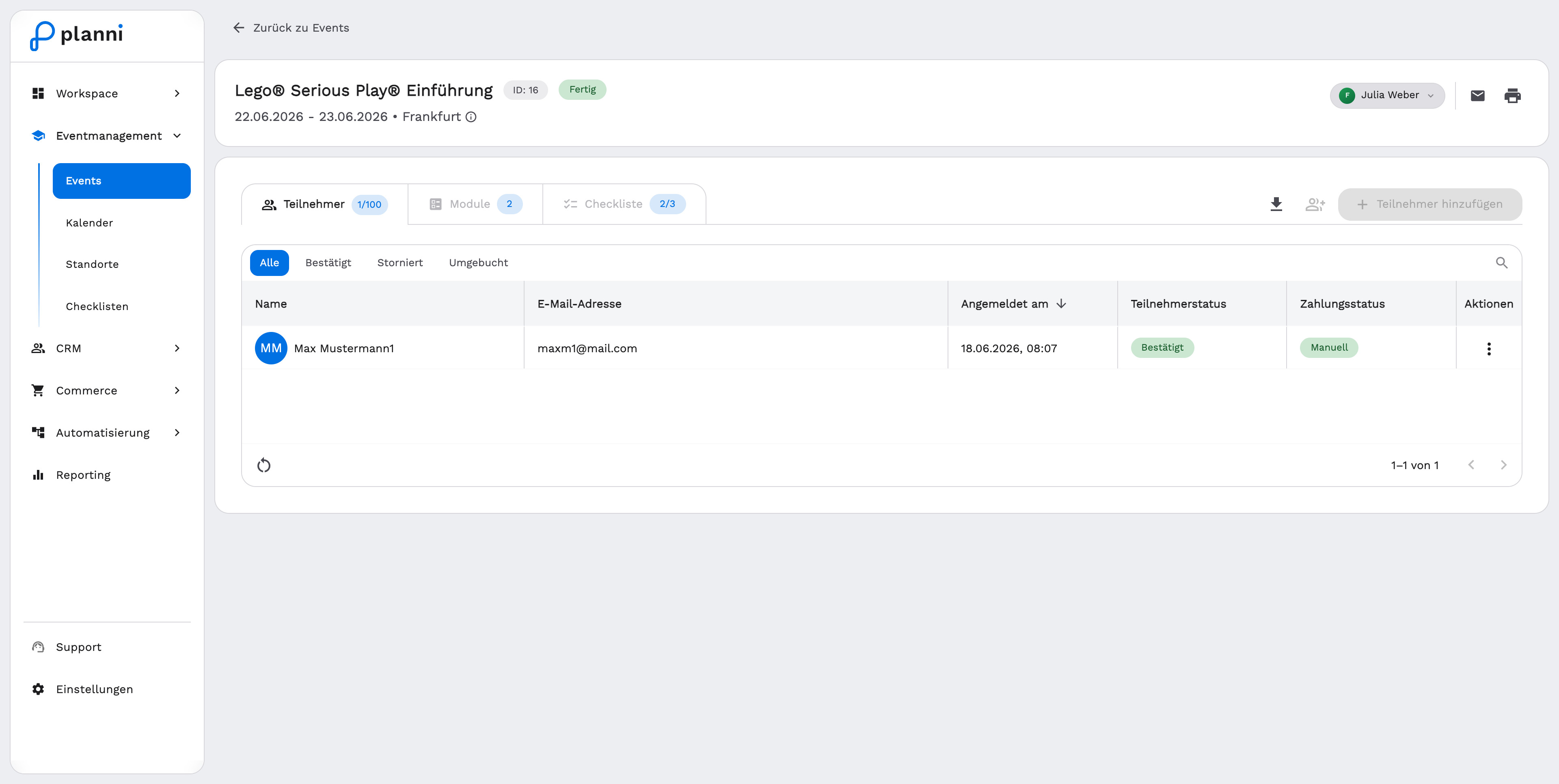
planni opens the event's detail view. At the top you see the title, an ID and a status chip with a menu, next to it the event manager as a chip and the icons for email, print and edit. Below sit the tabs Attendees, Modules and Checklist.
Changing the status
The status chip shows the current state and offers the relevant next steps through its menu. From a draft you get Publish, Cancel and Delete. On a published, planned or in-progress event the menu offers Set to Draft (planned only), Set Fully Booked and Cancel. "Set Fully Booked" sets the maximum capacity to the current number of confirmed attendees, so it is a capacity trick, not a separate, permanently stored status. Once an event is completed, the chip no longer offers any actions.
Email, print and edit
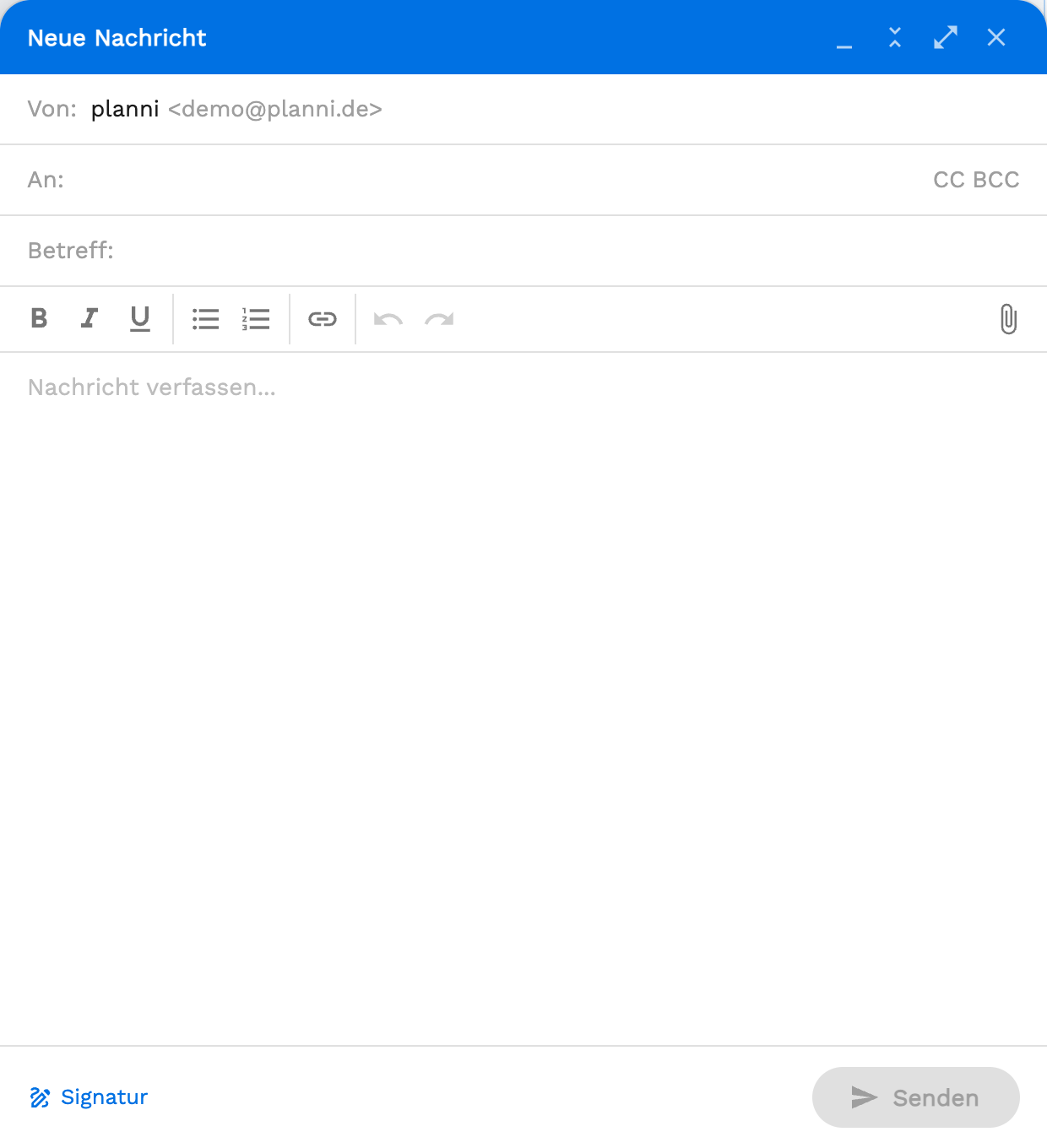
The envelope icon in the header opens the editor for an email to the attendees, with a sender, formatting, links, attachments and a signature.
The print icon opens the print preview, see Print attendee lists. The gear icon lets you edit the subtitle, description, maximum capacity and the Allow Overbooking option.
Sensible next steps
- Manage modules when dates shift.
- Manage attendees once the first bookings arrive or you add someone by hand.
- Work through Checklists in the event, if one is assigned to the product.
When something does not work
"Publish Event" cannot be clicked
There are two reasons, and planni names the relevant one in the tooltip:
- The event has no module. Without at least one date there is nothing to book.
- A module lies in the past. Correct the date and the button becomes active again.
The event is fully booked although seats should be left
Capacity counts every confirmed attendee, including the ones entered by hand. Raise the maximum capacity through the gear icon, or turn on Allow Overbooking. With overbooking, planni accepts bookings beyond capacity and marks the event as overbooked instead of blocking it.
Capacity is lower than the number of attendees
That is allowed, planni then shows the event as overbooked. It usually happens when capacity is lowered after the fact. As long as you do not want to turn anyone away, you can leave it as it is.