Calendar
Keep an overview of modules and calendar entries and schedule trainers.
What the calendar is for
The event list is not a calendar
The Events menu item shows your events as a table with date columns, not as a monthly or weekly grid. If you are looking for a graphical timeline, the Calendar menu item is the right place: here you manage your calendar, create events or calendar entries, and keep an eye on your users' working time.
Do not mix up the two areas: in the event list you edit the content and structure of an event, in the calendar you assign people to dates.
Inside the calendar
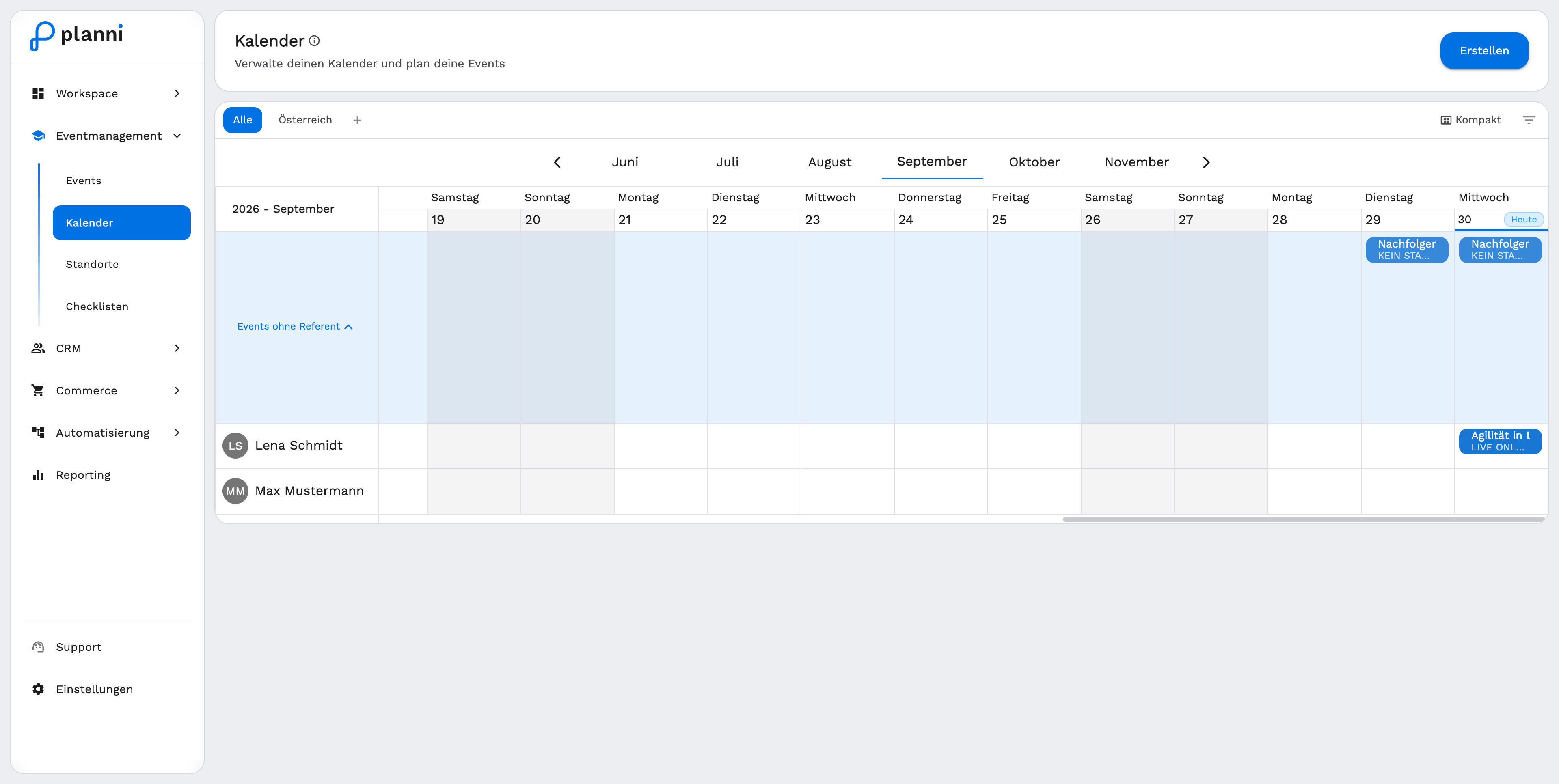
One row per trainer
Instead of a classic monthly calendar, you see a timeline: one row per user, holding their modules and calendar entries. Modules without an assigned trainer appear collapsed together in the Events without trainer row. Every event tile shows the name and the place, its colour comes from the product's calendar colour. Weekends are shaded grey, today is highlighted.
Condensing the view
The Compact toggle at the top shrinks the rows, useful when you work with many users at once and want to see more at a glance.
Views and filters
Saved views
Use the view tabs (All, your own saved views and +) to switch between different sets of filters. The filter icon opens the View panel, where you set filters and display options and keep them permanently with Save as New View.
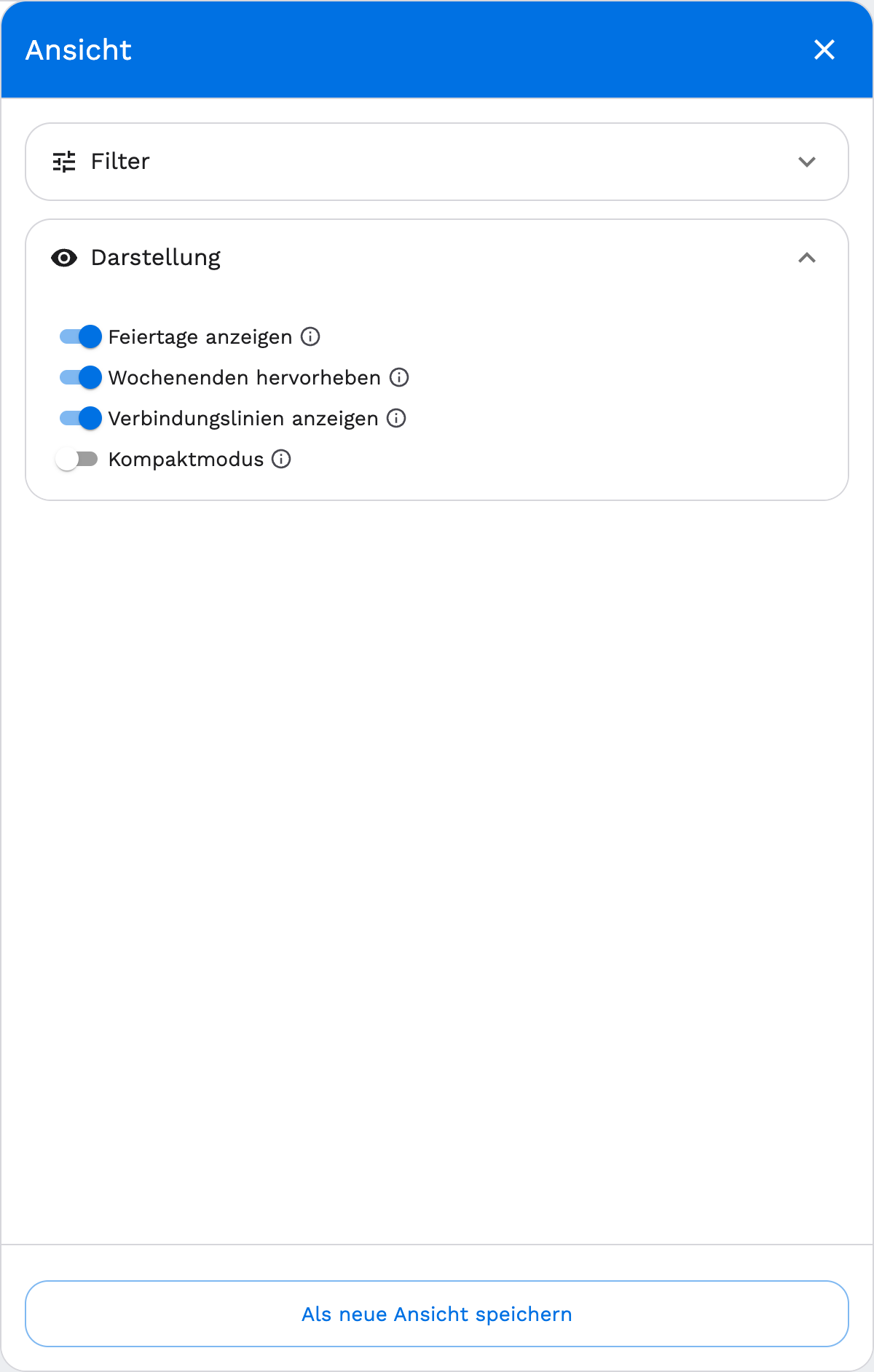
The panel has two areas:
- Filters: User, Product, Event Module Status and Calendar Type. Create calendar types under Calendar Types.
- Display: show holidays, highlight weekends, show connection lines (between split modules assigned to several trainers) and compact mode.
Creating entries
Event or calendar entry
Click "Create" at the top of the calendar. planni asks what you want to create.
Choose "Event" to create a new event with modules, as described in Create Event.
Choose "Calendar Entry" instead to record a user's vacation, illness or another absence. A calendar entry is not an event and does not appear in the booking widget.
Editing or deleting a calendar entry
Open the entry directly in the calendar to change its time range or the assigned user, or delete it through the action menu once an absence no longer applies.