Locations
Set up physical locations and online meeting settings once and use them in as many modules as you like.
Goal
Locations are not part of an individual event, they are their own area in the Event Management menu. You set them up once and then use them in as many modules as you like.
Physical or online
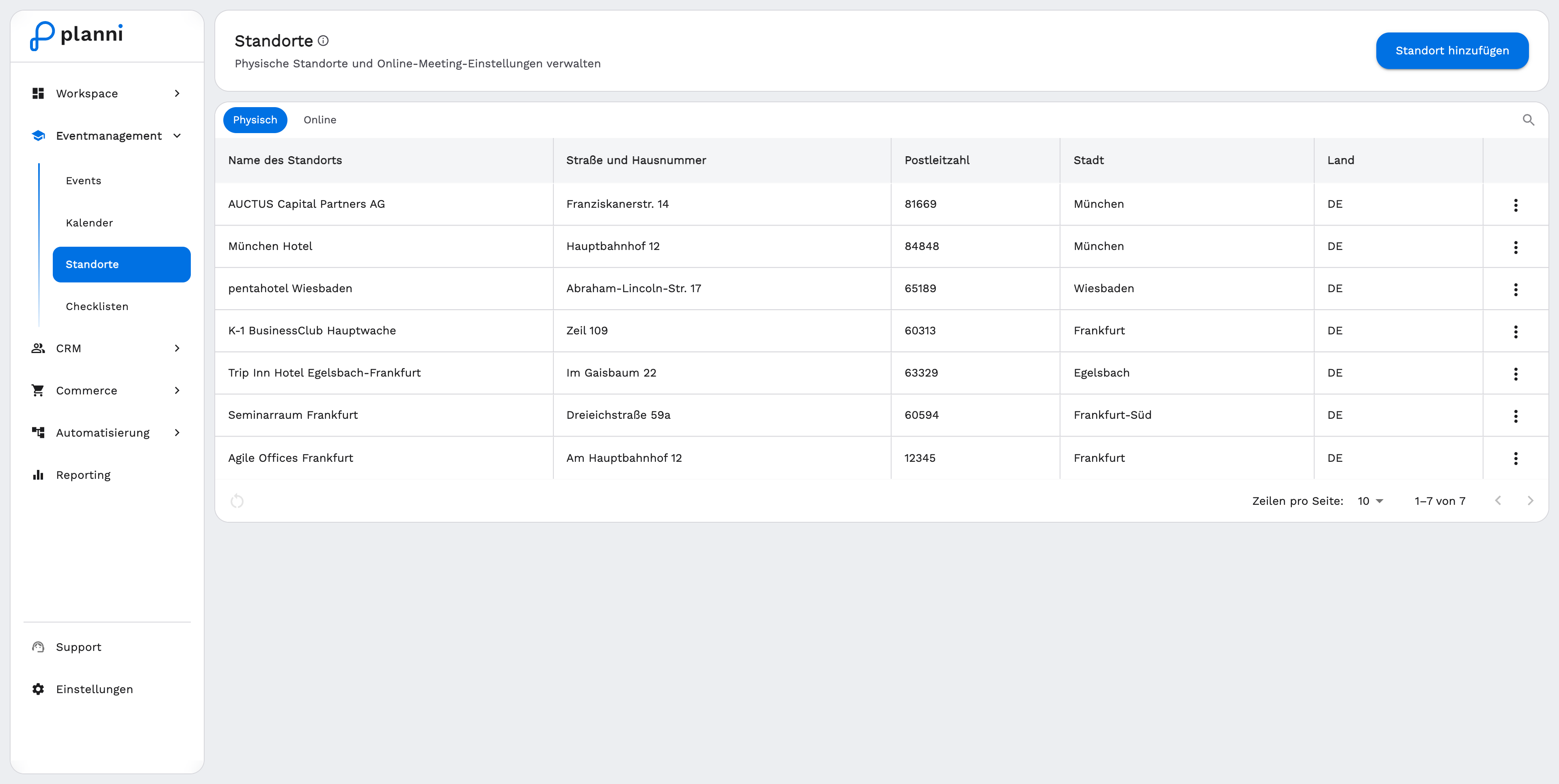
The location list is split into two tabs.
- Physical: location name, street and house number, postal code, city and country.
- Online: name, link, access code and platform.
A location has no capacity field of its own. You set the maximum capacity on the event itself, not on the location. See Create Event.
Adding a location
Step by step
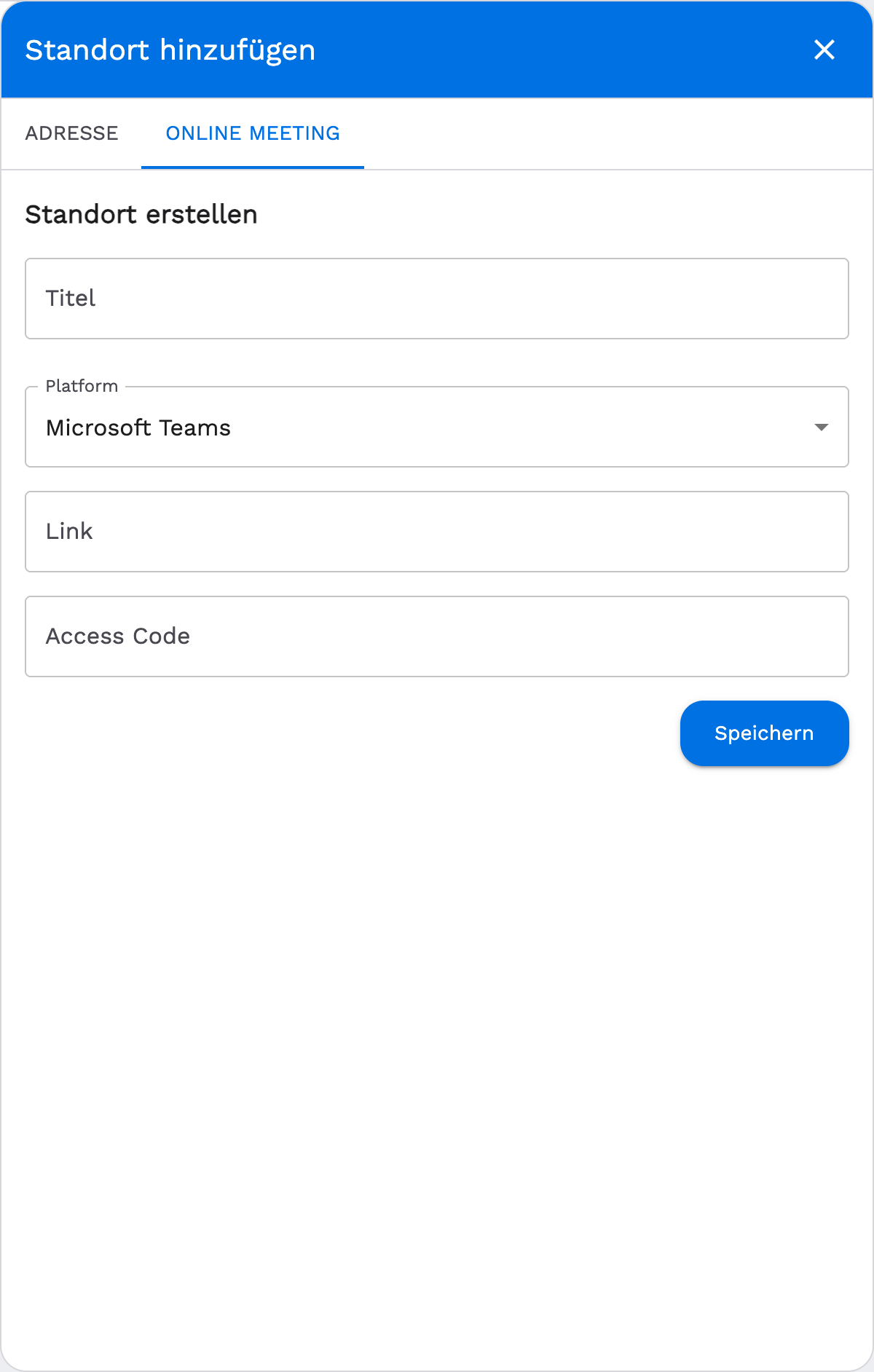
On the Locations page, click "Add Location". planni opens a side panel with the two tabs Address and Online Meeting.
For a physical location, fill in the Address tab: location name, street and house number, postal code, city and country. The country dropdown offers Germany, Austria and Switzerland.
For an online meeting, switch to the Online Meeting tab: title, platform (Microsoft Teams, Zoom or Custom), link and an optional access code.
Save the location.
A location's type is fixed once it is created. A physical location cannot later be converted into an online one, and the other way round.
Editing or deleting a location
When a location cannot be deleted
planni refuses to delete a location while it is still used in at least one module, and lists the affected modules by name. Remove or change the location in those modules first, then the entry can be deleted.