Manage Modules
Edit, cancel or reschedule the dates of an event.
Modules in the detail view
Where to find modules
Open the event and switch to the Modules tab. There you see every date of the event as a table with Name, Date, Start Time, End Time, Status, Location, Trainer and Actions. Use Create Module in the top right to add another date.
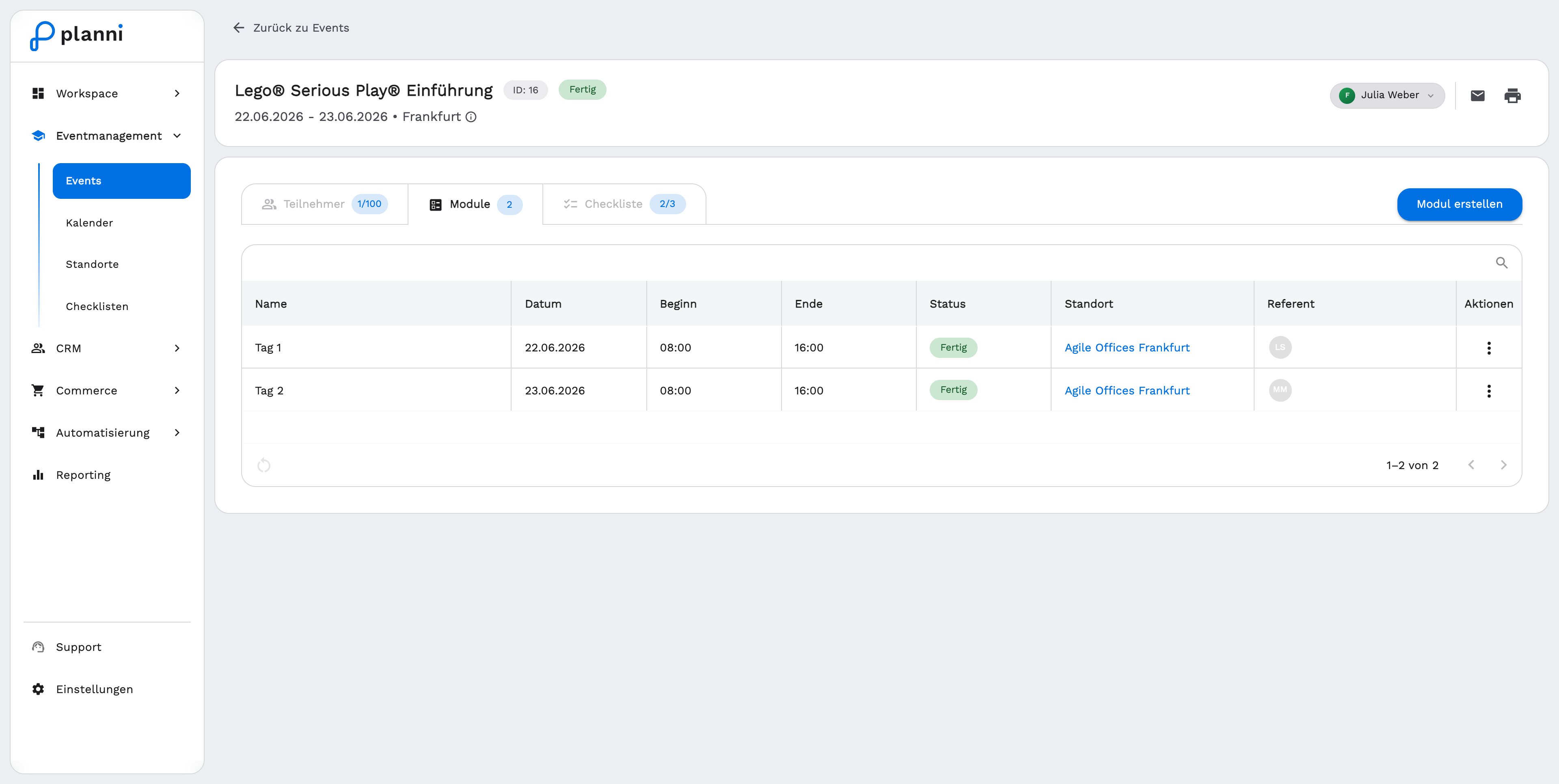
Editing a module
Click the three-dot menu on the module's row and choose Edit. Alternatively, open the module directly by clicking the row.
Adjust title, date, start time and end time. All four fields are required.
Pick the location through the search field. The location is optional, so you can save a module without a fixed place and add one later.
Assign one or more trainers. The field allows multiple selections, because a module can also be run by several people together.
Save the change.
Changing it directly in the table
For location and trainers, you do not always need to open the dialog: click directly on the entry in the Location or Trainer column in the module table to edit it inline. That is the faster route when you only need to correct a single assignment.
Module status and actions
Status overview
| Status | Meaning |
|---|---|
| Draft | Module of an event that has not been published yet. |
| Planned | The date lies in the future. |
| In Progress | The date is currently happening. |
| Completed | The date is over. |
| Cancelled | You have actively cancelled the module. |
A module taking place today is additionally highlighted as "Today" in the table.
Edit, cancel, duplicate
Depending on the module's state, the three-dot menu offers these actions:
- Edit: opens the edit dialog.
- Publish / Unpublish: removes a single module from the booking widget or puts it back in, independent of the parent event's own status.
- Duplicate: creates a copy of the module.
- Cancel: marks the module as cancelled without deleting it.
- Reschedule: undoes a cancellation, provided the date still lies in the future. The module gets its regular status back.
- Delete: removes the module permanently. This is generally only possible while the event is still a draft, or once the module has already been cancelled.
A module that is currently running (In Progress), or one whose event is already completed, can no longer be edited. A cancelled module can only be edited again after it has been rescheduled.