Checklists
Create checklist templates that events pick up automatically, and work through items in the event.
Goal
Checklists help you avoid forgetting recurring tasks around an event, such as "Documents sent?" or "Hotel confirmed?". You create a checklist template once and assign it to one or more products. Every event created from one of those products picks up its items automatically.
Managing checklist templates
The Checklists page
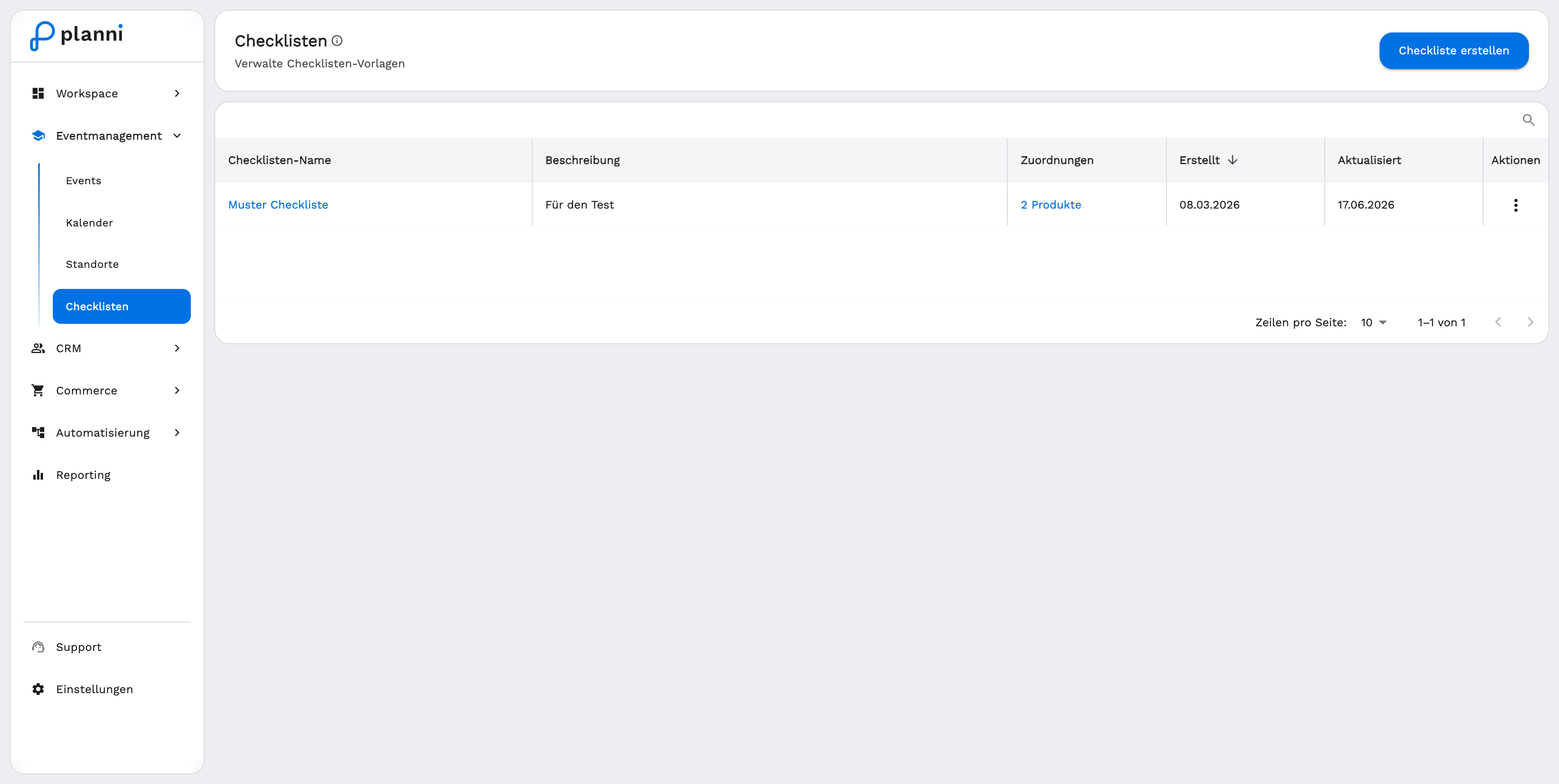
Open Checklists in the Event Management menu. The table shows your templates with Checklist Name, Description, Assignments (e.g. "2 products"), Created, Updated and Actions.
Creating a template
Click "Create Checklist".
Give it a checklist name and, optionally, a description.
Add the checklist items. At least one item is required, the order can be adjusted by dragging.
Assign the checklist to one or more products, so it automatically appears in their events, and save with Create Checklist.
A template's action menu also offers Edit, Duplicate and Delete.
If you later change a template's product assignment, planni offers to carry the change over to existing events. Events that are already cancelled or completed are left untouched.
The checklist inside an event
Loaded automatically or manually
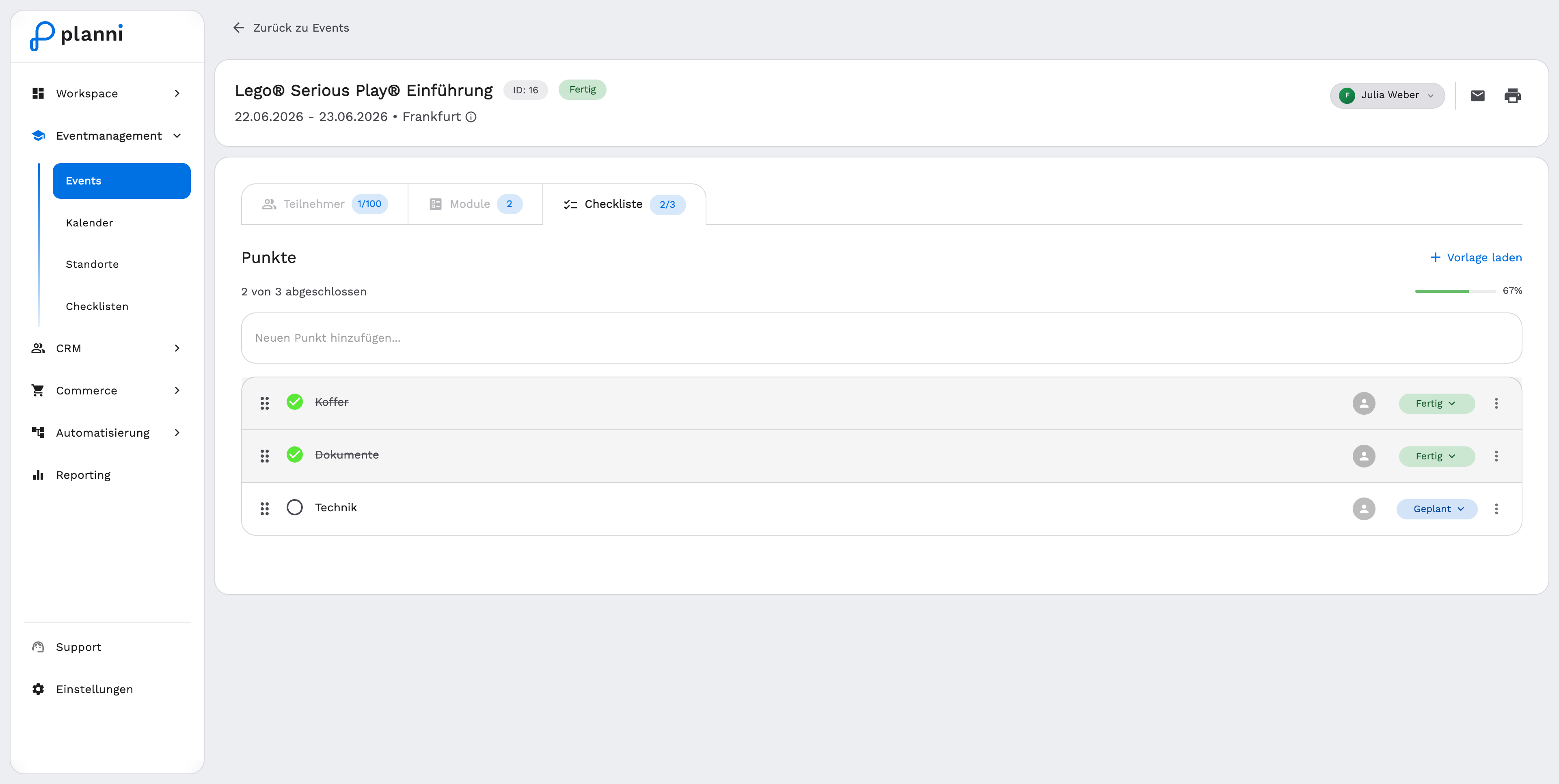
If a checklist is assigned to an event's product, its items appear automatically in the event's Checklist tab when the event is created. You can also use Load Template there at any time to pick further templates from all your existing ones and add their items, independent of the assigned product.
Working through items
Tick off an item using the circle on the left. The progress bar and the "x of y completed" count update immediately.
Assign a person if needed, by clicking the item's person icon and searching for a user. Each item can be assigned to one person.
Change the status through the status chip if an item needs more than just "done" or "open": Planned, In Progress or Completed.
A checklist item's status (Planned, In Progress, Completed) is independent of the event's or module's own status, even though "Planned" is the same label.
Adding a new item
Use the "Add new item" field at the end of the list to add individual items directly in the event, independent of any template.