Getting to know the interface
Navigation, lists, filters and recurring controls.
The basic layout
The sidebar
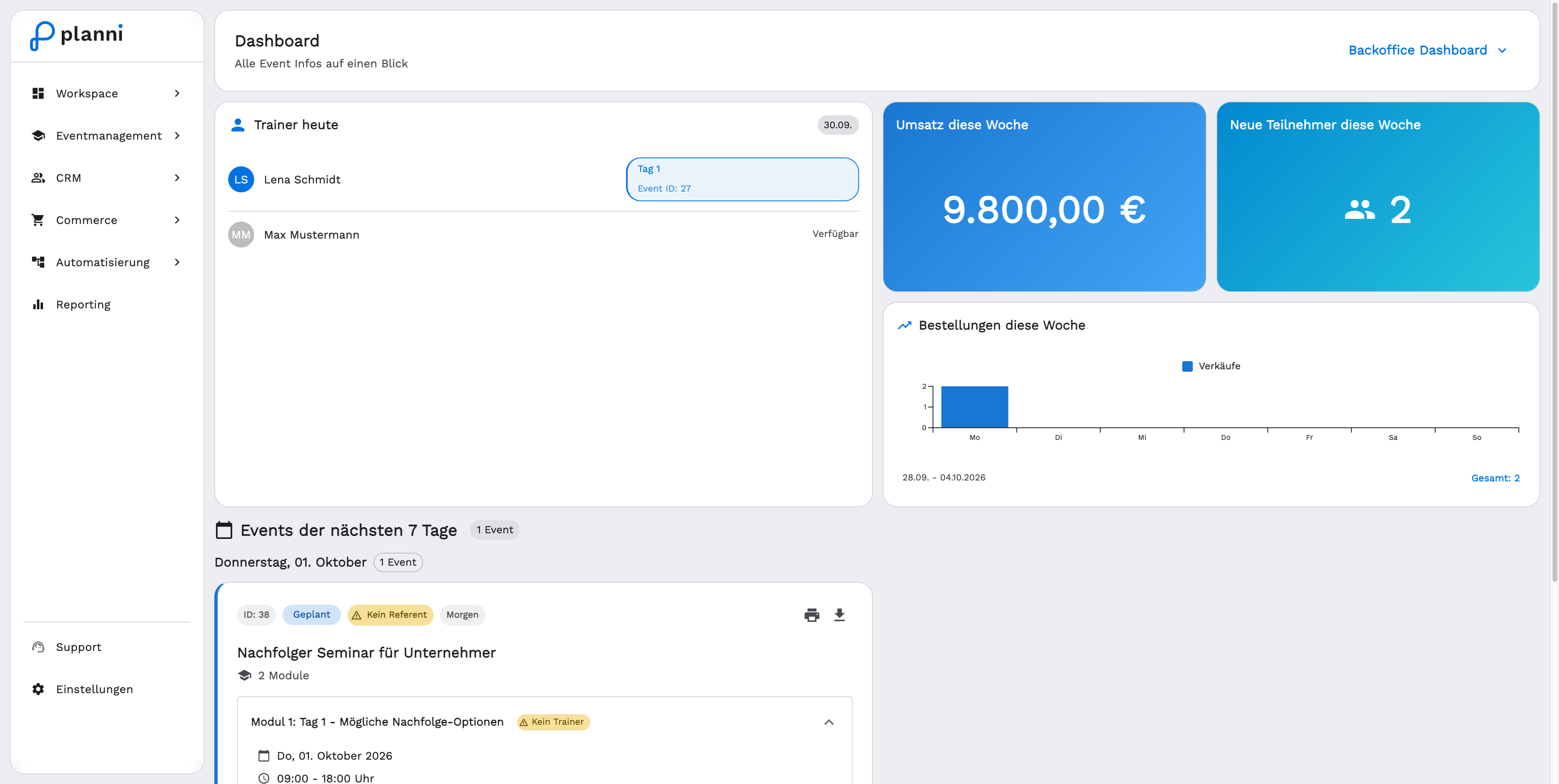
The main navigation sits on the left, organised into work areas:
- Workspace: Dashboard, Inbox
- Event Management: Events, Calendar, Locations, Checklists
- CRM: Contacts, Companies
- Commerce: Orders, Invoices, Categories, Products, Discounts, Checkout
- Automation: Workflows, Emails
- Reporting
Clicking an area opens its submenu, and clicking the arrow next to it again collapses it. At the very bottom of the sidebar sit Support, which writes to us directly, and Settings.
Not every menu item is visible for every role. What you see depends on your role, more on this under Roles and permissions.
Where language and design live
There is no header on the desktop: the sidebar is the entire navigation and the rest of the window belongs to the content. Language and the light or dark design are therefore not set at the top right but under Settings → My Account. That is also where you change your name and sign out.
Lists and tables
Search
Almost every overview list, whether events, contacts, orders or products, has a search field at the top. The search acts on the fields relevant to that list, for orders for example name, email address, company or order number.
Filtering, views and your own saved views
The filter icon narrows the list down by additional criteria, an active filter shows as a mark on the icon. Many lists also offer view tabs above the table: besides All, the + lets you save your own view with your filters. Clicking a column header sorts the list by it.
Opening rows
Clicking a row opens the detail view of that record.
Creating something new
Sidebars instead of dedicated pages
New records, such as a product or a user, are usually created through a sidebar that slides in from the right, rather than a dedicated page. After saving, planni briefly shows a success confirmation before the sidebar closes on its own.
Drafts and published content
Events also have a draft status: you create them without customers seeing them yet, and publish once everything is in place. More on this is in Create an event.
Settings has its own navigation
A second level on the left
Opening Settings switches the left navigation to its own submenu bar: My Account, Company, Email, Users, Objects (which holds calendar types and custom fields for contacts and orders) and Integrations (which holds API keys), plus Activity Log. Clicking another work area in the main navigation brings you back.
On a phone
What changes on the go
On narrow screens the sidebar gives way to a top menu bar with a menu icon. Lists can still be scrolled horizontally when a table is wider than the screen. Every core function stays reachable, but a larger screen still works better for editing larger amounts of data day to day.